How do I review the VAT register?
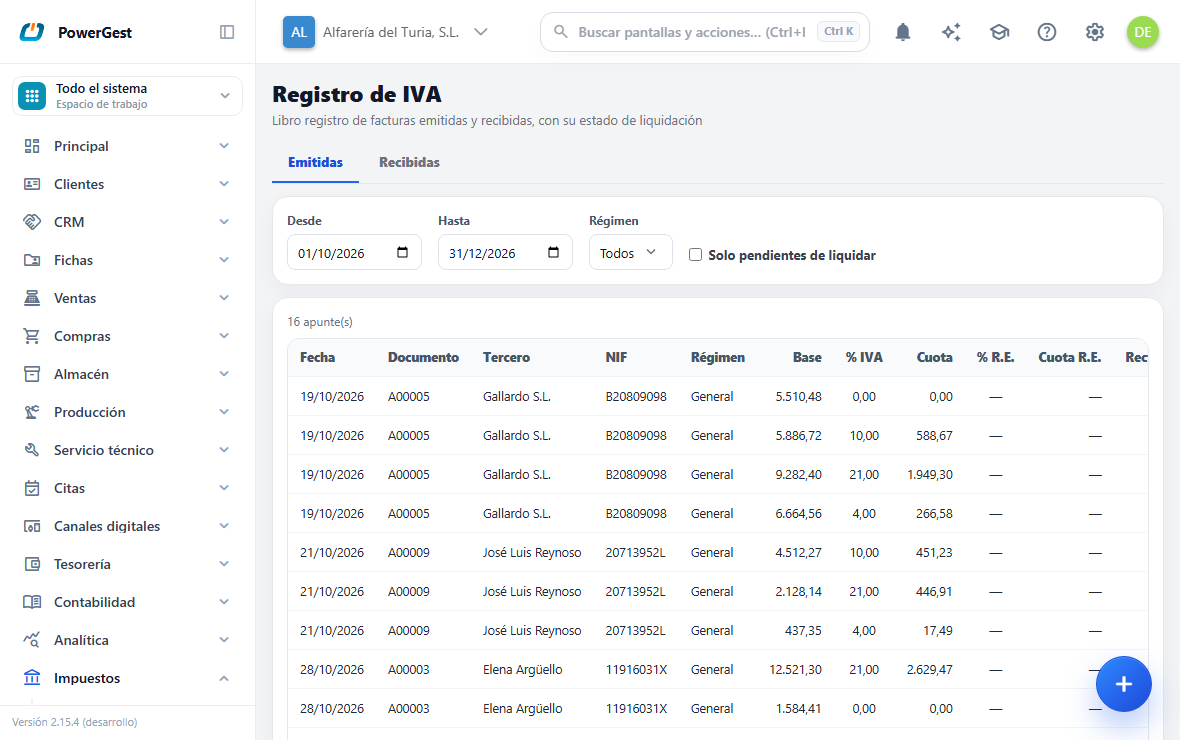
The VAT register is the list of issued and received invoices with their tax base, their rate and their VAT amount. It is what you go over before preparing a tax return and what your accountant usually asks for. This page explains how to look it up and how to read what it shows.
What do I need before I start?
Nothing special: the register fills itself. Each issued invoice, sales or purchase, records itself in the register the moment it is issued, with one line for each VAT rate it carries. Delivery notes, orders and quotes don’t record anything: only invoices and credit notes go into the register.
To see the screen you need the Taxes menu. If it doesn’t appear, the installation doesn’t have that module or your user doesn’t have access to it.
How do I do it?
- Go to Taxes and then to VAT register.
- Choose the tab: Issued for sales, Received for purchases.
- Adjust the From and To dates. The program suggests the current calendar quarter; you can enter whatever range you like.
- Choose a Scheme if you want to see a particular register —for example only exports—, or leave it on All.
- Tick Only those not yet in a return if you only want to see what hasn’t yet gone into any VAT return.
Each row shows the date, the document number, the business partner with their Tax ID (NIF), the Scheme, the Tax base, the VAT % and the Tax amount, and —if the invoice carries equivalence surcharge (RE)— the RE % and the RE amount. There are also two marks: Corrective and the Return column.
Below the list, the Totals by rate panel groups the range by VAT percentage, with the number of entries and a total row. Note: that panel adds up the whole range, even if you have ticked Only those not yet in a return; it is the tax summary of the complete period.
What is the Scheme column and what is the filter for?
The scheme says what that invoice was for VAT purposes, and it is what decides which register it appears in. It isn’t a property of the customer, but of the invoice: you can make a domestic sale and an intra-EU supply to a French customer, and each one goes to its own register.
| Scheme | When it is used |
|---|---|
| General | The normal case: a sale or purchase with Spanish VAT |
| Equivalence surcharge (RE) | Retail customer under the surcharge scheme |
| Reverse charge | The invoice arrives without VAT and the recipient declares it |
| Exempt | Transaction exempt from VAT |
| Export | Sale to a country outside the European Union |
| Intra-EU supply | Sale to a customer in another EU country |
| Intra-EU acquisition | Purchase from a supplier in another EU country |
| Import · Customs | Purchases from outside the EU |
The scheme is chosen on the document, in the Tax scheme drop-down. If it isn’t touched, the invoice is General, which is correct in most cases.
Invoices imported from the Desktop ERP bring their scheme from there, so the exports and intra-EU invoices you already had still appear in their register.
How do I get the invoice list with VAT broken down by rate?
With the reports in Taxes → VAT reports: Issued invoice list and Received invoice list, each one sorted by date, by invoice or by customer (or supplier). They produce one line per invoice with:
- the date, the number, the customer or supplier and their Tax ID (in received invoices, also the number the supplier gave it);
- the invoice Total (tax base, VAT and surcharge);
- one VAT x % column and one Tax base x % column for each rate;
- the Exempt column: the tax base of what goes without VAT (0 %);
- the RE, only if some invoice in the range carries equivalence surcharge.
Figures that are zero come out blank, so you can see at a glance which rates each invoice carries. The list sorted by date closes each month with its total; in Subtotals by you can change it to quarter or remove it.
In the report window you choose which rates come out in columns:
| VAT rates | Which columns come out | Page |
|---|---|---|
| 3 standard rates | The standard, reduced and super-reduced rates from your tax settings (21, 10 and 4 %), even if there is no invoice with one of them in the period | Portrait, if it fits |
| All (landscape) | All the rates on the period’s invoices, from highest to lowest | Landscape |
With 3 standard rates, an invoice with another rate —for example, one from a year in which VAT changed halfway through the financial year— isn’t lost: its tax amount and its tax base go to the VAT other and Tax base other columns, which only appear if needed. That way each line always matches its total.
Tick Sum of tax bases and VAT to add two columns with the sum of all tax bases (Tot. base) and of all tax amounts (Tot. VAT) on each invoice.
To see only the invoices of one scheme, such as those with reverse charge, choose that scheme in the Scheme drop-down.
To see only the large invoices, type a figure in Amount greater than: the invoices whose Total (tax base, VAT and surcharge for all their rates) reaches that figure come out. The whole invoice is looked at, not each rate separately: an invoice of 100 € at 21 % and 50 € at 10 % counts as 176 €, and it comes out complete or not at all. A credit note has a negative total, so with a positive figure it doesn’t appear.
What does the Return column mean?
Each register line shows whether it has already been included in a VAT return or not.
- Pending: the line isn’t in any return yet. It will go into the next one generated with an end date equal to or later than its own.
- A date range (for example
01/01/26 - 31/03/26): the line was included in the VAT return for that period.
The control is line by line, not by month. That is why a purchase invoice that arrived late and stayed Pending isn’t lost: it goes into the next VAT return even if its date is from an earlier quarter.
Why does an invoice come out negative or marked as Corrective?
A credit note goes into the register with the tax base and the tax amount in negative and with the Corrective mark: that way it subtracts from the period’s VAT instead of adding. That is the correct behaviour.
Lines with the Corrective mark also appear when an invoice whose month was already closed or in a return is corrected or voided: the program doesn’t delete the original line, it adds another with the amounts in negative and dated today. The detail is in What happens to VAT if I correct or void an invoice?.
Do journal entries typed by hand appear in the register?
Yes. A manual journal entry with lines in its Journal entry VAT (purchase/sale) panel records in the register just like an invoice, on the tab that matches its direction. How to fill in that panel is in How do I make a manual journal entry?.
Can I see the register of a year that isn’t the one I have open?
Yes. Set From and To to that year’s dates: each line shows its invoice number and the name and tax ID of the customer or supplier, even if the invoice belongs to a financial year other than the one you have open.
Where do the number and the name of what came from the desktop ERP come from?
The VAT register that comes from the desktop ERP goes in exactly as it was declared. If its invoice or its customer were brought over too, the line shows the invoice number and the record’s details. If not —an invoice of a type that isn’t brought over, or a customer without a record—, the line shows what the desktop register says: its invoice number, the tax ID and the name of the customer’s or supplier’s account.
If something goes wrong
| What you see | What has happened | What to do |
|---|---|---|
| What came from the desktop ERP has no number or name | It was brought over before the register kept those details | Ask support to bring the VAT register over again: it is completed without duplicating anything |
| An invoice doesn’t appear | The date is outside the range, or you are on the wrong tab | Widen From/To and check Issued/Received |
| A delivery note doesn’t appear | Delivery notes don’t record in the register | Invoice the delivery note; the invoice does record |
| The panel total doesn’t match the sum of the rows | You have ticked Only those not yet in a return; the panel adds up the complete range | Untick the filter to compare |
| A line comes out negative | It is a credit note, or the correction of an invoice from a closed month | Nothing: it is expected |
| An export appears as General | The invoice was issued without choosing a scheme | Open the invoice and choose Export in Tax scheme |
| The Scheme filter doesn’t offer the one I’m looking for | There are sales schemes and purchase schemes | Switch tab: Import and Customs only appear in Received |
| The tax amount doesn’t match the current invoice | The register is rebuilt when the invoice is modified; if it doesn’t match, there is a corrective line as well as the original | Check whether there are rows with the Corrective mark for that document |
| ‘The VAT register could not be loaded’ | Error reading the data | Try again; if it persists, tell support |
See also: What happens to VAT if I correct or void an invoice? · Make a manual journal entry