How do I turn a quote into a sales order, a delivery note or an invoice?
You don’t need to type anything again. A document is converted into the next one and takes its lines with it. What has already been delivered or invoiced is taken off, so you can deliver a sales order in several goes without keeping count by hand.
What can be converted into what?
In sales, the journey is this:
| From | Can be converted into |
|---|---|
| Quote | Sales order · Production order · Delivery note · Invoice |
| Sales order | Production order · Delivery note · Invoice |
| Production order | Delivery note · Invoice |
| Delivery note | Invoice |
| Invoice | Credit note |
In purchases the journey is the same —supplier quote → purchase order → goods receipt → invoice, and the credit note comes from the invoice—, but today purchase documents come in through the document import, not through an editing screen of their own.
You don’t need to go through every step. If you want to go straight from a quote to the invoice, you can.
If your company uses pro forma invoices, the quote and the sales order can also be converted into a Pro forma invoice, and the invoice comes from it.
What does the quote list tell me?
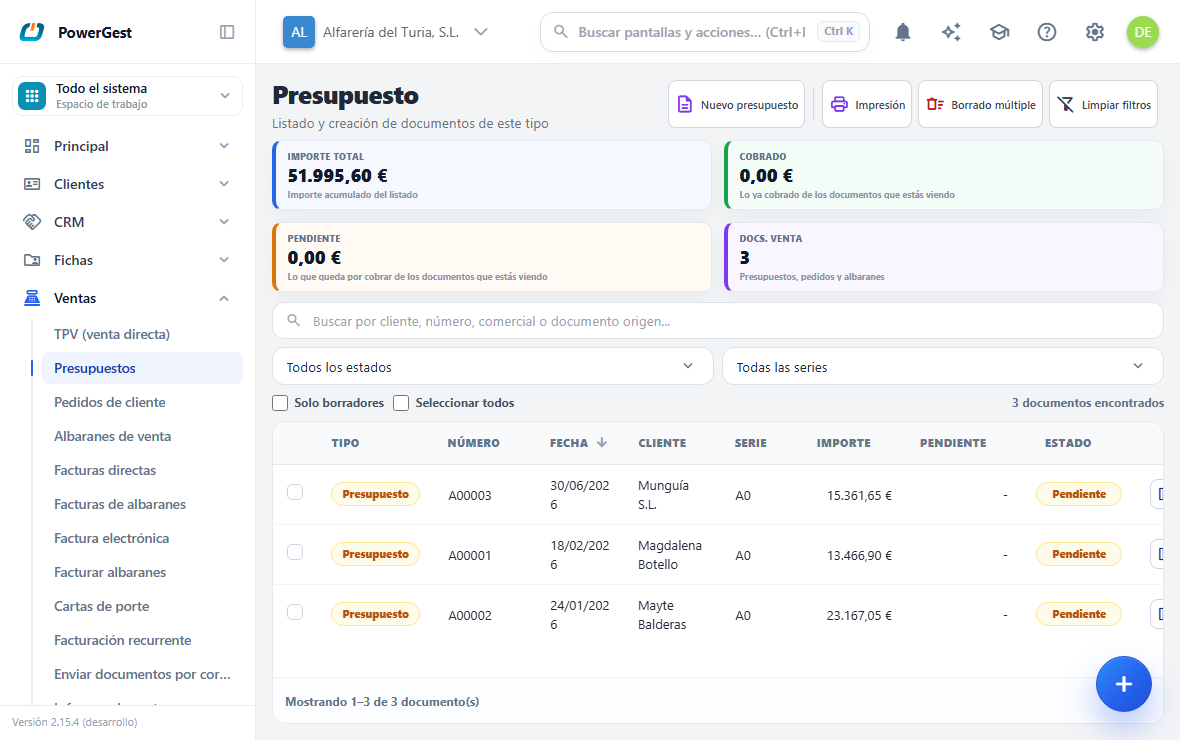
One row per quote: the Type (which tells them apart from the other documents when you remove the filter and see them all together), the Number, the Date, the Customer, the Series, the Sales rep, the Amount and the Status, which says whether it is awaiting an answer, accepted or rejected. Clicking the row opens it.
What are the four figures at the top?
They sum up what you are looking at with the filters you have set, not your whole ledger: the Total amount of the list, what has already been Collected, what is still Outstanding and how many Sales docs are quotes, orders or delivery notes.
How do I make a quote?
With New quote, at the top right, which opens the document blank. A quote does not touch the warehouse or the ledger: it is paper until you convert it.
How do I find one?
With the search box, which looks at the customer, the number, the sales rep and the source document all at once. Next to it, the drop-downs narrow by status and by series.
How do I keep only the ones I haven’t finished?
With the Drafts only checkbox, just above the list: it leaves in view only the documents that are still unissued. Next to it, Select all ticks in one go the ones in the list that accept a bulk action.
Can I print or delete several at once?
Printing sends a whole range of documents of this type to the printer, and Bulk delete deletes by range the ones that can still be deleted. Clear filters leaves the list as it was.
How do I record whether the customer accepts the quote?
On the quote itself, once saved, at the top next to its status: Accepted, or Rejected… and Record the rejection with the reason if you know it. Back to pending removes the answer. Converting it into a sales order, delivery note or invoice also leaves it accepted, without having to click anything.
If the quote came from a CRM deal, its card finds out: accepted wins it and rejected loses it (unless it has another quote pending). It is explained in Make a quote from the CRM.
How is a document converted?
There are three ways, and you choose according to how many documents you have on your hands.
One by one, from the new document. This is the way when you want to adjust quantities:
- Create the new document from Sales: a sales order or an invoice.
- In the header there is a Source document field. If the type can only come from one, the field is named after that type: on a sales order it says Sales quote.
- Type the number of the source document —the one you see printed— and press Enter, or look it up with the magnifying glass. The magnifying glass only offers issued documents with something pending; if the new document already has a customer, also only those of that customer.
- A window opens with the pending lines, all ticked and with their full quantity. Press Enter to bring them all in, or untick lines and change quantities before clicking Bring (it is explained in deliver a sales order in several goes).
- Save and, if it is an invoice or a credit note, click Issue.
Delivery notes and work orders aren’t created from this screen. To make a delivery note from a sales order, use the next way.
You can load several sources into the same document by repeating step 3: each one appears as a tag in the header, with a × to remove it together with its lines. However, they all have to be from the same customer and in the same currency.
Several at once, from the list. Tick the documents in Invoicing and click Convert. It is explained in convert several documents at once.
Many delivery notes to invoice. Don’t convert them one by one: use Invoice delivery notes, which groups them and creates the invoices in one go. It is explained in invoice several delivery notes at once.
What is the ‘pending’ quantity?
Each line keeps count of what has already been taken to a later document. That is the pending quantity.
An example: you order 100 units and deliver 60 on a delivery note. The sales order has 40 pending, and those are the ones you will get the next time you convert it.
When is the pending quantity taken off?
It isn’t taken off when the new document is created: it is taken off when the document becomes final. And that moment isn’t the same for all types.
- Quote, sales order, work order and delivery note: when you click Save. They are confirmed in that same action.
- Invoice and credit note: when you click Issue. When saved they are left as a draft document and don’t yet take anything off.
This has two practical consequences.
The first: if two people convert the same sales order at the same time, nothing is duplicated. The second person will find that the pending quantity is no longer there, and the program will tell them so with a specific message.
The second: if there wasn’t enough stock and your company is set up to deliver only what is available, what was actually delivered is taken off, not what you had typed. The sales order keeps the difference as pending.
Can I use a quote as a template for many invoices?
Yes: it is what the desktop ERP did with a template quote. Converting it doesn’t work, because converting uses up the quote (it takes its pending quantity) and only works for its own customer. To copy it without using it up:
- Make the invoice (or the order, the delivery note or another quote) and choose the customer.
- In the header, in Copy lines from, click the magnifier or press F2 and choose the template quote. The list shows the quotes of all customers, accepted or not.
- Everything is filled in: the lines, with their quantity, price and discount, and also the quote’s header and footer: payment method, price list, warehouse, notes, reference, overall discount, who arranges the carriage and the carrier, and the accounting account if it had one. Change what you need (the description, for example) and save.
What is never copied is the customer, the series, the number and the dates: if the document already had a customer, it stays; if it didn’t, you choose it. Whatever you had already written in the notes or the reference isn’t overwritten either. If you choose the customer after copying, it may bring the conditions in its record (its payment method, for example), as in any document: check them before saving.
The copied lines are not linked to the quote: they don’t mark it as accepted or take anything off it, so you can use it as a template as many times as you like.
What does the new document bring from the original?
It brings the header and the lines still to be delivered, but not everything can be edited afterwards.
From the header it inherits the customer, the sales agent, the payment method, the price list, the warehouse, the currency and the reference. The date is today’s. It also inherits the collection Cash/Bank account (Financial tab): if the sales order took the bank from the customer record, the delivery note and the invoice come out with that bank, not with the company’s cash account. If the source has none, the document keeps the one it already had.
Which series does the new document come out in?
It depends on whether you chose a series before bringing in the source.
- If you typed a series in the Document field of the new document, that one stays. For example: you type ‘A’ on a new invoice and then bring in a sales order from series ‘B’. The invoice comes out in ‘A’.
- If you didn’t choose any, the document takes the series of the source.
An invoice with no series chosen can, however, go to its default series. This is decided by the setting Invoice series when bringing in an order or delivery note (in Settings → Sales and documents → Codes):
- The order’s or delivery note’s (the normal one): the invoice takes the series of the source.
- The invoice’s default series: the invoice goes to the series marked as default for invoices in Document series, even if the sales order is from another one. For example, a sales order from series ‘M6’ is invoiced in ‘C6’ if that is the invoice one.
The setting is only for invoices, sales and purchase. A delivery note that comes from a sales order still takes the series of the sales order. It works the same when the invoice is made by the assistant or comes from a technical service report or a manufacturing order.
In both cases the number you see is the next one in the series it is going to be saved with.
If the series of the source doesn’t exist for the new document, the default series of that type is used, as in the desktop ERP. For example, a sales order in series ‘A6’ is invoiced in ‘C6’ if ‘A6’ is only set up for sales orders.
There is one exception. If your company has Invoice each series separately ticked (in Settings → Codes), an invoice always follows the series of its source (if it exists for invoices) and the program warns you, whatever the earlier setting says. With that option sources from different series can’t be combined in one invoice either.
Prices with VAT follow those of the source. They only change if the series you choose has Show with VAT ticked: then the document switches to prices including VAT and the total doesn’t move.
From each line it inherits the item, the price, the discounts and the taxes, and all of that travels frozen: the percentages the source document had are copied, not the ones in force today. You can change them in the new document (item, price, discount and VAT), unless your company has **Veri*Factu sending to the real Tax Agency environment: then they appear locked and only the quantity** can be edited. With Veri*Factu off or in the test environment, they can be changed.
If the source already moved stock —a delivery note that becomes an invoice—, the invoice doesn’t move it again, and it also inherits the batches or serial numbers the delivery note had already allocated. If the source didn’t move stock —a sales order—, it is the delivery note that decides the batch when delivering.
The line groups of the source are recreated in the new document. When a document groups several sources, each one comes down under its own heading with its number and its date.
If a price or a tax is wrong, it isn’t corrected in the new document: it is corrected in the source, or the inherited line is removed and a line of your own is added.
Which documents affect stock?
Not all of them. Mixing them up is the cause of most mismatches.
- Quote and work order: they don’t affect anything. They are paper.
- Sales order: it doesn’t move stock, but it commits it. The item is still in the warehouse and appears as pending delivery.
- Delivery note and invoice: they really move stock, with its batch or serial number.
That is why an item can be in the warehouse and not be available: it is committed to a sales order. This is on purpose. If your company counts sales orders in availability, you will see less available than there physically is on the shelf.
If something goes wrong
| What you see | What has happened | What to do |
|---|---|---|
| The source document field doesn’t appear | That type isn’t built from another one | Look at the table above: a quote doesn’t derive from anything |
| When issuing, it says the pending quantity is no longer there | Someone converted the same source before you | Open the source again: you will see the real pending quantity |
| Fewer lines than expected have been brought in | The others have already been delivered or invoiced | Open the source and look at the pending quantity on each line |
| ‘Number … exists in several document types’ | The same number is on a sales order and on a delivery note | Choose which with the magnifying glass |
| I can’t change the price of a line brought in | Your company has Veri*Factu sending to the real environment: the source data travels locked | Correct the source, or remove the line and add one of your own |
| You invoice several delivery notes and they come out separately | The grouping depends on the customer, the currency and the payment method | Check the Invoicing type in Invoice delivery notes |
| ‘… your company invoices each series separately’ | Invoice each series separately is ticked and the source is from another series | The invoice goes in the series of the source; a source from another series goes on another invoice |
Previous: Correct an invoice · Issue an invoice · Next: I deliver a sales order in several deliveries
More about Invoicing
- How do I delete a document?
- How do I make the consignment note for a shipment?
- How do I charge shipping or expenses without VAT?
- Setting up numbering series
- How do I convert several documents at once?
- Why is my invoice one cent out and how do I fix it?
- Can I leave a document half-done and go to another screen?
- How do I issue an invoice?
- How do I deliver a sales order in several deliveries?
- How do I invoice a fee that repeats every month?
- How do I invoice several delivery notes at once?
- Pro forma invoices