How do I add a customer?
A customer is a business partner that has been given the customer role. The record stores who they are (name, Tax ID, address) and their sales terms. Without the customer added, you can’t make a sales document for them.
What do I need before I start?
Only two details: the Code and the Trade name. Everything else can be completed later.
The Code is the one you will type later on documents. It is saved in capitals and without extra spaces, and if it is a number, with the leading zeros set in Settings → Sales and documents → Codes: with five digits, typing 7 saves 00007. You already see it like that when you leave the field: what stays written is what is saved. It can’t be repeated among customers. When adding, the record suggests the first free code, like the Desktop ERP: if you have 1, 2 and 4, it suggests 3. And it comes out with the digits your company has in Settings → Sales and documents → Codes, the same ones it is saved and searched with later: what you see suggested is exactly what will be stored.
The suggested code is always one whose ledger account is free. If 0003 would get 43000003 and that account already exists —it belongs to another customer or supplier, or to a customer that was deleted—, the record skips that number and suggests the next one. That way each customer has the account of their own number and doesn’t inherit anyone’s balance.
If you are going to assign them a Sales agent, add the sales agent first in Sales agents. The search on the record only offers the ones that already exist.
How do I do it?
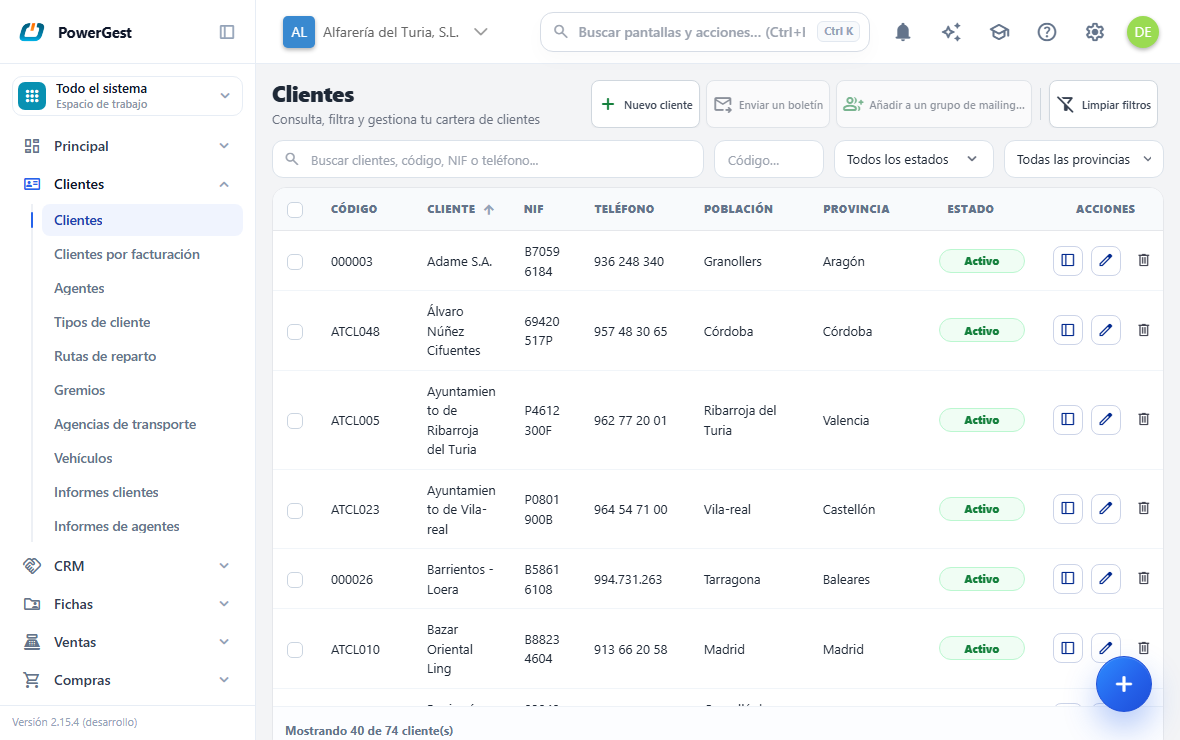
- Go to Customers and click New customer.
- On the General tab, type the Code and the Trade name. They are the only two required fields.
- Complete the rest of General: Tax ID (NIF), Status, phones, email and address.
- If you want, go through Financial, Addresses and Details.
- On the Price lists tab you can already set their price conditions. It is explained in set prices and price lists.
- Click Save customer.
The record can be used with the keyboard. The arrows move through the fields in the block, Enter goes into the field and confirms, Escape cancels and F2 opens the search for the field that has one.
What if my customers are people, not companies?
Choose Private individual in Type, the first field next to the code. The record adapts: the name becomes Full name, the Tax ID is called ID card and the legal name, the faxes and Internet disappear, as they make no sense for a person. When saving, if there is no legal name, the same name is taken, which is the one that appears on invoices. With Company or Not specified, the record is the usual one.
Can I have two customers with the same Tax ID?
Yes, if your company allows it. It is the usual case if you work with several departments of a town council or with several shops of the same company: each with its own record and all with the same Tax ID.
It is turned on in Settings → Sales and documents → Codes, section Tax ID on records, with the Allow the same Tax ID on several records box. It applies to customers, suppliers and sales agents.
- With the box ticked, when you save the record a notice tells you which other record has that Tax ID, and it is saved anyway.
- Unticked, it isn’t saved and the message tells you which record has it, in case it was a typing mistake.
In forms 347 and 349 records with the same Tax ID are added up in a single line, as in the Desktop ERP. If you come from the Desktop ERP, the migration leaves the box as you had the option there.
What happens when I click Save customer?
The business partner is created with its identity, it is given the customer role with the Code you typed and its commercial terms are created. It all happens at once. If something fails, nothing is created: you are never left with a half-made customer.
The conditions you typed on the Price lists tab while adding are saved at that same moment, together with the customer.
When it finishes, the screen jumps to the record of the customer created and the Customer created notice appears.
How do I add another customer without going back to the list?
Click New in the bar at the top of the record. The record of a new, empty customer opens, as with New customer from the list. Save any changes on the record you are viewing first. The button only appears if you have permission to add customers.
How do I edit a customer that already exists?
Go to Customers, find the row and open it. You can also use the navigator in the record header: the arrows jump to the previous or next customer, in alphabetical order, and next to them you see its position (‘12 / 3.094’). The magnifying glass opens Customer search, which searches by code, name, Tax ID, town or city or phone and brings the results in pages.
When you jump from one customer to another, the same tab stays open: if you were on Receipts, the next customer also opens on Receipts. That way you can go through several records looking at the same detail without choosing the tab again on each one. The same applies to supplier and account records. When you add a new customer, the record always starts on General.
Change whatever you need and click Save. Saving rewrites the whole record with what is on screen, including the addresses: whatever you delete from the form is also deleted when you save.
The Code can be changed. If another customer already has the new one, the save is rejected and nothing is changed. A code whose ledger account already belongs to someone else isn’t accepted either: this is explained in Do I have to give the customer a ledger account?.
Why are some fields empty when I open the record again?
The customer record shows more fields than are saved today. The ones that aren’t saved appear empty the next time you open the customer, even if you had filled them in.
These are saved: the whole General tab (including Remarks and Sales agent), the Addresses tab, the logo, the contact people, the internal tags and the custom fields in Details, the Price lists tab, the bank details, and from Financial: Discount, Account, Credit limit, Payment days, Payment account, Payment details, Income tax withholding (IRPF), Scheme, Price list level, Account type, Currency, VAT calculation, Prices and the Catalogue, E-invoicing and Blocked boxes.
The VAT calculation field says which method is used to calculate this customer’s documents, so that they match their system to the cent. It is explained in full in Why does my invoice come out a cent different?.
The Prices field says whether their documents start with prices VAT included (the customer you sell to at counter prices), Excluding VAT, or as your company says (The company’s). It is explained in How do I sell with VAT-inclusive prices?.
The Scheme and the Income tax withholding (IRPF) are applied automatically when invoicing this customer: an Intra-EU customer receives invoices without VAT, one under Surcharge with their surcharge, and the withholding is deducted from the total. It is explained in How do I issue an invoice?.
How do I add a delivery address?
In Customers → Customers, open the record and go to the Addresses tab. Under Delivery addresses click + (New address) and fill in its details; a customer can have several. Billing address, next to it, is the one for collections, if it is different. Click Save customer when you finish.
To see a customer’s addresses, open that same tab: the list is on the left, and clicking one shows its details.
Where do I put the customer type, route, trade and carrier?
On General, Sales classification block, are the Customer type, the Trade, the Delivery route and the customer’s Order within their route. The Carrier is on Addresses, Logistics block. All four are chosen from their list, which is maintained on its own screen: it is explained in classify customers by type, route, trade and carrier.
Customer type and Trade show their name in the field (‘OFFICE’), and the code stays in the tooltip you see when hovering. You can still type the code, or search by code or name with the magnifier (or F2). Agent and Route show the code in the field and the name next to it. If the code shows instead of the name, that entry in the list has no name: give it one on its screen and it will show on every record.
What does the Price list level field do?
It says which sale price from the item record this customer is charged. Each item has up to six sale prices (Price 1 to Price 6, on its record) and here you choose which one is this customer’s:
- General price: the first one, the one all customers have unless they say otherwise.
- Price 2, Price 3…: when you add an item to a sale for this customer (quote, sales order, delivery note or invoice), the line takes that price from the item record.
If the item doesn’t have that price filled in, the line takes the first one. The conditions on the Price lists tab are applied afterwards, on that price. Changing the field doesn’t affect lines already on a document.
How do I set the customer’s country?
With the magnifier on the Country field, on the General tab (or by typing its name or code and pressing Enter: ‘France’, ‘USA’ or ‘FR’ find the same country). Only countries from the list can be chosen; it isn’t typed by hand. Empty means Spain.
The country matters for invoicing: it decides whether the customer is Spanish, and then their full invoice needs the Tax ID, or from abroad, and then it can go without one (see How do I issue an invoice?).
A customer that already had the country written in is recognised on its own when you open the record (‘CHINA’ becomes China) and is saved that way the next time you save. If what was written isn’t a country (‘Valencia’, ‘MIAMI’), the record warns you below the field: choose the country before saving, because if you save without choosing it the customer is left without a country, that is, Spanish.
If a country, or a common way of writing it, is missing from the list, ask support: the list is the same for every Powergest customer.
What language do their documents come out in?
In the one set in Document language, on the General tab: their quotes, sales orders, delivery notes and invoices, printed or as PDF, come out in that language, even if you work in another one. Empty means the company’s (the drop-down says which), which is what all customers have until you change it.
The document’s labels are translated; what you write (line descriptions, the payment method) comes out as it is. Importing the customer again from the Desktop ERP doesn’t change its language.
What is the Account type for?
It is the customer’s accounting category: Customers, Debtors or Bills receivable. A new record starts as Customers. It is for information only: it doesn’t change how invoicing works.
What about the Payment account (Desktop ERP)?
It is an inherited field, and it is worth knowing that it does nothing in the ERP: collections, direct debit runs and documents do not read it. In the Desktop ERP that is where the sub-account used to collect from that customer was written, and that is why it is still on the record: what you type travels to the tablets as it is, and they still expect it. If you don’t use tablets and you are starting from scratch, leave it blank.
Don’t confuse it with the Account type above, which is the accounting category. And the account the money goes into is not decided here: you choose it when collecting, in Collections and banks.
The Payment method is chosen from the list of payment methods you have added, and it is saved. A new record already comes with your company's one (the one in Settings › Invoicing), so you do not have to pick it one by one; change it if that customer pays differently, or leave it blank if you prefer each document to decide. When you make a document for that customer, it is filled in automatically: you choose the customer and the invoice, the delivery note or the POS receipt start with their payment method. If you change it by hand on the document, the one you set takes priority; and if you change customer, the new one’s comes in. Below it there is a Payment method (note) field, which is free text: it is only there for whatever came written that way on old or migrated records. What counts —and what is used when invoicing— is what you choose from the list.
What is the difference between Status and Blocked?
They are two different things:
- Status (General tab): Active or Inactive. An inactive customer is no longer a customer: they don’t appear when searching to make an invoice, a sales order or a delivery note, and no new documents can be made for them. They are still in the customer list, with the Inactive filter.
- Blocked (box on the Financial tab): the customer is still a customer, but no new documents are made for them while they remain blocked, for example because of non-payment. If you choose them on an invoice, the program doesn’t accept it and tells you why.
In both cases you can still open their documents, issue the ones you already had, invoice their delivery notes and make credit notes for them.
In the list, the Status column sums up both: Active, Blocked or Inactive.
How do I type the bank account?
However you like: all together, with spaces or with hyphens, in capitals or in lower case. When you open the record, the Bank account is shown in groups of 4, as on the bank’s paperwork: ES91 2100 0418 4502 0005 1332.
Internally it is saved without spaces and in capitals, which is how the bank’s direct debit batch files require it. That is why spaces don’t get in the way when you issue bank bills.
Next to the bank details there is also its postcode, and on the General tab there is a second fax as well as the first one. The supplier record has both in the same way.
If you come from another program and thought your customers had lost their payment method, check it now: in many cases it had been imported and the record wasn’t showing it.
The Price lists field on the Financial tab isn’t saved; price conditions are set on the Price lists tab. The opening balance, the amount invoiced and the credit notes for the financial year aren’t typed in: the record itself keeps them (see further down).
On Financial, the Currency and Account type drop-downs have a Not specified option, which is how records that have never had them filled in start. It is a valid value: leave it like that if it doesn’t apply.
The Currency drop-down offers the active currencies in your company’s catalogue, with their flag next to the code and the name. If the one you are looking for doesn’t appear, add it or activate it as explained in add a currency.
The Invoicing box isn’t a setting you tick: it reflects the customer’s Status, which is changed on the General tab. That is why it looks greyed out.
Advance payments on account isn’t typed in either: it shows the actual balance of the customer’s advance payments, which are managed in Receipts and banks → Advance payments.
How do I store a detail on the customer that the ERP doesn’t have?
That is what the custom fields are for: five free-text boxes your company names however it likes. They are on the Details tab of the record, in the Custom fields section.
Each field takes up to 200 characters and stores exactly what you type: the ERP doesn’t change it or put it into capitals.
Only the fields that have a name are shown. If your company has named two, two boxes appear in Details. If it hasn’t named any, the Custom fields section doesn’t appear.
The names are set in Settings, in the Custom fields on customers section, and they are set by whoever administers the ERP. There are five boxes: Field 1 to Field 5. Typing ‘Delivery area’ there makes a box called Delivery area appear in Details for each customer.
Those five names belong to the company, not to the customer: they are set once and apply to all customers. They also apply to suppliers, who use the same five names on their record. There is no separate list of names for suppliers.
If a field’s name is removed later, the box is no longer shown on the records, but what has already been written isn’t deleted: it reappears as soon as the name is given back.
Do I have to give the customer a ledger account?
No. The Account field on the Financial tab can be left empty: when you save the new customer, their own account is opened in the chart of accounts, with their name, and it is written on the record. While the customer hasn’t been saved, the field shows in grey the one that will be opened, for example ‘43000003 (will be opened on saving)’. If it shouldn’t go there —a debtor who isn’t a customer, for example—, type their account before saving and that one will be opened.
The account is formed from the accounting customer group and the customer’s number: customer 000002 goes to 43000002. Once written on the record, it no longer changes even if the group is changed in the settings: that customer’s invoices keep going to their usual account.
On records added before the account was written, the field may still be empty, with the account in grey: that is the one accounting uses. To write it on all of them at once, see How do I write the account on old records?.
If the account isn’t the one for its code, the record warns you below the field, for example ‘Account 43000099 isn’t the one for its code “35”, which would be 43000035’. It only warns you: you can save anyway, because sometimes it is on purpose. The warning is turned off in Settings → Transfer, Warn if a record’s account doesn’t match its code box. That is also where the group for each role is: customers (430), suppliers (400) and sales agents (465).
A code whose account already belongs to someone else isn’t accepted. If you type code 0003 and another customer or supplier already has 43000003, the save is rejected and you are told whose it is. No other account is given behind the scenes: customer 0003 would end up in 43000004 and accounts would stop matching codes for good. Choose another code —the one the record suggests is already free— or type their account by hand in Financial. The same applies when changing the code of a customer that already exists.
A code with letters (ACME, CLI-7), or a number too long to fit, can’t form an account. That customer gets the next free account, and that one is written on the record.
To use a different account, type it or look it up with the magnifying glass, which only offers accounts that can be posted to. You can abbreviate it: 43002 or 430.2 are saved as 43000002, which is the account that will be used. An account that doesn’t exist yet is also fine: on a new customer it is created when you save; if you change it on one that already existed, it is created when their next item is posted. The only thing not accepted is an account that another customer or supplier already has —written on their record or formed from their code—; if that happens, the save is rejected and tells you whose it is.
Customers that arrive from an import from another program don’t open an account when they come in: the chart of accounts comes from that program itself. They get theirs the first time something of theirs is posted, with the same rules.
What is on the other tabs?
A customer already saved shows four more tabs: E-invoicing, Documents, Receipts and Statement.
Documents lists the customer’s sales documents, paged from the server, with their type, series, number, date, status, amount and outstanding amount. The amount is what the document says; the outstanding amount is what is still to be collected on it according to the open items —on a partly paid invoice, only the part that is missing—, and it shows a dash when nothing is left. On invoices the status refers to the receipt: Outstanding, Partly pending or Paid. An uncollected invoice still says Outstanding even if its date has passed; it says Overdue, in red, only if the company has the Distinguish overdue items tick box in Settings switched on. That outstanding amount is per document; the Outstanding figure in the record header is the customer’s total debt (see further down).
Statement is the movement of their account over the year: each line with its date, the entry number (the accounting entry it comes from), description, amount and the running balance up to that line. At the very top you will see the balance the year started with and at the bottom the closing balance, so it adds up at a glance. Debits are what is invoiced to them and credits what settles it.
The statement only shows what has been posted. An issued invoice that hasn’t yet gone to accounting appears in Receipts but not here yet. If the two figures don’t match, that is usually the reason, not an error.
If the customer has no ledger account of their own and none can be worked out from their code, the statement is empty: there is no general ledger of theirs to show. This is explained in Do I have to give the customer a ledger account?.
And if the account written on it isn’t a code accounting can read, the statement is empty with a warning saying so. It isn’t a program fault: it is that account, and it is fixed by typing it correctly in Financial. Without the warning, the empty table would read as ‘this customer owes nothing’, which is exactly what isn’t known.
Receipts is the whole receipts screen, showing only this customer’s items: their open items, their advance payments and the trail of their returns, with the same filters, the same summary at the bottom and the same actions —Collect, Advance payment, Return and Void—. Collecting from here is collecting from the Receipts screen: it is the same screen, not a copy. The only thing missing is the customer column, which would say the same name on every row. An Advance payment recorded from here starts with this customer filled in.
What each thing does is explained in collect an instalment.
The Receipts tab only appears with the ERP contracted, because open items are handled from it. In a CRM-only installation it isn’t there.
Where do ‘Invoicing’ and ‘Outstanding’ come from?
The two columns in the list, the two boxes in the record header and the Financial tab of the record show the same figures, calculated from what the customer has in the program:
- Invoicing (‘Total invoices’ on the Financial tab): what has been invoiced to the customer in the financial year you have chosen at the top, including VAT, minus credit notes. A draft, a voided invoice or a replaced one don’t count.
- Outstanding (‘Outstanding balance’): what the customer owes you today: what is still to be collected on their bank bills, whatever year they are from. A returned bank bill doesn’t count twice: its debt is on the new bank bill the return leaves. Advance payments aren’t subtracted; they are shown separately in ‘Advance payments on account’.
The Customers by turnover screen counts invoicing excluding VAT, because there it is compared with the cost to get the profit: the Margin column is that profit as a percentage. That is why its figure is lower than the list’s. The search filters as you type and the period recalculates the ranking; clicking a customer opens their record.
The two columns can’t be sorted with a click: they are calculated only for the page you are viewing.
The order you choose in the list stays: if you sort it by Code, the next time you come in it is still by code until you click another column. Each user has their own.
What are the record’s ‘Opening balance’, ‘Invoiced’ and ‘Credit notes’?
They are on the Financial tab, on the Financial year totals card, and they are the same ‘Initial’, ‘Total’ and ‘Credit notes’ boxes as on the Desktop ERP record. They refer to the financial year you have chosen at the top and aren’t typed in:
- Opening balance: the balance the customer started the financial year with. The migration brings it from the Desktop ERP.
- Invoiced: the total of their invoices for the financial year, including VAT. Each invoice adds to it when issued, corrects it if you edit it and subtracts from it if you void it.
- Credit notes: the total of their credit notes for the financial year, including VAT and as a positive figure. A credit note adds here and doesn’t subtract from ‘Invoiced’.
These are the figures that travel to the salespeople’s tablets with the customer record. They don’t come from accounting: a customer without a ledger account has them all the same.
Why doesn’t ‘Invoiced’ match ‘Total invoices’? ‘Total invoices’ subtracts credit notes; ‘Invoiced’ doesn’t, because credit notes are kept separately. If they still don’t match, the program recalculates them from the invoices every night; so you don’t have to wait, click Rebuild totals for … in Accounting > Operations (see close and open the financial year).
How do I search the customer list?
The list doesn’t bring all customers at once: it shows the first ones and, as you scroll down, it brings the next ones. At the bottom you see how many are on screen and how many there are in total.
Above the list there is a field to go to a code and three filters that combine with each other:
- The search box, which matches at the same time against the code, the trade name, the legal name, the contact person, the Tax ID, both phone numbers, the mobile, the email, the address, the town, the province and the postcode. That is: whatever you remember about the customer ("they were from Barcelona", the number they call from, "Ana Luisa handles them"). The code is found by typing part of it (
07findsC07) or in its short form: if your company pads codes with zeros,3finds000003. What it does not search is the people on the Contacts tab of the record, only the one in the Contact field of the general screen. You don’t need to type the exact name: capitals and accents don’t matter, the words work in any order (frenos begoñafinds «AUTO FRENOS BEGOÑA, S.L.») and spaces don’t count (autofrenosandauto frenosfind the same). The same goes for the customer search in documents. - The Code field, next to it, which doesn’t filter: it moves the list to that code, as in the desktop ERP. The list is sorted by code, starts five customers before it and the one you looked for is highlighted. That way you see the ones around it and, if the code doesn’t exist, where it would fall: the next one is highlighted. Scrolling down, the whole list carries on. Leading zeros don’t matter:
8302takes you to0008302. The other filters still apply: with a province chosen, it places you among that province’s customers. - The status, which is a drop-down with one box per status (Active, Pending, Blocked): tick the ones you want to see. You can tick several —Pending and Blocked is ‘everything that isn’t in order’—, and ticking none is seeing them all. Ticking all three is the same, so the screen takes it as All statuses. The panel stays open while you tick and closes when you click outside it, with Esc or by clicking the button again.
- The province, which is single choice: the list comes from the provinces that have been entered and can be long. The province is typed by hand on the record, so the same one can end up saved in several ways (‘ALEMANIA’, ‘Alemania’); the list offers it only once —with the spelling most common among your records— and when you choose it they all come up, however it is written.
Clear filters puts them all back as they were when you came in.
Inside a record, the magnifying glass on the Code field —or F2 while in it— opens the customer search with whatever you have typed; choosing one opens their record. On an unsaved new record, going to another customer loses what you had typed: the window warns you in its title.
How do I go from here to what this customer has in the CRM?
In the record header, the View in the CRM command takes you to the CRM contacts linked to this customer. The list arrives already filtered by them: under the title you will see how many contacts they have, so that a short list isn’t mistaken for an empty one.
It only appears if the installation has the CRM. If it doesn’t, the command isn’t shown.
If the customer doesn’t have any contact in the CRM yet, the list is empty. That isn’t an error: it means no one has yet added a person linked to this customer.
Does what I correct here reach the CRM contact?
Yes, if this customer came from a CRM contact. When you click Save, the contact receives the Name, the Legal name, the Tax ID (NIF), Internet and the Remarks you have just left. You don’t have to repeat it on the other record.
Phones and email addresses don’t make that trip. The CRM contact stores a whole list of numbers and addresses, and this record only has two boxes of each: sending them back would delete the ones that don’t fit here. If you want to change them in both, do it from the contact’s record.
The rest of this record —Price lists, payment methods, Financial, bank details— belongs only to the ERP. The CRM never touches it, so no change on the contact can delete it.
How the trip works in the other direction is in convert a contact into a customer.
Above the contacts you will see ← Back to the customer record. Clicking it brings you back here, to this same customer. And from a contact’s record, the View customer record button does the reverse: it brings you here and offers ← Back to the contact record.
How do I delete a customer?
Click the bin on its row in the customer list, or open its record and click Delete. The confirmation warns you that the action can’t be undone and that it also deletes their addresses and contacts.
When deleting, their price list conditions are withdrawn first: their own price list is deleted entirely and, from the general price lists, the conditions aimed at them are removed. Their ledger account (the 430… one) is also released: if it has no journal lines it is deleted with them; if it has some, it stays in the chart of accounts with all its history, just without a customer. Then the record is deleted. It all goes together: if something fails, the customer stays as it was.
The same happens with suppliers and their 400… account.
If the customer has documents or entries in accounting, it isn’t deleted and the warning says why (in the case of accounting, with its account). In that case, don’t delete it: change its Status to Blocked.
Their accounting sub-account isn’t deleted with them: it stays in the chart of accounts, just without a customer.
If something goes wrong
| What you see | What has happened | What to do |
|---|---|---|
| ‘A customer with the identification code “X” already exists.’ | Another customer uses that Code | Use another code. A supplier with that code doesn’t get in the way: it is only checked among customers |
| ‘Code “X” corresponds to account “Y”, which already belongs to…’ | Another customer or supplier has the ledger account for that code | Use another code (the one the record suggests is free) or type their account by hand in Financial |
| ‘Account “Y” already belongs to…’ | The account typed in Financial belongs to someone else | Type another account, or leave it empty to use the one for its code |
| ‘The customer code is required’ | The Code is missing | The record takes you to General. Fill it in |
| ‘The customer name is required’ | The Trade name is missing | The record takes you to General. Fill it in |
| ‘The specified customer doesn’t exist.’ | The record was deleted, or you are in another company | Check at the top which company you are in |
| ‘Could not load the sales agents’ | The sales agent catalogue didn’t respond | The record can still be used; the Sales agent search will be empty |
| It couldn’t be deleted | The customer is referred to by documents | Don’t delete it: mark it as Blocked |
See also: Add a supplier · A business partner that is a customer and a supplier · Set prices and price lists
More about Records
- How do I change the length of codes?
- What are trades for?
- What are customer types for?
- How do I classify my customers by type, route, trade and carrier?
- How do I set up my company’s sizes and colours?
- How do I add a sales agent?
- How do I add an item?
- How do I add a supplier?
- How do I add my customers’ vehicles?
- How do I add a currency?
- Mailing for your customers and suppliers
- The records the whole ERP works with