How do I set up my company’s sizes and colours?
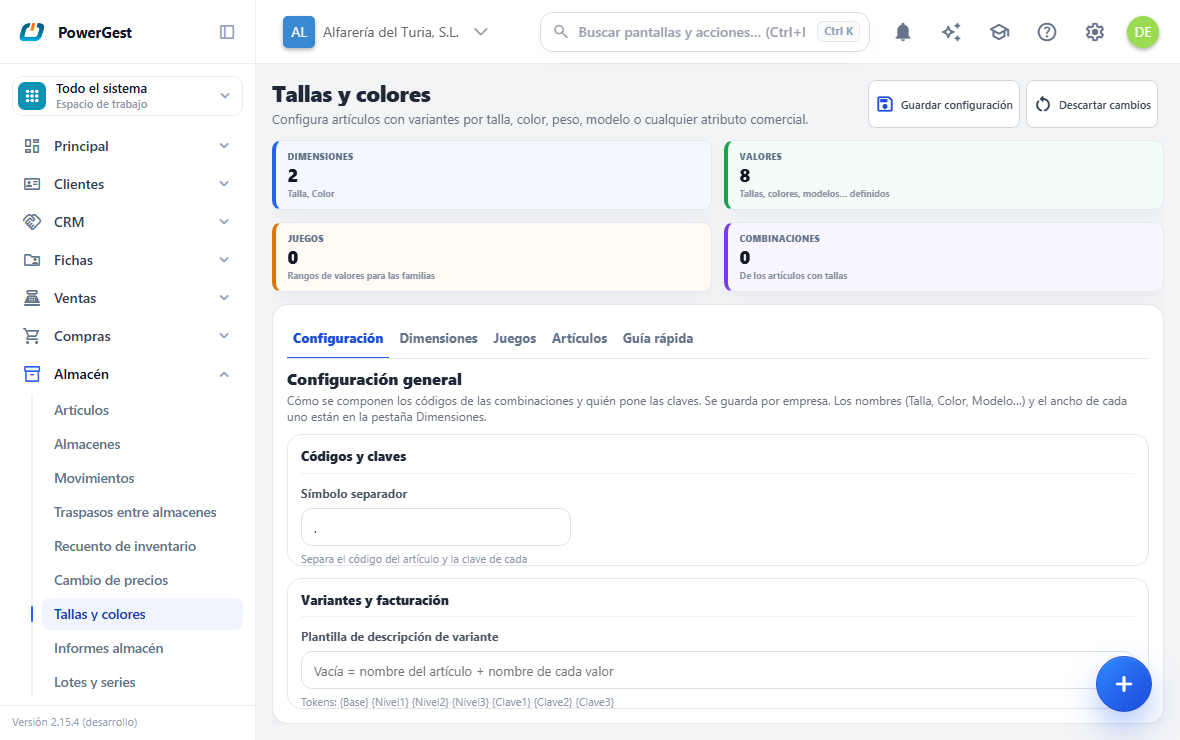
Before an item has variants, it is worth knowing what your items are combined with: sizes, colours, models, dimensions… Each of those things is a dimension, with its values. They are set up in Warehouse → Sizes and colours, and each item family says which ones its items use.
What do I need before I start?
You don’t need anything created. The company starts with two dimensions, Size and Colour, without values. If you sell clothes, they already work as they are; if you sell something else, rename them or add your own.
It is best to have decided the order of the dimensions for each item before creating its first variant. ‘Jeans size 40 navy blue’ isn’t the same as ‘jeans navy blue size 40’: the order goes into each variant’s code and can’t be changed afterwards.
What is a dimension?
It is each of the things an item is combined with: the Size, the Colour, the Model, the Format, the Length… Each dimension has its values: size has S, M, L; colour, Blanco, Azul marino.
Each item uses the dimensions it needs, up to three and in the order you want:
- A T-shirt: Size and Colour.
- A handbag: Model and Format.
- A scarf: only Colour.
- A pair of jeans: Model, Colour and Size.
- A mug: none.
All of that exists side by side in the same company. Values are shared: ‘Azul marino’ is the same in all the items that use it.
Three is the maximum because it is what all the online stores the program connects to accept (Shopify, the strictest, doesn’t go beyond three).
What is on the Sizes and colours screen?
The screen is in Warehouse → Sizes and colours and has five tabs:
- Settings: how combination codes are formed and who sets the keys.
- Dimensions: the company’s dimensions and the values of each one.
- Value sets: named ranges of values, so that each item family offers only its own.
- Items: which items already work with variants, with their combinations. It is view only.
- Quick guide: the summary of the procedure.
At the top there are four indicators: the number of Dimensions, Values, Value sets and Combinations in the company.
Save settings, in the header, saves the Settings tab. Each dimension and each value set has its own save button.
How do I add or change a dimension?
On the Dimensions tab:
- Click Add dimension, or find the one you want to change.
- Type its Name:
Modelo,Tamaño,Largo… There can’t be two with the same name. - Choose the Type:
TextoorColor. WithColor, each value gets a colour box that is used in the catalogue and the online store. - Set the Key width, between 1 and 6: how many characters each value’s key takes up in the combination code. Shorter keys are padded with zeros on the left.
- The Order decides in which position it appears in lists.
- Add its values with Add value.
- Click Save dimension.
A dimension can only be Deleted if it has no values and no item, item family or value set uses it.
What does each value have?
- Key: the short part that goes into the variant’s code. It can’t be longer than its dimension’s width and isn’t repeated within it. With automatic key management you can leave it empty: when saving, the program sets the next free one (
01,02…). - Value: what is read on screen (
S,M,Azul marino). It is what is shown on the item record, on documents, in the grid and in the stock detail; the key isn’t shown. In automatic mode, if you leave it empty, it is taken from the Description. - Order: the position in lists and in the grid. Without it, sizes would come out in alphabetical order (L, M, S, XL) instead of S, M, L, XL.
- Description: the long text that makes up the variant’s description (
Talla S,Blanco).
You don’t need to create the values here: they are also created automatically when you type them on the item record.
Automatic or manual?
This is the question that decides how your company will work with sizes and colours. It is chosen on the Settings tab, in Key management.
- Automatic (the default). On the item record you type the value by its name —
XL,Azul marino— and, if the company doesn’t have it, it is created automatically with a key set by the program. No one needs to know what a key is. It is what almost everyone needs: ‘add another colour to this T-shirt’. It is explained in sizes and colours of an item. - Manual. Values are defined here, on the Dimensions tab, with the key you want, and on the record you can only add the ones that already exist. It is for those who prepare their tables: a manufacturer with each season’s colour chart, or someone who wants meaningful keys.
You can switch from one to the other whenever you like: what has already been created isn’t touched.
What are value sets for?
A value set is a named range of values of one dimension: ‘Adult sizes’ (from S to XXL), ‘Footwear’ (from 38 to 46), ‘Manufacturer X colours SS27’. It lets each item family offer only its own: without value sets, clothing sizes and shoe sizes would appear together on any item.
How to create one, on the Value sets tab:
- Click Add set. It appears in the list on the left and opens on the right.
- Type the Set name.
- Choose the Dimension.
- In Values in the set, tick the ones that belong. Each value shows its description, so you can tell apart two with the same code (the trouser 36 and the shoe 36). Tick all and None tick or untick them all at once.
- Click Save set.
The list on the left shows each value set with its dimension, how many values it has and a sample of them. Click one to open it.
There can be as many value sets as you like, several for the same dimension. The item family is what uses them: on its record it chooses, for each dimension, which value set its items accept.
A value set used by any item family can’t be deleted or changed to another dimension.
How do I give an item family sizes and colours?
On the item family record (select it in the tree in Warehouse → Items), in the Sizes and colours of its items block:
- Choose its First dimension, and if needed the Second and the Third.
- In Its values, choose the value set for each one, or leave it as Those each item adds.
- Click Save in the record header.
The block only appears if your company works with sizes (some dimension with values).
From then on, the item family’s items start with those dimensions and those values, without doing anything on each one. It is the usual way and the quickest. Subfamilies without dimensions of their own inherit those of the parent family.
An item stops following its item family as soon as its sizes are changed (a value is added, other dimensions are chosen or its first combination is created): from then on the dimensions are its own, and changing the item family no longer affects it. Changing an item family’s dimensions doesn’t turn the items it already has into ‘items with sizes’ without touching them.
How is a combination’s code formed?
With the item code, the Separator symbol and each value’s key, in the order of the item’s dimensions and at the width of each one. With . as separator, item CAM01, size M (width 2) and colour 05, the code becomes CAM01.0M.05.
The Separator symbol is a single character, on the Settings tab. You can leave it empty: then the code is formed by joining the keys at their fixed width.
Why won’t it let me change the separator or a dimension’s width?
Because they are already recorded in the code of some combination.
- The separator is fixed as soon as the company’s first combination exists.
- A dimension’s width is fixed as soon as any item with combinations uses it. A dimension that no one uses can be changed.
Everything else can be changed at any time: names, types, the description template and the boxes.
What is the description template for?
The Variant description template field decides the text suggested for each new combination.
If you leave it empty, the description is the item name followed by the descriptions of its values: ‘Camiseta manga corta Talla M Rojo’.
If you type a template, these texts are replaced: {Base} with the item name, {Nivel1}, {Nivel2} and {Nivel3} with the description of the value of each dimension, and {Clave1}, {Clave2} and {Clave3} with its key. Dimensions the item doesn’t have are left empty and extra spaces are trimmed.
The template only acts when suggesting a new description. Ones already written aren’t redone.
What do the boxes at the bottom do?
Grid in purchases and Grid in sales turn on the size grid in the body of purchase and sales documents, each one separately. With the box ticked, typing the code of an item with variants opens the grid, and a button appears to open it again. With the box unticked, the single variant selection window opens instead. It is explained in sell an item with sizes.
By default, Grid in purchases is ticked and Grid in sales isn’t: when receiving goods, many sizes and colours usually arrive at once; when selling, few.
New combinations from documents says on which documents you can fill in, in the grid, a size and colour combination that the item accepts but doesn’t have yet. The combination is created when the document is saved, with the item’s prices. The options are:
| Option | Where |
|---|---|
| In purchases and production (the default) | Purchases and production reports: what comes into the warehouse |
| In purchases, production and sales | Also in sales |
| Never: only from the item record | On no document |
In addition, each person needs the Sizes: create combinations from documents permission. That way whoever looks after the size and colour value sets decides who can create combinations when buying, and no one creates them by mistake. The administrator always has it; everyone else is given it in their role or on their user. Without it, only existing combinations can be chosen on documents.
New sizes or colours aren’t created from a document, only combinations of the ones the item already accepts. It is explained in sell an item with sizes.
Can I change or delete a value that is already in use?
Not its key. If any combination of any item uses that value, changing its key or deleting it is rejected: the combination stores the key, and changing it would leave it pointing at something that doesn’t exist. If you need another value, create a new one.
Its Value, its Description and its Order can be changed.
Nor can you delete a value that any item accepts, even if it has no combinations: remove it from that item’s record first.
If something goes wrong
| What you see | What has happened | What to do |
|---|---|---|
| ‘The separator cannot be changed: there are already combinations with it in their code.’ | There are already combinations created in the company | It can’t be undone. Decide the separator before creating the first one |
| ‘The width of “X” cannot be changed: it is already in item combination codes.’ | Some item with combinations uses that dimension | Create another dimension if you need another width |
| ‘The key width must be between 1 and 6’ | You entered 0 or more than 6 | Correct the value |
| ‘The separator is a single symbol (or empty)’ | You typed more than one character | Leave just one, or empty |
| ‘There is already a dimension called “X”.’ | The name is repeated (ignoring capitals and accents) | Use another name |
| ‘These keys don’t fit in the N characters of “X”’ | Some key is longer than the dimension’s width | Shorten those keys, or increase the width if no one uses it yet. Nothing has been saved |
| ‘Key “X” is repeated in “Y”.’ | Two values of the same dimension with the same key | Change one of the two |
| ‘… is used by item combinations’ / ‘Key “X” is used by item combinations…’ | You are trying to delete or change the key of a value in use | Create a new value instead of changing the one in use |
| ‘… is allowed by items: remove it from their records first.’ | Some item accepts that value | Remove it on the Sizes tab of those items |
| ‘“X” has values: remove them first.’ / ‘… is used by items’ / ‘… is used by item families’ | You are deleting a dimension that is still in use | Remove whatever uses it first |
| ‘Key “X” is not a value of “Y”.’ | You are saving a value set with a key that isn’t in its dimension | Save the dimension first and tick the value set again |
| ‘That set is used by item families: it can’t change dimension.’ / ‘… is used by item families: remove it from their records first.’ | You are changing or deleting a value set that some item family chose | Remove it from those item families first |
| ‘There is no active company: the size settings can’t be saved’ | No company is selected | Go into a company and save again |
See also: Sizes and colours of an item · Sell an item with sizes · View stock by size
More about Records
- How do I change the length of codes?
- What are trades for?
- What are customer types for?
- How do I classify my customers by type, route, trade and carrier?
- How do I add a sales agent?
- How do I add an item?
- How do I add a customer?
- How do I add a supplier?
- How do I add my customers’ vehicles?
- How do I add a currency?
- Mailing for your customers and suppliers
- The records the whole ERP works with