How do I reconcile the bank transactions?
Reconciling means saying, for each statement line, which ERP operation it corresponds to, and posting whatever is missing, as an accountant does when ticking off the statement: if the bank shows a receipt, a payment, a fee, a transfer or a purchase invoice that the ERP doesn’t have, you create it from the line itself. The Bank reconciliation screen is the workstation where you resolve everything that automatic matching doesn’t close on its own, one line or many at once.
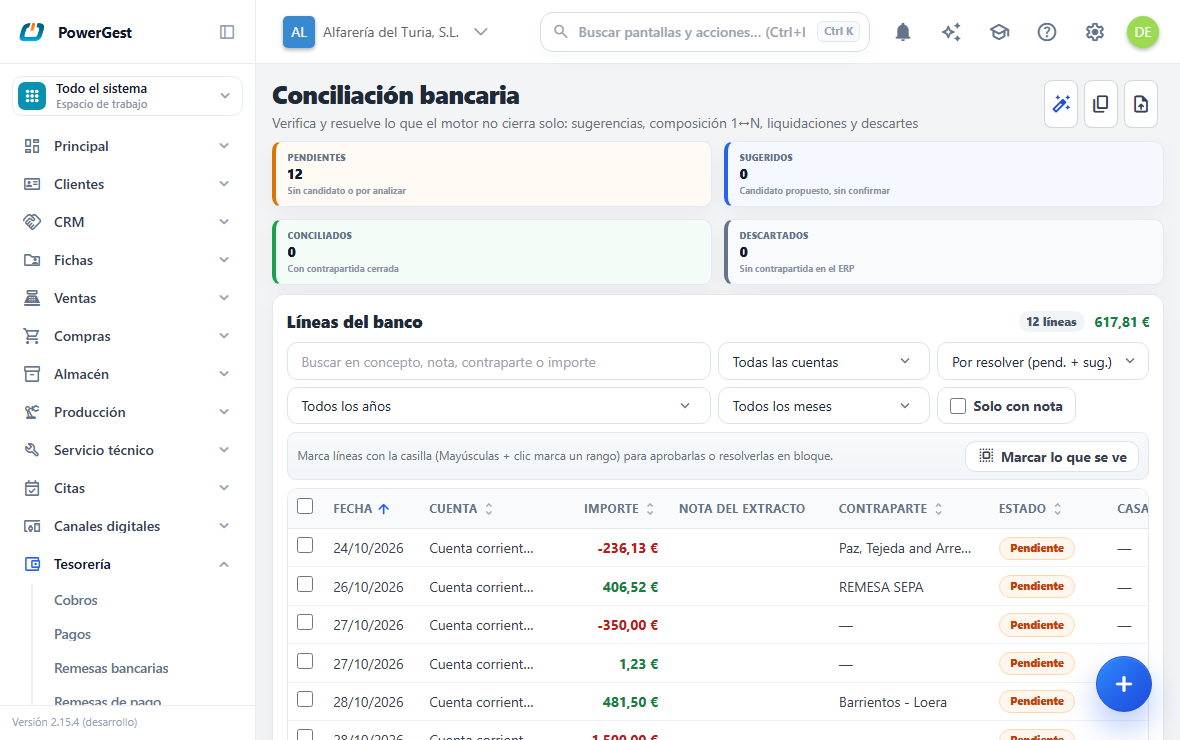
What do I need before I start?
You need an active bank connection with its accounts paired with treasury accounts, and transactions already downloaded. If there is nothing in Bank lines, check the Bank transactions screen first.
To resolve a standalone receipt you also need an active numbering series for receipt or payment batches. Without a series, that case can’t be accepted.
How do I do it?
- Go to Treasury and click Bank reconciliation.
- At the top you have the Bank lines table: one row per statement line. By default it brings what needs action: the Pending and the Suggested lines.
- Narrow it down with the filters: the account, the status, the year and the month. The year only offers the years in which there is a statement. With All statuses you also see the reconciled and the dismissed ones.
- If the table is empty but there is statement data not yet analysed, click Analyse pending, at the top right. If the window is narrow, it is inside the ··· menu.
- Click a row. Bank statement line opens with its date, amount, account, counterparty and description: below the table or, on a wide screen, to its right.
- Resolve it the way that fits: accept the suggestion, choose a candidate, compose against instalments, search for another counterpart or discard it.
When you resolve a line, the table and the counters refresh on their own. The search, the filters and the sort order you had are kept.
What does each column of the table tell me?
| Column | What it shows |
|---|---|
| (checkbox) | To tick the line and resolve it in bulk with others |
| Date | The day of the operation at the bank |
| Account | The bank account the line comes from |
| Amount | What came in or went out. Charges are shown in red |
| Description | The text the bank puts |
| Statement note | What was handwritten on the statement PDF when ticking it off |
| Counterparty | Who pays or collects, if the bank says so |
| Status | Pending, Suggested, Reconciled or Dismissed |
| Matches | The counterpart the ERP suggests or that is already linked |
| Operation | What was done to reconcile it: Ya estaba en el diario, Cobro o pago de factura, Gasto o ingreso sin factura, Transfer between accounts, Adjustment, Advance payment or Purchase invoice. Hover over it to see who approved it |
A text that doesn’t fit is cut off. Hover over it to read it in full.
What does the reliability percentage mean?
Each suggestion carries a percentage next to its status: how far to trust it. Hover over it to see why ("The bank names the invoice", "There are other equally good candidates"). The ERP calculates it with fixed rules, never the AI, and it reads in four bands:
| Band | Reliability | When |
|---|---|---|
| Certain | 100 % | Exact amount, a proof that says which counterpart it is (the batch or invoice number in the description, the statement note, the batch file) and no other candidate |
| Very likely | 90 to 99 % | Exact amount and a single candidate close to the date, or a sum that only adds up one way with lines of the same description (payroll, bills of an advance) |
| Likely | 70 to 89 % | The date is far, there are weaker candidates or the proof has a tie |
| Review | below 70 % | Several equally good candidates, approximate amount or the bank names another invoice |
What the assistant proposes never reaches "Certain": the ERP checks that it adds up and is free, but it cannot check the document it came from.
Suggestions made before reliability existed get theirs when you press Analizar pendientes. The % button in the Status header sorts the table by reliability.
In what order do I review the reconciliation?
Above the table, the Steps to review panel says how many lines each step has. Press a step to see only its lines and View all to go back. The order makes each step leave less for the next one:
- Approve what is certain. Press Tick the certain ones and then Approve suggestions. The 100 % ones of the whole queue are ticked, visible or not. No need to check them one by one.
- Review what is very likely. Check a few of each family (fees, payroll), tick them and approve them.
- Choose in the doubtful ones. Open each one and choose its counterpart in Candidates.
- Resolve what has nothing. Create the missing operation or purchase invoice, or match it by hand. Sometimes the statement for that month just needs loading.
- Ask the assistant for help with whatever is left (see below).
How does the assistant help me with my files?
Press Reconciliation assistant at the top right. The assistant opens knowing what is left on the account and month you are looking at. Attach with the clip whatever explains the lines: a supplier's CSV or Excel of direct debits, the PDF of a settlement, a photo of a receipt or a text file.
- What adds up is proposed in a card with the lines, the counterparts and the reliability the ERP gives it. Reconcile reconciles it; Leave it suggested on the desk leaves it suggested to approve with the rest. Nothing is reconciled until you press it.
- A batch file (
.REC) is read by the ERP directly, without spending AI, just like Ficheros de remesa. A Norma 43 statement too: it tells you what it brings and where to load it. - For what does not add up, it tells you what is usually missing in each family.
Which AI level is needed? The assistant recommends it according to the job, for example "Premium Normal: 3 PDF documents". A PDF or an image needs reading with vision, and a file with hundreds of rows needs the deepest analysis. You can press Use Premium… or Stay with the Basic AI. With the Basic AI it still tries, in parts and one file at a time, and warns you that the results may fall short.
How do I resolve many lines at once?
Tick the lines with their checkbox. With Shift held down, the checkbox ticks every line between the last one you ticked and this one, as in any list. Marcar lo que se ve ticks all the lines left by the search and the filters: that way you choose a block by criterion, for example ‘liquidacion por emision’ in one month.
Above the table you see how many are ticked and what they add up to. With them you can:
- Aprobar sugerencias: each Suggested line is left reconciled with what the ERP proposed. The ones with no suggestion are skipped and stay ticked.
- Discard them with the same reason.
- Crear para las marcadas…: create the same operation for all of them (see below), each line with its own amount and date.
Each line is resolved on its own: if one fails, the others go ahead, and the warning says which ones couldn’t be done and why. What you approve this way isn’t ‘automatic’: it is left with your name in Operation.
What if what the bank says is already in the journal?
It happens with what only exists as a journal entry —the journal that came from the desktop ERP, taxes, Social Security, fees, invoice advance payments—: in treasury there is nothing to match it with, but the money is already posted.
Analyse pending looks in that bank’s ledger account for a journal line of the same amount, on the same date or a few days either side, that doesn’t already match another line. If there is one, the line is left Suggested with ‘Asiento 963 · …’ in Matches. It never reconciles it on its own: you approve it, one by one or in bulk. When you approve it, Operation shows Ya estaba en el diario: nothing is created.
To search for the journal line by hand, open the line and, in Search for another counterpart, click Journal: it brings the free journal lines of the bank’s account from a month either side, those with the same amount first. You can search by description or by journal entry number.
If that journal entry is later redone or deleted, the line goes back to Pending on its own.
How do I check in the journal what a line proposes?
Without leaving the reconciliation. When you click a line, the right-hand panel brings its Journal block, already placed on what matches it:
- The line’s journal entries: those of what matches it, reconciled or suggested; if it matches nothing, those of the journal lines with the same amount that could be it. Each one with its date, what it is for the line and its invoice. At the bottom, what the counterparts add up to against the bank amount, and whether it balances.
- Bank ledger: the journal lines of the bank’s ledger account from one week before to one week after, with their Debit and Credit, what belongs to this line highlighted and, on each one, what it is: suggested, from another line, in a direct debit batch or free. This shows whether there is another identical journal line that could be the right one. A free journal line with the same amount is reconciled with Match.
Can I have the journal alongside while I reconcile?
Yes. Journal alongside, in the Journal block, opens the journal in a window next to the reconciliation, already on the line’s journal entry. From then on it follows it: each line you click takes the journal to its entry, without loading it again. Clicking a journal entry number in the block takes it to that one.
In the window the journal narrows: entry, date, accounts, debit, credit and invoice in view; the description, on the right. If you widen it, it looks as usual.
It is the real journal: you can open the entry and correct it there. While you have an entry half done, the journal stays on it even if you change line, and reminds you; when you save it, the reconciliation reads the line again.
The window moves, docks to one side and resizes like any other record alongside.
Can I give more room to the right-hand panel?
Yes, with a wide screen (the queue on the left and the line on the right): drag the strip between the two. The width is kept for next time in this browser. Double-clicking the strip returns it to the usual one. With the keyboard: move to the strip with Tab and use the arrows.
How do I reconcile several lines with a single journal line, or one line with several?
Sometimes the bank and the ERP don’t go one to one: fifteen debits of €1,000 from an invoice advance that the journal records in a single €15,000 entry, or a bank transfer batch that is nine payslips in the journal. That is reconciled as a group: several lines with several counterparts at once, as long as they add up to the same amount to the cent.
Analyse pending proposes the groups that are safe, always as Suggested:
- the bank’s payroll batch, with the journal payslips of those days that add up to it;
- a returned direct debit, with the journal returns that add up to it;
- a bank batch, with the ERP batches of those days that add up to it;
- the amounts someone wrote on the statement (“387,20 + 854,40”), each with its counterpart;
- several identical bank debits on the same day, or consecutive days, with the journal entry that records them together.
It is only proposed if there is a single way to add up the amount. If two different combinations give the same, the line stays pending for you to resolve.
To do it by hand:
- Tick the bank lines that go together.
- In the right-hand panel, in Match as a group, search by text or amount and click Add on each counterpart.
- When the difference is zero, click Reconcile as a group. Optionally, write first why they match (“February payslips”).
Matches shows “Group · 15 line(s) ↔ Asiento 963 · …”, and opening any of its lines shows the whole group. Accepting, rejecting or undoing a line of the group does it with all its lines.
How do I reconcile a direct debit batch with its file?
The bank’s SEPA SDD batch issue line is the total of the direct debits you sent for collection. The file sent to the bank (the “.REC”, SEPA 19.14 format) says exactly which ones they were, with their invoice.
- Click Batch files in the header and then Choose files. You can choose many at once.
- Each file looks for the bank line with the same total within a week of its collection date.
- It matches it with the ERP batches that collect its direct debits. If a direct debit was collected without a batch, it looks for it among the separate collections of those days.
The table says what happened with each file. Matched with its line: the line is left suggested for you to approve. Collections missing in the ERP: it says which direct debits have no collection (“343120 · Ferretería Axarquía · 151,25”); create it and load the file again. The line was already reconciled or No line in the bank: nothing to do with that file.
What happens with identical direct debits from the same supplier?
When a supplier charges many direct debits on the same day and several have the same amount (twenty of €82.69), any of the payment batches of that amount and that day is the right one: they are the same thing. Analyse pending reconciles them on its own, just like an amount that appears only once. If they belong to different suppliers, they stay suggested.
If, when ticking by hand, you wrote our invoice number on the debit (“250518”), the line matches the payment of that invoice.
How do I create the missing operation?
When the bank shows something the ERP doesn’t have, you create it from the line in the Crear operación (contabilizar lo que falta) block, without knowing accounting: the cash/bank journal key you choose decides it (the same ones as in Cash keys).
- Open the line, or tick several.
- In Operation, choose the key: an invoice receipt or payment, an expense or income without an invoice (with its account and its VAT), a transfer, an adjustment or an advance payment.
- Fill in what the key asks for, and only that: the customer or the supplier, the expense or income account and the VAT %, or La otra cuenta del traspaso. An empty Description is the bank’s.
- Click Crear para esta línea… or Crear para las marcadas… and confirm.
Each line provides the date, the amount and the account. The operation, its journal entry and the reconciliation are saved together: if something fails, nothing is left half done.
- In an invoice receipt or payment, if the line is open and there are instalments in the composition, those are settled; if not, the business partner’s outstanding ones, oldest first. If the amount doesn’t cover them, the last instalment is split: what was collected is left paid and the rest outstanding.
- In a transfer between two of your own accounts, the line in the other account —same amount, opposite sign, close date, pending— is reconciled too, with a single operation.
- An expense with VAT in a quarter already filed is left pending declaration (see purchases pending declaration).
The form comes filled in in two cases. It tells you why at the top, and you check it before creating:
- If the line is one half of a transfer between your accounts (the other account has the same amount with the opposite sign and one of the two mentions a transfer), the transfer key and the other account are already there.
- If you already created an operation for a line with the same bank text (“Compra internet en Simyo”), the same key, account, VAT and business partner come in. To create all the identical ones at once, search for them, tick them and use Crear para las marcadas….
How do I create the purchase invoice I see in the bank?
It is the most common case: you ‘discover’ the invoice when you see the charge. Open the line —it has to be a charge— and use Factura de compra desde este cargo:
- Choose the supplier in Proveedor.
- Type the supplier’s invoice number in Nº de factura del proveedor. Leave it empty for bank charges, which come with no invoice: the ERP sets ‘BANCO-’ with the date and the line as the reference.
- Adjust the Invoice date if it isn’t the charge’s, the VAT % (empty is no VAT, as with fees) and the Expense account.
- Click Crear la factura y pagarla… and confirm.
The invoice is issued for the exact amount of the charge: the ERP calculates the tax base that, with its tax amount, gives that total. If no amount to the cent gives it (100,00 € at 21 %, for example), it adds a one-cent Redondeo line with no VAT. Then it is paid against the line, which is left reconciled as Purchase invoice.
If the payment fails, the invoice is left issued and awaiting payment, and the warning says so: reconcile the line with its payment afterwards. If its quarter was already filed, its VAT is left pending declaration.
What are repeated collections?
An instalment collected twice in different years: the 2025 collection and the same instalment again in 2026. There can never be two collections of the same thing: what was collected in one year is removed from the next, as Actualizar periodo does in the desktop ERP.
Click Cobros repetidos, at the top. The list says which collection stays (Se queda, the one from the earlier year) and which is voided (Se anula). Click Anular los repetidos… and confirm: the later year’s collection is voided with its journal entry and, if it was on a copy of the instalment, the copy is deleted.
The ones with a note under Review aren’t touched: the batch collects more instalments, or the bank backs it. Those are corrected by hand. An instalment that was returned and collected again isn’t a repeat.
How do I find a line among thousands?
Type in Search description, note, counterparty or amount. The table keeps the lines that carry all the words you type, in any of those fields. Capitals and accents don’t matter: ‘ferreteria lopez’ finds ‘Ferretería López’. An amount is searched the way you write it in Spanish, with or without the thousands point: ‘1.234,56’ or ‘1234,56’.
Tick Only with a note to keep only the lines that have a note written on the statement PDF.
To sort, click the Date, Account, Amount, Counterparty or Status header. Click it again and the order is reversed. The arrow tells you which column it is sorted by.
Above the table you see how many lines it shows and what they add up to, with charges subtracting. The figure is that of what you have filtered at that moment.
How does the ERP know whose payment it is when it carries a voucher or agreement number?
From the reference of your projects (see follow a project). If the bank description carries a project's reference —the voucher number Red.es puts on each Kit Digital payment, an agreement number, the customer's order—, Analyse pending knows the money belongs to that customer: among several collections of the same amount on the same day it picks theirs and, if there is only one, reconciles it without asking. It also goes over the Suggested lines: if there is no longer any doubt, it reconciles them; if there still is, it leaves them as they were.
What if the customer puts the invoice number in the transfer?
It is the safest clue, and Analyse pending uses it before any other. If the description says, for example, ‘Pago Factura 342840’, the ERP looks for the account’s batch that collects an instalment of that invoice for exactly the same amount, up to a month before or after. If there is one, it reconciles it on its own; if there are several, it suggests one.
If it also carries the Kit Digital agreement (‘Acuerdo: Kd/0001331699’) and the invoice belongs to a project with a different agreement, it does not match it: it leaves the line pending for you to check. And if the invoice exists but no free collection covers it —the instalment shows as paid with no collection, or the customer paid twice—, it does not look for another collection of the same amount from another customer either: the line stays pending. If the invoice it names is not among yours (a typo, one from another year), whatever matches by amount alone stays Suggested, never reconciled without asking.
Why does a line that was reconciled go back to pending?
Because it no longer had a counterpart. It happens when the company is brought in again from the desktop ERP: the collections are deleted and created anew, and the bank line is left reconciled with something that no longer exists. Analyse pending puts them back in the queue, matches them again with the new collections and tells you how many there were.
How do I accept or reject a suggestion?
When the line is Suggested, the Engine suggestion block appears with the counterpart the ERP proposes.
Click OK if it is correct: the line is left Reconciled against that counterpart and who resolved it and when is recorded.
Click Reject if it isn’t: the line goes back to Pending and you can resolve it another way. Nothing is lost.
If in the meantime someone else has used up that counterpart, you will see a warning and you will have to reject the suggestion and analyse again.
How do I choose the counterpart myself?
When the line is Pending or Suggested you have two ways.
The first is the Candidates recalculated block. It brings the list of counterparts the ERP considers possible, each one with its date, its amount and its score. Click Reconcile on the one you want.
The second is Search for another counterpart. Type some text and click Movements, Direct debit and payment batches or Settlements depending on what you are looking for. In the results, Reconcile closes the line against a transaction or a batch, and Link associates it with a settlement.
A counterpart can only be used up once. If you try to use a batch or a settlement that already backs another statement line, the ERP prevents it and tells you.
How do I collect several instalments with a single deposit?
This is the case of the customer who pays several invoices at once with a single transfer. You resolve it in the Composition against instalments (standalone receipt/payment) block.
If the ERP has identified the customer by their IBAN, the composition already comes filled in with its proposal. You can adjust it: remove lines with the cross, or search for more with Search instalment by business partner/IBAN and click Add.
Below you have Composed net and Difference from the line. When the difference is zero, what you have composed matches the bank deposit exactly.
Click Accept standalone receipt/payment… and then Yes, issue. This step really moves money, which is why it asks for a separate confirmation.
What happens when I accept a standalone receipt?
A real batch is issued. The instalments you have composed are left collected or paid, the transaction is recorded in the treasury account for that bank account and the journal entry is generated. Then the statement line is left Reconciled against that transaction.
If the amount of the batch doesn’t match the amount of the bank line, the operation goes ahead anyway but you will see a warning with both figures so you can check the difference.
Undoing this isn’t automatic. If you make a mistake, the line can be unreconciled, but the batch already issued has to be voided separately from the Receipts screen.
What do I do if the bank line is more than the instalments?
The customer has paid too much. Below the composition you will see The bank shows … € extra. What is it? Choose one of the two options before accepting the standalone receipt:
- Extraordinary income (on a debit, Extraordinary expense): the extra goes to 778 (or to 678). This is the usual choice for a small surplus that will not be claimed.
- Customer advance (on a debit, Advance to supplier): the extra stays on account for the customer or supplier and is applied to their next receipt or payment.
The instalments are settled in full and the line is left Reconciled for its full amount, with no difference warning. With an advance, two transactions are issued —the receipt and the advance— and the line matches a group with both. If you don't choose, nothing is issued.
It is the same as the Overpayment box when collecting from the portfolio. If the line is less than the instalments, the last one is split and the rest stays outstanding, as always.
How do I set aside a line that has no counterpart?
Some bank lines don’t correspond to anything that needs to be recorded in the ERP. You set them aside with the Discard (no counterpart in the ERP) block. If what is missing is posting it —a fee, some interest, a transfer—, don’t discard it: create its operation (see above).
Type the reason, which is required, and click Discard. The line changes to Discarded and stops getting in the way in the table.
The reason is saved together with your name and the date. Anyone who opens that line later sees why it was set aside.
How do I undo a reconciliation?
Open the line and click Undo (back to pending). It is available on Reconciled and Discarded lines.
The line goes back to Pending, its counterpart is released and becomes available again for another line. The discard reason is cleared and who undid the resolution is recorded.
Undoing doesn’t touch the money. A batch that was issued when accepting a standalone receipt stays issued and posted: unreconciling only breaks the link with the statement.
If something goes wrong
| What you see | What has happened | What to do |
|---|---|---|
| ‘Select a bank statement line.’ | No line is open | Click a row in Bank lines |
| ‘No line matches the search.’ | What you typed, or Only with a note, leaves the table empty | Clear the search or untick Only with a note |
| ‘Add at least one instalment to the composition.’ | The composition is empty | Search for the instalments and click Add |
| ‘All instalments must belong to the same business partner.’ | You have mixed customers in the composition | Keep only one customer’s and repeat the operation with the others |
| ‘The line is a receipt and the selection includes instalments in the other direction.’ | You have mixed receipts with payments | Remove the ones in the opposite direction |
| ‘There is no active series for … Set up the batch series before reconciling.’ | The numbering series is missing | Ask whoever administers the ERP for it |
| ‘The line’s connected account is not mapped to a treasury account.’ | The account hasn’t been paired | Pair the account in Bank connections |
| ‘Another user is resolving this bank statement line.’ | Two people opened it at the same time | Reload the queue and try again |
| ‘Batch … is already reconciled with another bank statement line.’ | That counterpart is already used up | Choose another counterpart, or first undo the line that has it |
| ‘Batch … was issued, but the bank statement line could not be reconciled’ | The receipt went through but the link failed | Reconcile the line by hand against the transaction, or void the batch from Receipts |
| ‘The reason for discarding is required.’ | You clicked Discard without typing the reason | Type the reason and try again |
| ‘… lines were reconciled or suggested with no counterpart and have been analysed again.’ | Their collection was deleted, usually when the company was brought in again | Nothing: they have been matched again with the new collections where there were any; the rest are in the queue |
| ‘Sin hacer, N: … (no tiene sugerencia)’ when approving in bulk | Some of the ticked lines weren’t Suggested | They stay ticked: resolve them another way |
| ‘La clave … es de compra o venta aplazada: créala como factura desde la línea.’ | That key opens an invoice, not a journal operation | Use Factura de compra desde este cargo |
| ‘la línea es un cargo y la clave … es de cobro’ | The key’s direction isn’t that of the line’s money | Choose a payment key, or the other way round |
| ‘la clave … necesita el cliente o proveedor’ | The key settles open items or is an advance payment | Choose the business partner |
| ‘el tercero no tiene nada pendiente: usa una clave de anticipo…’ | There are no outstanding instalments to collect or pay | If it is a payment on account, use an advance payment key |
| ‘El apunte no es de la cuenta contable del banco de esta línea.’ | You chose a journal line from another account | Choose one from that bank’s account |
| ‘La factura … quedó emitida y pendiente de pago: …’ | The new invoice’s payment couldn’t be made | Reconcile the line with the payment, or pay it from Payments |
See also: Review the bank transactions · Balance a POS or payment gateway settlement · Collect an instalment
More about Banks
- How do I use my spreadsheets to reconcile the bank?
- How do I load the bank statement from a file?
- How do I connect my bank to the ERP?
- How do I balance a POS or payment gateway settlement?
- How do I set up my company’s access to Enable Banking?
- Connecting the bank and reconciling the statement
- How do I reconcile the bank month by month?
- How do I review my store’s POS remittances?
- How do I review the transactions that come in from the bank?