How do I deliver a sales order in several deliveries?
A sales order doesn’t have to be delivered in one go. Each delivery takes the part you want and the program keeps count of what is left. That is the pending quantity, and each line keeps it separately.
What is a document’s ‘pending’ quantity?
The pending quantity is what a line still has to pass on to a later document. It is calculated on its own: it is the line quantity minus what other documents have already taken.
An example. You order 100 units and deliver 60 on a delivery note. The sales order has 40 pending. If you deliver 25 more tomorrow, 15 are left.
The count is per line, not per document. A three-line sales order can have the first line fully delivered, the second half-delivered and the third untouched.
There is a detail that avoids a lot of surprises: what counts changes depending on the document. On a quote, a sales order or a work order, what was ordered is converted. On a delivery note or an invoice, what was actually delivered is converted. If a delivery note was issued with less quantity than the sales order said, what can be invoiced is what was delivered, not what was ordered.
How do I invoice only part of a sales order?
You choose the lines and the quantity of each one when you bring in the sales order.
- Create the invoice from Invoicing and type the sales order number in the header field Source document. You can also search for it with the magnifying glass.
- The Bring from order … window opens with the lines that still have something pending. They all come out ticked and with their full pending quantity in the Bring column.
- Untick the lines you aren’t going to invoice and change the quantity of the ones you are invoicing in part.
- Click Bring. Only the ticked lines come in, with the quantity you entered.
- Save and click Issue.
If you want the whole sales order, in step 2 just press Enter: the focus is already on Bring. The window works with the keyboard: the arrows move up to the boxes and the quantities, the space bar ticks and unticks, and Escape closes without bringing in anything. The box in the header ticks or unticks them all at once.
The sales order’s text lines (with no quantity) also appear in the window: they are ticked and come in as text. Untick them if you don’t want them to appear on the invoice.
If you type more quantity than is left, the window doesn’t close and a warning says how much there is.
Back in the document, you will see a Src. pending column on the lines: it is what was pending on the source when you loaded it. It acts as a ceiling if you change the quantity there.
Whatever is left uninvoiced stays pending on the sales order, ready for the next invoice. The next time you bring it in, the window only shows what is left.
The same applies to a quote, a delivery note or, in purchases, a supplier’s purchase order or goods receipt.
What if I delete a line I have brought in?
That line isn’t invoiced and its quantity stays pending on the sales order. If you delete all the lines you brought in from a document, that document disappears from the header: the invoice no longer comes from it.
How do I make a sales order?
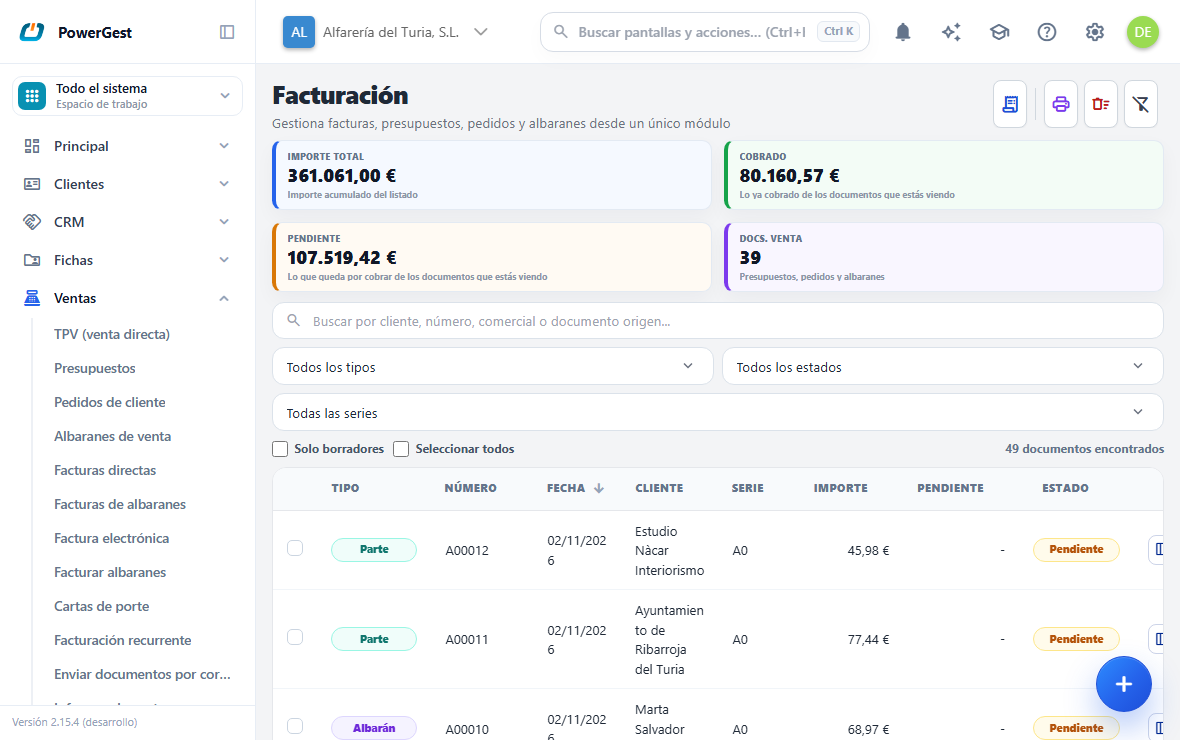
With New order, at the top right, which opens the document blank. An order does not move the warehouse: it commits what you have ordered until you deliver it.
How do I find one?
With the search box, which looks at the customer, the number, the sales rep and the source document all at once. Next to it, the drop-downs narrow by status (Partial is there, the one for the half delivered) and by series.
Can I print or delete several at once?
Printing sends a whole range of orders to the printer, and Bulk delete deletes by range the ones that can still be deleted. Clear filters leaves the list as it was.
How do I see which sales orders are partly delivered?
In the Invoicing list:
- The Status of a quote, sales order or delivery note from which something has already been delivered, but not everything, is Partial. When it is fully delivered it changes to Delivered. You can filter the list by that status.
- The To deliver column says how much is left, as an amount. On a delivery note it is what is left to invoice. On an invoice a dash appears: it isn’t delivered from another one.
How do I see which lines of a sales order are still to be delivered?
When you open the sales order, each line has a coloured dot on its left:
- Red: the line still has a pending quantity. It stays red even if part of it has already been delivered.
- Green: the whole line has been delivered.
The same goes for a quote and a delivery note. On a delivery note, green means the whole line has already been invoiced. Text lines have no dot, because there is nothing to deliver.
The Delivered column tells you how much: the quantity of the line already taken by the delivery notes or invoices made from the order. If you ordered 10 and delivered 4, it shows 4. On a delivery note it is what has already been invoiced.
How do I remove a line that is no longer going to be delivered?
With the cross on the left of the line, or with Del.
- Open the sales order. A saved sales order opens in view mode: the pencil button at the top right says Edit, Viewing appears next to the status and nothing can be changed. The crosses are greyed out.
- Click that button. It changes to Editing and the crosses light up.
- Click the cross of the line and confirm.
- Click Save.
Only lines with nothing delivered can be removed. On a line delivered in part, or in full, the cross stays greyed out and hovering over it says why: what was delivered is already on a delivery note or an invoice and cannot disappear from the sales order. If you press Del on it, a message tells you how much has already been taken.
How do I deliver only part of a sales order on a delivery note?
Here the order is the other way round, because delivery notes aren’t created by hand: they come from converting the sales order, and the conversion takes all the pending quantity.
- In the Invoicing list, tick the sales order and click Convert.
- Choose Delivery note as the target and convert. The delivery note starts with all the quantities.
- Open the newly created delivery note.
- Lower the quantity of the lines you are delivering in part, and delete the ones you aren’t delivering.
- Save.
When you save, the delivery note undoes and redoes its effects: stock is adjusted to what you have actually delivered and the difference **goes back to the sales order as *pending***. The next time you convert it, that difference will be waiting.
Why can’t I change the price of a line brought in?
Because that line isn’t yours: it comes from another document and carries its conditions just as they were.
On a line brought in from a source document, the item, the price, the discount and the VAT appear locked. They have a link mark that says which document they come from. The only thing that can be edited is the quantity, which is precisely what changes in a partial delivery.
Taxes are frozen on purpose: the percentage the source document had is copied, not the one in force today. A sales order from six months ago is delivered with the VAT that was agreed.
If a price has to be changed there are two ways out: correct it in the source document before converting it, or remove the line brought in and type a line of your own in its place.
When is what I have delivered taken off?
It depends on the type of document you are creating, and this is what confuses people most.
- Quote, sales order, work order and delivery note: they are confirmed when you click Save. At that same moment the pending quantity is taken off the source and, if the document moves stock, it is moved.
- Invoice and credit note: when you Save, they are left as a draft document and don’t take anything off. The pending quantity of the source is taken off when you click Issue.
That is why a saved delivery note already leaves the sales order with less pending, whereas a draft invoice doesn’t yet.
There is a second effect, and it works in your favour: if there wasn’t enough stock when issuing and your company is set up to deliver only what is available, what was actually delivered is taken off. The difference stays pending on the source.
What happens if two people deliver the same sales order at the same time?
Nothing is duplicated. The pending quantity you see while editing is for information; the one that counts is the one there is at the moment of saving or issuing.
If another person takes the pending quantity before you, your document fails when you save it with a specific message: it says which line it is and how much is really left. Nothing is saved halfway.
The solution is always the same: open the source document again, look at the real pending quantity and adjust the quantities.
Can I change a delivery note that has already been invoiced?
Not while the invoice is still live. The program protects what another document has already taken.
If a delivery note delivered 10 units from a sales order and those 10 have already been invoiced, on that delivery note you can not delete the line or lower it below 10. The warning says exactly how much has been taken and from which line.
To be able to change it you have to go in reverse order: first you touch the invoice, and when it gives back the pending quantity, the delivery note can be edited again. The same applies one step higher up between the delivery note and the sales order.
There are two ways for the invoice to release the delivery note. One is to edit the invoice and lower or remove those lines. The other is to Replace the whole invoice: when you do, all its delivery notes are released at once and you can choose which ones go back onto the new invoice. It is explained in replace an invoice.
Lowering the quantity of a delivery note already issued is possible if nobody has invoiced it: when you save it, the difference goes back to the sales order as pending.
What happens with a discount as an amount when splitting the delivery?
It is shared out, and not a single cent is lost.
If a line of 100 units has a 30 € discount and you deliver 40, that delivery gets 12 €. The rest is left with 18 €. The split is proportional to the quantity and the cents left over from rounding go to the delivery that uses up the pending quantity.
With a percentage discount there is nothing to share out: the percentage is copied the same on each delivery.
If something goes wrong
| What you see | What has happened | What to do |
|---|---|---|
| ‘Only X pending in order …’ | You have typed more quantity than is left | Look at the Src. pending column for that line |
| ‘Line … only has X pending conversion’ | In the Bring from … window you asked for more than is left | Lower the quantity of that line in the window |
| ‘Tick at least one line with a quantity to bring it in.’ | You clicked Bring with no line ticked, or all at zero | Tick a line or click Cancel |
| ‘… no longer has enough outstanding of …’ | Another person took the pending quantity before you issued | Open the source again and adjust the quantities |
| ‘… has nothing pending conversion’ | The document is already fully delivered | Check whether you were looking at the right document |
| ‘… cannot be reduced to …: another document has already taken …’ | A later document has already taken that quantity | Correct that later document first |
| The source document doesn’t appear in the magnifying glass | Only what is issued, with something pending and from the same customer is offered | Type its exact number: the warning will tell you the real reason |
Previous: From quote to invoice · Next: Invoice several delivery notes at once
More about Invoicing
- How do I delete a document?
- How do I make the consignment note for a shipment?
- How do I charge shipping or expenses without VAT?
- Setting up numbering series
- How do I convert several documents at once?
- Why is my invoice one cent out and how do I fix it?
- How do I turn a quote into a sales order, a delivery note or an invoice?
- Can I leave a document half-done and go to another screen?
- How do I issue an invoice?
- How do I invoice a fee that repeats every month?
- How do I invoice several delivery notes at once?
- Pro forma invoices