How do I prepare my online store’s catalogue?
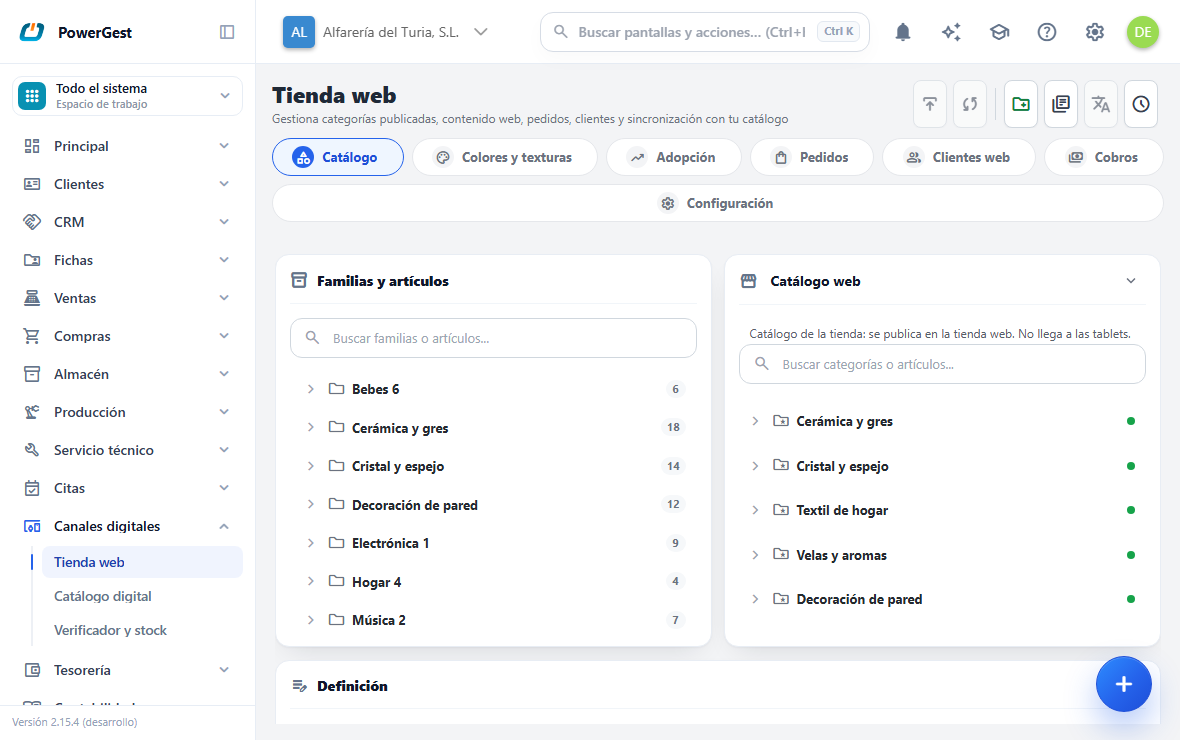
The store catalogue is the tree of web categories your buyers will see and the items that hang from each one. It is built by dragging in Digital channels → Online store, Catalogue tab, and it is separate from the warehouse item families: you choose what is shown and in what order. Buyers only see what hangs from a published category, and nothing goes until a sync is started.
What do I need before I start?
You need items set up in the ERP. The Catalogue tab doesn’t create items: it only decides which ones are shown on the website and where.
The items have to be marked as Publish in the online store on their record. An item that isn’t can still be assigned to a category, but it will appear as Not publishable and won’t go to the store.
You don’t need to have the store connected to prepare the catalogue. You can build the whole tree before setting up the connection.
What do I see in the Catalogue tab?
The tab has three columns.
On the left, Item families and items: it is your warehouse just as it is, grouped by item family. It is the source and isn’t edited here.
In the centre, Published catalogue: it is the tree the store will see. It is the destination and it is what you build.
On the right, Definition: everything that describes the category you have selected in the centre. It is always in view, next to the tree.
The catalogue is built by dragging. You pick up an item family or an item on the left and drop it in the centre, wherever you want it to go. To remove something from the catalogue, you drag it the other way: from the centre to the panel on the left.
The first two columns have their own search box. The one on the left filters item families and items; the one in the centre filters categories and items already assigned. Searching only changes what you see, never what is published.
How do I create a web category?
With New category, in the bar at the top of the screen. Type the name —the one the buyer will see— and accept.
The window also asks for the parent category, and it is optional: leave it empty and the category is created at the first level; choose one and it is created inside it. If you had a category selected in the tree, it is already suggested as parent.
To choose it, click the field’s magnifying glass: the usual search window opens —with a search box, columns and pages—, where each category appears indented according to its level and with its status. You can also type the name directly; if it doesn’t exist exactly as typed, the window opens searching for what you have typed. To make it a main category again, clear the field.
The category is created as Draft: it exists in the ERP but doesn’t go to the store yet. It is placed last among the categories at its level.
You can also create a category inside another by right-clicking on it and choosing New subcategory: it is the shortcut when you are already on the parent category.
How do I create a category from a warehouse item family?
Drag the item family from the panel on the left and drop it in the catalogue. The ERP creates a mirror web category of that item family: it shows its items, but doesn’t copy them. It is the quick way to get started when your warehouse is already well organised by item families.
Where you drop it decides where it ends up:
- In a gap at the first level, or in the free area of the panel → main category.
- On another category → its subcategory, the last one.
- In a gap between two categories → right at that point.
The category is created as Draft, just as if you created it by hand.
The No item family group doesn’t work like this. It brings together the items that don’t belong to any item family, which isn’t a real item family: it can’t be dragged. Its items have to be dragged one by one.
What is a mirror category and how can I tell?
A mirror category follows the warehouse item family on its own. You can recognise it by its icon, different from that of a normal category, and because its definition tells you so.
What you gain: if tomorrow you add an item to that item family, it appears on its own in the store in the next publication. You don’t have to go back to the designer. If you remove one, it disappears in the same way.
What it costs: its items aren’t touched by hand while it is a mirror, because its content is decided by the item family. If you drag an item into it, reorder it or remove it, the ERP asks you whether you want to convert it into a normal category. With Convert, it converts it and makes the move you were trying. With Cancel, nothing changes.
If at any point you want to decide by hand, use Convert to normal: it is in the right-click menu and in the definition’s action bar. It freezes the items the item family has at that moment, drops the link and from then on the category is yours. There is no going back with a button: to link it again you would have to drag the item family again, and it would be another category.
How do I assign a single item to a category?
- In the Item families and items panel, expand the item’s item family.
- Drag the item to the catalogue in the centre.
- Drop it on the category you want, or in the exact gap where it should go among the items it already has.
An item has to land inside a category. If you drop it at the first level, the ERP warns you that ‘An item has to be dropped inside a category’.
Assigning the same item twice to the same category doesn’t duplicate it: dragging it within its own category repositions it. The same item can be in several different categories: for that you drag it again from the panel on the left.
What can I edit in a category’s definition?
Click a category in the centre panel. The Definition column, on the right, fills with everything that describes it.
- Name: the one shown in the store.
- Description: the text the store shows in the category header.
- Images: the category gallery (see below).
- External URL: an alternative to the gallery, for when you serve the image yourself from outside.
- Publishable content: the shop window title, the description and the SEO (see below).
The items that hang from the category aren’t listed here: they are shown in the tree in the centre, by expanding the node. There they can also be reordered and dragged. To remove one, drag it from the tree to the Item families and items panel.
The whole column saves itself. Each field is saved when you leave it —when you click outside or move to the next one with the Tab key—, and there is no save button. This applies to Name, Description and External URL just as it does to the gallery (each image is uploaded when you drop it) and the publishable content.
If you leave the Name blank, the change is rejected and you are told: a category without a name can’t be published. The other fields can be left empty.
The actions on the category —Publish, Delete and, on a mirror, Convert to normal— are at the top, to the right of the Definition heading; if the column is narrow, the ones that don’t fit are gathered in the ··· menu at the end.
At the very top, next to the name, a label says what status it is in: Draft, Published or Hidden. The third one is the one to watch: the category is published, but the store doesn’t see it because some category above it isn’t.
To move the category to another place in the tree, there is no drop-down: you drag it.
Removing an item from a category doesn’t touch its record or delete it from the warehouse. It just stops being shown in that category.
Can I see an item’s definition?
Yes, and from either of the two panels: click the item in the centre one (the ones already in the catalogue) or in the one on the left (all those in the warehouse). The Definition column then shows the item’s —its code, whether it is publishable, its image gallery and its publishable content—.
The fact that it also works from the left is what lets you prepare the photo and the text before dragging it to the catalogue: when you publish it, it will already be dressed. The gallery and the content belong to the item, so what you write there goes with it to any category you put it in.
The name, the code and the Publish in the online store flag are edited on its record (Warehouse → Items), not here. In the designer you decide where it is shown and with which images.
How do I get here from an item record, and how do I go back?
On an item record (Warehouse → Items) there is a View in the online store link. It brings you to this screen, to the Catalogue tab, and the item arrives already selected: its item family expands on its own, the item is highlighted in the left column —scrolling down to it if needed— and the Definition column opens with its record. You don’t have to look for it.
The search boxes are left empty: that way the tree reaches you complete and you can drag anything else without first clearing a filter.
When you have arrived this way, ← Back to item appears at the top, which takes you back to its record.
If the item doesn’t appear in Published catalogue, it isn’t assigned to any category yet. Drag it, as explained in assign a single item to a category.
What is the publishable content?
It is what the buyer reads, which doesn’t have to be what you keep in the warehouse. It is in the Definition column, under the Publishable content heading, and it is the same for a category as for an item.
- Title in the store: the shop window name. If you leave it blank the name the category or item already has is published —you will see it written in grey inside the field—. Only type here if the store has to say something else.
- Description: the long text of the record, with bold, lists and images.
- URL (slug): the final part of the web address.
- Meta title, Meta description and Meta keywords: what Google and social networks read when showing your page.
Writing the shop window title doesn’t rename the item or the category: the warehouse stays as it was.
Each field is saved when you leave it, with no save button, like the rest of the column.
How does the URL (slug) work?
It is generated on its own from the title the first time: it is put in lower case, the accents are removed and the spaces become hyphens. ‘Dining Tableware’ becomes dining-tableware.
From then on it is yours and doesn’t change on its own again. If you later touch up the title, the address stays as it was, on purpose: a published address that changes on its own means broken links, customers landing on a page that doesn’t exist and lost positions in Google.
You can change it by hand whenever you like. Whatever you type is normalised the same way, so you don’t need to type hyphens: ‘My Nice URL’ becomes my-nice-url. If you leave it blank, it is generated again from the title.
If the address you ask for is already used by another entry, the ERP adds a number at the end (dining-tableware-2) instead of rejecting it. You will see it already adjusted in the field.
What are the published properties?
They only appear in an item’s definition, and only if that item has properties set up on its record (Warehouse → Items). They are its characteristics —material, origin, dimensions— and here you tick which ones you want the store to show and in what order.
Ticking and unticking doesn’t touch the item record: it only decides what is published.
How do I manage the images?
In the Images strip of the Definition column. It works the same for an item and for a category.
- Upload: drag files onto the strip or click to choose them. You can drop several at once.
- Cover: click an image’s star ☆ to make it the main one; the cover carries the Cover label. The first one you upload is automatically. In the store, the cover is the photo shown in the listing; the rest go after it, in their order.
- Reorder: each thumbnail’s
‹and›arrows move it one position left or right. They always show, even when there is only one image. - Alt text: the Alt text (SEO) box under each thumbnail. It is what search engines and people browsing without seeing the images read; it is worth filling in.
- Delete: the bin, at the top right of the thumbnail, away from the arrows so as not to confuse it with them. It deletes straight away, without asking, and there is no undo: if you need it again, you have to upload it again.
Where does an item’s first image come from?
From its record, and on its own. When you add an item to the catalogue, if it has an image on its record (Warehouse → Items) and doesn’t have any here yet, that image goes into its image strip as the cover. The same with a category you create by dragging an item family: it is created with that item family’s image.
From that moment it is just another image: it can be reordered, made the cover or deleted, and the next one you upload goes after it.
It is a copy. From then on the store one is yours: deleting it here doesn’t touch the item record, and changing the one on the record doesn’t change the one already in the store —if you want the new one, upload it or delete the old one and bring it in again—.
For what was already in the catalogue before, the empty strip offers you the Fetch the image from the item record button, with the photo it would bring. It is the same operation, on request. It doesn’t happen on its own every time you look: if it were redone when the strip is seen empty, you could never delete it.
One caveat: if what is on the record is an internet address instead of an uploaded file, it can’t be brought in —the strip stores files—. It is still published, and the strip tells you so.
On a mobile phone or a tablet the thumbnail is wider and the buttons bigger, so that you can hit them with your finger.
Can I have one photo for blue and another for red?
Yes, if the item has sizes and colours. Under each thumbnail, as well as the alt text, there is a drop-down that says which size or colour that photo is for. It starts at Whole item, which is the normal case: the photo applies to the whole product.
Only the values the item really uses in its variants appear, grouped by their dimensions (Size, Colour, Model…). If the item has no sizes or colours, the drop-down doesn’t appear.
Setting it doesn’t change where the image lives: it still belongs to the item. What it adds is which combination it belongs to and that does go to the store: in the next publication, whoever chooses blue will see the blue photo. It works in PrestaShop, WooCommerce and Shopify.
If a size and a colour compete for the same variant —there is a photo for ‘M’ and a photo for ‘blue’—, the colour wins: it is what changes how the garment looks. Between dimensions that aren’t colours, the item’s last one wins. A variant with no photo set shows the product’s, as always.
Removing the setting doesn’t delete the photo the variant has in the store. That is on purpose: it may have been put there by hand from the store’s back office, and the ERP doesn’t delete what it doesn’t control.
Can I use that same photo as the colour’s texture?
Yes, and it is the convenient way: once the photo is set to its colour, the palette button appears among the thumbnail actions. Clicking it sets that same image as the texture for that colour, without uploading it again and without duplicating the file.
It becomes that value’s cover, so it is the one you will see in the Colours and textures tab and the one that will go to the store as a button. If it already was, the button is greyed out and says so.
Deleting the item’s photo afterwards doesn’t leave the texture without an image: the file is only deleted when nobody uses it any more.
How do I see an image close up?
Click the thumbnail and it opens at full size.
- Mouse wheel to zoom in and out.
- With the image zoomed in, drag it to move around it.
- The buttons at the bottom do the same: zoom in, zoom out and back to the original size.
- Previous and Next, on either side of the footer, move to the next image of the same entry, going round again when they reach the end. On narrow screens they keep only their arrow.
Which image formats can I upload?
JPG, PNG, WebP, GIF and BMP, up to 8 MB per file.
BMP deserves an explanation: it is accepted because a lot of files come in that format, but no store accepts it. So the ERP converts it to PNG when it is uploaded, and what is saved —and what goes to the store— is already a PNG. You will see the file name change from .bmp to .png: that is why. You don’t have to do anything.
What decides the format is the file’s content, not its name. A .jpg that isn’t an image inside is rejected.
What does right-clicking on a category do?
It opens a menu with what can be done on it: New subcategory, Rename and Remove from catalogue. On a mirror category there is also Convert to normal category.
Can I have more than one catalogue?
Yes. In the header of the Published catalogue panel, where there used to be a fixed heading, there is a drop-down with your catalogues. The window where they are managed opens with Catalogue management, in the bar at the top of the screen.
It is for what it sounds like: the website and your sales agents’ tablets are two different trees on the same warehouse. The same items, ordered and described differently, for two audiences that aren’t the same.
There are two types, and each catalogue shows its own next to the name, in the drop-down and in the catalogues window:
- Store catalogue: it is published in an online store through its connection. It doesn’t reach the tablets.
- Tablet catalogue: it is received by your sales agents’ tablets. It isn’t published in any store, and it allows two levels at most —that is what fits in the tablet navigation—. If you try to create a third, the ERP tells you and doesn’t create it.
The tablet catalogue is also managed from Digital channels → Digital catalogue, in its Tablet catalogue tab, with that screen’s permission: whoever only looks after the tablets doesn’t need to go into the online store (prepare the tablet catalogue). When the open catalogue is the tablet one, it says so in full under the drop-down.
In the catalogues window you can create an empty one, copy the one you are using with its whole tree, rename them, choose which store each store catalogue publishes to, change its type and delete them.
Changing the type is what fixes a catalogue made here for the tablets that came out as Store catalogue: while it is one, the tablets don’t receive its categories. To move it to the tablets it can’t have a store assigned or more than two levels.
The company’s first catalogue is created by the ERP on its own. It is created as a tablet one if the company has no online store but does have tablets, or if it is created from Digital catalogue; otherwise, as a store one.
Three things worth knowing:
- The default catalogue can’t be deleted. It is the one that holds everything created without choosing a catalogue.
- Deleting a catalogue asks you first, and tells you what goes with it. The warning counts what is inside —‘3 categories, 12 items assigned and 5 images’— and only if you confirm is the catalogue deleted with all its content: its categories, the items they had assigned, the web content records and the images in its gallery. You don’t need to empty it by hand first. This cannot be undone. What it doesn’t touch is the warehouse: the items stay where they were; what disappears is how they were ordered and described for that store.
- Two catalogues can’t publish to the same store. They would overwrite each other: the second one would remove from the shop window what the first had put there. A catalogue with no store assigned publishes to all of them.
Copying a catalogue copies its tree —categories, order, item family mirrors and assigned items—, but not its publishable content or its images: those belong to each category. It doesn’t take the store either, for the reason above.
How do I sell in several languages?
Each catalogue declares which languages it publishes in. They are typed in the catalogues window, separated by commas: es, en, fr. The first one is the default, and it is the one publishing falls back to when a record isn’t translated.
With more than one language, two things appear in the designer:
- A language selector in the header, next to the catalogue. It changes the language you write in: the Publishable content fields then load and save that language.
- Some language labels on each category and each item in the tree. In green, those that already have content written; in grey, those that are missing. At a glance you see what you still have to translate.
What goes to the store is the default language of the catalogue that publishes it. The rest is written for when you need it (for example, the digital catalogue for your sales agents in another country).
Can I translate automatically?
Yes, if you have a translator set up (your installer or support turns it on: see the support guide). Without it, the button doesn’t appear.
With the working language set to one that isn’t the default, Translate from es (or from whatever the language is) appears in the Publishable content header. Clicking it translates that record’s title, description, meta title, meta description and meta keywords.
Three rules that don’t change:
- It doesn’t overwrite what you have written yourself. If a field already has text in the target language, it skips it. To replace it, tick the overwrite box before translating.
- The URL (slug) isn’t translated: it is generated from the title once translated. An address that comes out of a translator without anyone looking at it means links nobody has decided on.
- The description keeps its formatting: bold, lists and images arrive as they are.
For the whole catalogue there is Translate pending, in the top bar. It doesn’t translate on the spot: it starts a background job that fills in what is missing in all the catalogue’s languages and leaves its result in the sync log. It is separate from Sync on purpose: each translation has a cost, so it is requested when it is wanted.
Repeating it doesn’t charge twice: since it doesn’t overwrite what is already written, the second pass translates nothing.
How do I publish a category in the store?
Select the category and click Publish, in the action bar to the right of the Definition heading. The category stops being Draft. To withdraw it, the same button changes to Unpublish.
Publishing is a decision, not a send. The category is marked to go, and it really goes in the next catalogue sync. You can force it with Publish changes, in the top bar. While it is publishing, a notice with a bar appears at the top saying how far it has got: it is explained in How do I know a sync is running?.
Withdrawing a category from the store also withdraws everything that hangs from it. Its subcategories are no longer shown even if they are published in their own right, because the place where they were no longer exists in the store. Its items aren’t deleted from the store: they go offline if they aren’t in any other visible category.
What happens if Shopify already has a collection with the same name?
In Shopify each category is a collection. Before creating one, the ERP checks whether the store already has a collection with that same name (not case sensitive). If it does, it reuses it: it links it to the category and puts its description on it, instead of creating another identical one. That way no collections are repeated, not even if a previous publication was cut off halfway.
Do my categories appear in the store menu?
Yes, in PrestaShop and WooCommerce stores. When publishing, the web catalogue categories are added at the end of the store’s top menu, and when each one is expanded its subcategories appear.
- In PrestaShop the first-level ones go in: the menu expands only their subcategories.
- In WooCommerce the whole tree goes in, each subcategory hanging from its own. If the menu has the link to the shop page (for example, ‘Shop’), the categories are put inside it, in all the menus that have it (it is normal to have one for desktop and another for mobile); if none has it, at the first level of the main menu. It works with themes that have menus in Appearance → Menus. If your store’s theme builds the menu in the site editor, for the time being the categories are put there by hand: the publication result warns you.
- What was already in the menu —your own categories, links or pages, and their order— isn’t touched.
- If a category stops being published, or becomes a subcategory of another, it leaves the menu.
If you prefer to build the menu by hand, ask your technician to turn it off in the store settings.
Which items reach the store and which do buyers see?
The catalogue decides it, not the item record. Only the items that are in the web catalogue go to the store, and each one arrives with its visibility switch already set:
| Where the item is in the catalogue | In the store |
|---|---|
| In some published category | Online: buyers see it and can buy it |
| Only in Draft or Hidden categories | Offline: it exists in the store, but buyers neither see it nor can buy it |
| In no category | It doesn’t go |
An item that was already in the store and that you take out of the catalogue isn’t deleted: it goes offline. Deleting it would take away its public address and the relationship with the orders that already include it.
Both to go and to be seen, the item has to be marked as Active item on its record (see below).
What do Published, Hidden and Draft mean?
To the right of each category in the tree there is a coloured dot with its real status in the store: green if it is shown, amber if not. Hover over it and it tells you which of the three it is. The Definition column says it in full.
Draft means that the category isn’t published. It exists in the ERP and nothing more.
Published means that the category is published and the store sees it.
Hidden means that the category is published, but some category above it isn’t. It is the most confusing case: you published the subcategory and forgot the parent category. The category’s definition says it in full: ‘Published, but HIDDEN: some higher category is not published.’
To fix it, publish the categories it hangs from too, all the way up to the first level.
How do I order the categories and the items?
By dragging them within the tree itself. While you drag, a blue strip opens between the rows: it is the gap where it is going to land. Drop it there and it ends up exactly at that point.
The same gesture changes the level: drag a category onto another and it becomes its subcategory; drag it to a gap at the first level and it moves up to a main category.
Items are ordered in the same way, by dragging them within their category. That is the order in which they are published. If you drag an item from one category to another, it moves: it stops being in the first one. For it to be in both, drag it again from the panel on the left.
What the ERP won’t let you do is hang a category from one of its own subcategories: it will tell you and won’t move anything.
Why does an item show as Not publishable?
In the list of a category’s items, an item can appear with the Not publishable label. It means its record isn’t marked as Publish in the online store.
That item is still assigned to the category, but it doesn’t count as published and doesn’t go to the store. To publish it, go to Warehouse → Items, open its record and tick Publish in the online store.
What happens with item images?
Each item’s image is published with the catalogue. The ERP looks for it in this order:
- The images in the Images strip of the Definition column (its gallery). If there are any, they all go, with their cover first.
- If the gallery is empty, the image on the item record —the one set in the header of Warehouse → Items—. It can also be a public internet address (
https://…). - If there isn’t one either, the file name kept when importing the catalogue from another program — but only if that file really exists in the ERP’s attachment storage.
In practice step 2 is hardly ever used: when you add the item to the catalogue, the image on its record goes into its image strip and becomes a normal image (see Where does an item’s first image come from?). Step 2 is left for items that never went through that and for internet addresses, which can’t be brought into the strip.
An item with a photo on its record no longer appears as ‘no image’ in the catalogue tree either.
Each platform receives it in its own way and without you having to do anything: PrestaShop receives the file (if there is only a public address, the ERP downloads it and uploads it itself); Shopify receives the file directly; WooCommerce receives the public address or, if what there is is a file, uploads it to the WordPress media library — for this last case you have to fill in WordPress user and Application password in the store settings (they are optional and only used for this).
When you change the image in the ERP, the next publication uploads the new one and removes only the previous one the ERP uploaded: photos you have loaded by hand in the store are never touched. An item without an image is still published, with a warning in the sync log. The maximum size per file is 8 MB.
A *web category*’s image goes separately and follows its own order: its gallery, then the External URL address and, if the category mirrors an item family and has neither of the two, that item family’s image. That way you don’t need to upload the same photo twice: the one you put on the item family record (Warehouse → Items) is the one that appears in the store.
If something goes wrong
| What you see | What has happened | What to do |
|---|---|---|
| ‘The category needs a name.’ | You tried to create or rename without a name | Type a name |
| ‘The parent category does not exist.’ | The category you were going to create inside has disappeared | Reload the screen and choose the parent again |
| ‘The item family does not exist.’ | The item family was deleted while you were working | Reload the screen |
| ‘The category does not exist.’ | The category was deleted from somewhere else | Reload the screen |
| ‘The item does not exist.’ | The item has been deleted from the warehouse | Reload the screen and choose another item |
| ‘A category cannot be placed under one of its own subcategories.’ | You have dropped the category inside something that hangs from it | Take the subcategory out first, or drop it somewhere else |
| ‘An item has to be dropped inside a category.’ | The item has been dropped at the first level | Drop it on a category, or inside its list of items |
| ‘A category cannot be dropped between items.’ | The category has been dropped in a gap in the list of items | Drop it on another category or in a gap between categories |
| ‘The category has subcategories: move or delete them first.’ | You are trying to delete a category that isn’t empty | Empty it first: drag out or delete its subcategories |
| ‘The category has items assigned: remove them first.’ | You are trying to delete a category with items | Drag its items to the left panel and delete it again |
| ‘… is a mirror of its warehouse item family … Convert it?’ | You are trying to change by hand the items of a mirror category | Convert to make the change, or Cancel and edit the item family in the warehouse |
| ‘The category is not a mirror of an item family.’ | You asked to convert a category that was already normal | There is nothing to do: it already is |
| ‘A digital catalogue allows 2 levels at most.’ | You are trying to create or drag a third level in a digital catalogue | Hang that category one level higher |
| ‘There is already a catalogue with that name.’ | Two catalogues with the same name couldn’t be told apart in the selector | Choose another name |
| ‘That store is already published by another catalogue.’ | Two catalogues on the same store would overwrite each other | Remove the store from the other catalogue, or leave this one without a store |
| ‘The default catalogue cannot be deleted…’ | It is the one that holds the categories with no catalogue of their own | Delete its categories if you want to empty it, but the catalogue stays |
| ‘The catalogue still has categories: delete them first.’ | An old warning: deleting now asks and takes the content with it | Confirm the deletion warning |
| ‘A digital catalogue is not published to a store.’ | You tried to assign it a store | The tablet one doesn’t have a store |
| ‘This catalogue is published in a store: remove the store before moving it to the tablets.’ | A catalogue with a store assigned has been changed to Tablet catalogue | Set All stores in Publishes to and change it again |
| ‘A tablet catalogue allows 2 levels at most and this one has 3…’ | The tree is deeper than a tablet allows | Move up the third-level categories and change it again |
| The tablets don’t receive the categories I have made here | The catalogue is a Store catalogue | Change its type to Tablet catalogue in Catalogue management |
| ‘Catalogue “X” does not publish in xx.’ | A language has been requested that this catalogue doesn’t declare | Add it to the catalogue’s list of languages |
| ‘There is no translator set up…’ | The installation has no translation engine | Ask support for it (support guide, Translation section) |
| ‘There was nothing to translate (or it was already written…)’ | The record already had text in that language | Tick overwrite if you want to replace it |
| ‘The item is not assigned to that category.’ | You are trying to remove or reorder an item that is no longer there | Reload the screen |
| ‘No item family’ is not a real item family: drag its items one by one. | You tried to drag the No item family group | Drag those items one by one |
| ‘The file is not a recognisable image…’ | The file content isn’t an image, whatever it is called | Upload a real JPG, PNG, WebP, GIF or BMP |
| ‘The file is a BMP… and it could not be converted to PNG’ | The BMP is damaged or the ERP can’t read it | Open it and save it as PNG or JPG |
| ‘The BMP takes up N MB once converted to PNG…’ | The BMP was small but grew above 8 MB when converted | Reduce the image size before uploading it |
| ‘No items for the current search.’ | The search box text doesn’t fit any item in that item family | Clear the search box text |
| I drag something and nothing happens | It wasn’t dropped on a valid area (nothing was highlighted) | Drop when the row gets a frame or the blue strip appears |
| A published category shows as Hidden | Some category above it isn’t published | Publish its parent categories too |
| An item shows as Not publishable | Its record isn’t marked as Publish in the online store | Tick Publish in the online store on the item record |
| I publish a category and it doesn’t appear in the store | Publishing marks it; the sending happens in the catalogue sync | Click Publish changes or wait for the next cycle |
See also: Connect my online store · Keep stock and prices up to date · Link a store that already has products
More about Online shop
- How do I view and prepare my online store’s receipts?
- How do I show colours and materials with a photo instead of their name?
- How do I connect my online store to the ERP?
- How do I link a store that already has products?
- Selling online with the ERP behind you
- Who are the customers who buy on the website?
- How do I keep stock and prices up to date in the store?
- How do I receive the orders from my online store?