How do I depreciate fixed assets?
Fixed assets are what you buy to use for years: premises, a van, a computer. Their value isn’t an expense in the month you pay for them; instead it is charged to expenses little by little. That is depreciation, and the program calculates and posts it for you.
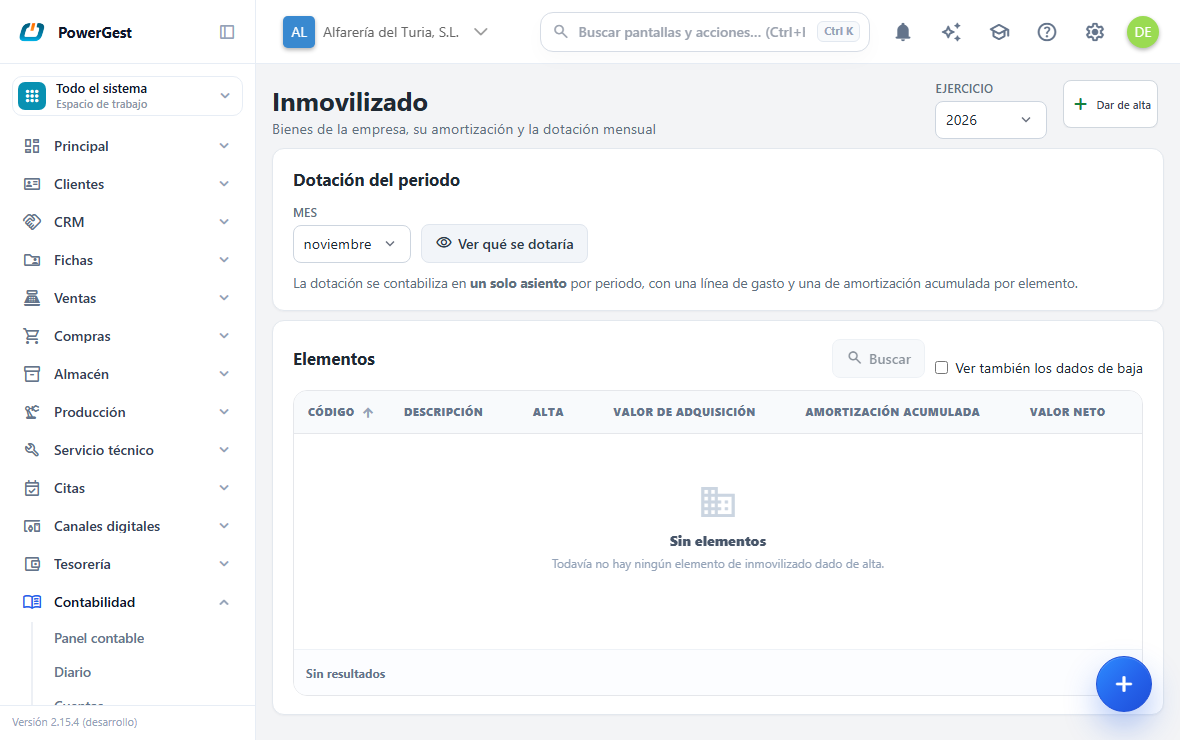
How do I add an asset?
- Go to Accounting and then Fixed assets.
- Click Add, at the top right. A window opens.
- Fill in:
- Code: a short one of your own, such as
ORD-014. It can’t be repeated. The window already suggests the next one after the last one you added (afterORD-014,ORD-015); change it if you like. With F2 or the magnifier you see the assets you already have, and if you choose one its record opens. - Description.
- In-service date: the date it was put into service, not the invoice date. A machine bought in March and installed in June starts depreciating in June.
- Acquisition value: what it cost you.
- Useful life (months): how long you expect to use it.
- Residual value (optional): what you expect to recover at the end. It isn’t depreciated.
- Method: Linear (the same charge every month, which is the usual one) or Declining balance (more at the start and less at the end, with its annual percentage).
- Code: a short one of your own, such as
- The three accounts —asset, accumulated depreciation and depreciation charge— can be left empty: the program uses the ones in the accounting settings. Change them if this asset goes to others: press F2 or the field’s magnifier to search for them in the chart. You can type them abbreviated (
281): they are saved as a full sub-account. - Click Save. The window closes and the asset’s record opens with its depreciation schedule. If something doesn’t add up, the window stays open with what you typed. Cancel closes it without creating anything.
Can I work without the mouse?
Yes, as in the program’s other records:
| Key | What it does |
|---|---|
| ← / → | Previous / next field |
| ↑ / ↓ | Field in the row above / below |
| Enter | Starts typing in the field; another Enter confirms it and moves to the next |
| Typing directly | Replaces what is in the field |
| Escape | Undoes what you typed in the field |
| F2 | Opens the account search |
In the Assets list, Tab moves through the rows and Enter opens the record. The Search button (or F2 on a row) finds an asset by code or description.
Can it be added automatically when buying?
Yes. On the purchase invoice, each line has an Asset checkbox (fixed asset). Tick it on the lines that are assets —with the mouse, or with Space when you are on the checkbox— and when you save the invoice two things happen:
- The purchase is posted to the asset account (2xx) instead of to purchases (600).
- The asset’s record is created, one per unit: if you buy 3 computers on one line, you get 3 records, each with its share of the amount. The message when saving tells you the codes created.
The line still goes into the warehouse like any purchase: the checkbox decides the account and the record, not the stock.
So you don’t have to remember, mark the item as a fixed asset in the Fixed assets section of its record (useful life, method and, if you like, the accounts and the residual value percentage). Its purchase lines start with the checkbox ticked and its record comes out with those details. You can untick it on a particular purchase, for example if this time you are buying it to resell.
A line without an item, or with an item without that section, can also be ticked. Its record comes out linear, with no residual value, with the accounts from the settings and with the default useful life (5 years, which you can change in the accounting settings). You then adjust it on the record.
If the checkbox is ticked on the purchase order or goods receipt, it reaches the invoice ticked.
Can I correct the purchase invoice when the asset has already been depreciated?
Yes, as long as you don’t change the asset. You can correct the description of another line, the payment method or the reference, and the asset’s records stay as they were, with their depreciation charges.
What you can’t do is change the asset’s line: its amount, its units, its item, the Asset checkbox or the invoice date. Nor can you void the invoice. In those cases the program saves nothing and tells you which records have depreciation charges. Undo those charges first and try again.
How do I maintain those records?
The records created this way carry a link to their invoice. If you later edit the invoice —change the amount, tick or untick a line— or void it, the records are rebuilt or removed with it. There is one exception: if any of them already has posted depreciation, the program won’t let you touch the invoice until you undo the depreciation charges.
For the same reason, a record that came from an invoice can’t be deleted from the Fixed assets screen: it is removed by unticking its line or voiding the invoice. You can change its depreciation details or dispose of it.
Credit notes don’t touch records: returning an asset is sorted out by hand, and the program warns you about it.
What about disposal, when selling?
That too. If you sell an item marked as a fixed asset with active records, the sales invoice does the whole disposal: it cancels the accumulated depreciation, takes the asset out of the assets and takes the difference to profit (771) or loss (671) — in the invoice’s own journal entry, without crediting sales (700). The record is left disposed of, linked to that invoice.
If there are several records for the same item, the oldest go first. If you sell more units than there are active records, the part without a record is posted as a normal sale and the program warns you.
How do I see what it is going to depreciate?
Open its record. Underneath is the depreciation schedule: one line per month of the useful life, with the charge, the accumulated amount and what remains. The lines already posted are marked.
The schedule calculates itself and posts nothing: it is there to look at before charging.
The last month carries the leftover cents. With 1.000 € over 3 months, the charge is 333,33 and three charges add up to 999,99; the last period depreciates 333,34 so that the asset ends up at exactly zero. Without that, there would be an everlasting cent that nobody would know the origin of.
How do I post the month’s depreciation?
- In Fixed assets, choose the Financial year and the month.
- Click See what would be charged.
- You get the list of assets that depreciate that month, with their charge and the total. And the list of those that don’t, each with its reason.
- Click Post the depreciation charge.
A single journal entry is created with two lines for each asset: the expense (68) and the accumulated depreciation (28). Only one and not one per asset: with fifty assets, the opposite would fill the journal with fifty identical journal entries every month.
The journal entry appears in the journal like any other.
Can it be charged automatically every month?
Yes, if you switch it on: in the accounting settings, Automatic depreciation charge accepts three values.
| Value | What it does |
|---|---|
| Deactivated (default) | Nothing: you charge it from the screen, as always |
| Monthly | A background process charges each month as soon as it ends |
| Annual | It charges the whole financial year at once, when the year is over |
The process uses exactly the same calculation as the button on the screen: what has already been charged is skipped, a closed period isn’t touched, and the journal entry it creates is the same one you would have created. The Fixed assets screen tells you which mode is active.
Why doesn’t an asset appear in the depreciation charge?
It appears in the list of excluded assets with its reason. These are the reasons:
| Reason | What it means |
|---|---|
| Not in use yet | Its in-service date is later than the month you are charging |
| Already charged in this period | That month has already been posted. It isn’t charged twice |
| Fully depreciated | It has no pending value left |
| Disposed of | It was sold or retired: it stopped depreciating |
The reason is shown on purpose. Without it, an asset that doesn’t appear can’t be told apart from one you forgot to add.
Can I undo a depreciation charge?
Yes. On the same card, with Undo. It reverses the journal entry and deletes the trace, so you can charge the same month again.
If the period is closed, the reversal creates a corrective journal entry instead of deleting, which is how all of the program’s accounting works.
How do I dispose of an asset?
On its record, with Dispose of. It asks for the date and the sale amount (leave 0 if you have retired it without selling it).
Before you confirm, the program shows what is going to happen: the net book value that remains and the result that comes out.
- If you sell above the net value, there is a profit (account 771).
- If you sell below it, or retire it without a sale, there is a loss (account 671).
The journal entry cancels the accumulated depreciation, takes the asset out of the assets and takes the difference to profit or loss.
The asset isn’t deleted. It stays as disposed of: its depreciation charges are posted and it has to keep explaining them.
Can I delete an asset?
Only if it has never been charged and didn’t come from a purchase invoice. If it already has posted depreciation, the program won’t let you: its journal entries are in the journal, and deleting the record would leave an expense with nothing to explain it. That is what disposal is for. If it came from an invoice, it is removed from the invoice (see above).
What if I got the useful life wrong?
Change it on the record. What has already been depreciated isn’t recalculated: it is posted and the past isn’t rewritten. The change affects the following depreciation charges, which is how a change in an accounting estimate works.
Which details of the record can I no longer change?
The ones already posted in the accounts:
- On a record that came from a purchase invoice, the acquisition value and the asset account. The invoice posted that value to that account: they are changed on the invoice.
- With posted depreciation, the accumulated depreciation account. What has been charged is in it.
The rest, such as the name, the useful life or the residual value, can still be changed on the record.
If something goes wrong
| What you see | What has happened | What to do |
|---|---|---|
| ‘…the value and the account are changed on the invoice’ | You are changing the value or the asset account of a record created by a purchase | Correct the purchase invoice |
| ‘The asset already has depreciation posted to its accumulated depreciation account’ | You are changing that account on an asset that has already been depreciated | Undo its depreciation charges first, or leave the account as it is |
| ‘There is already an asset with code …’ | The code is repeated | Use another; the code identifies the asset |
| ‘The residual value must be lower…’ | The residual value equals or exceeds the price | Lower it: otherwise there is nothing to depreciate |
| ‘There is no asset to depreciate’ | They are all excluded | Look at the list of excluded assets and their reason |
| ‘Account … is not valid’ | The code you typed isn’t an account in the chart | Search for it with F2 or the magnifier |
| ‘Account … is a summary account’ | An asset added earlier stores a group account | Open it and save it again: it is completed as a sub-account |
| ‘Period … is closed’ | You are charging a locked month | Reopen it in Operations, or charge another month |
| The asset can’t be deleted | It already has posted depreciation charges | Dispose of it |
| ‘This record was created from a purchase invoice’ | You are trying to delete a record created by a purchase | Untick Asset on its line or void the invoice |
| ‘The document created fixed asset records that already have posted depreciation charges’ | You are changing the asset’s line or the invoice date, or voiding it, and the asset has already been depreciated | Undo its depreciation charges, or correct only what doesn’t affect the asset |
| No record appears when saving the purchase | The line doesn’t have the Asset checkbox ticked, or its amount is zero or negative | Tick it; the message when saving says which lines don’t create a record |
See also: Make a manual journal entry · Close and open the financial year · Produce the balance sheet and profit and loss account
More about Accounting
- How do I find a journal entry and correct it?
- How do I close and open the financial year?
- How do I view an account’s general ledger?
- How do I add a ledger account?
- How do I define the line items of the balance sheet and the income statement?
- How do I make a manual journal entry?
- How do I print or export what I see in accounting?
- How do I assign costs by department and by project?
- Keeping the accounts
- How do I write the notes to the annual accounts?
- What is the accounting dashboard?
- How do I allocate indirect costs?