Where is each report?
The ERP has several screens called ‘reports’ that don’t do the same thing. This page tells you which is which, what each one really gives you and where to go depending on what you need.
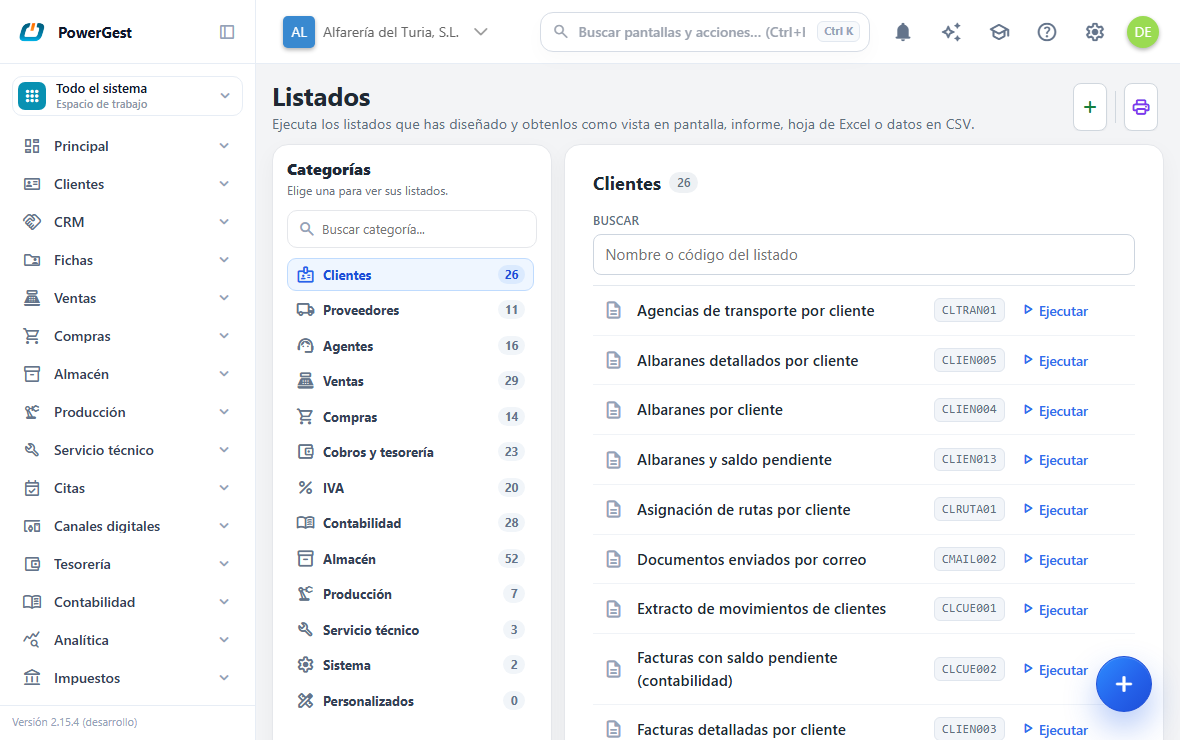
Which is the right reports screen?
Reports → Reports. It is the screen that runs reports, and the only one that takes any data from the ERP to paper or to a file.
A report is a table-shaped report that has been designed beforehand: sales by customer, items in stock, open items by due date, whatever you need. You run it with View, Report or Data.
You don’t have to design anything to get started. The ERP comes with a standard set of customer, supplier and sales agent reports, available from day one. You open them, run them and also touch them up: a standard report is edited just like a hand-made one, with the pencil on its record.
Bear two things in mind when you touch up a standard one. It is edited in place, no copy is made: everyone sees the change and the original report isn’t kept anywhere. And it is still a standard report, so it stays in its area’s tab and doesn’t move to Custom.
For whatever they don’t cover, you design your own report in Reports → Report designer, without writing anything technical. Your own report has an area and appears in that area’s tab and on its module’s reports page, in More reports; only the ones saved without an area go to the Custom tab: run a report explains the difference.
How to run one: Run a report. How to design one: Create a custom report.
What does ‘Customer reports’ give you?
Customers → Customer reports brings together the reports for the customer area:
- Customer list
- Invoices by customer
- Detailed invoices
- Delivery notes by customer
- Detailed delivery notes
- Sales summary
- Invoices with outstanding balance (the accounting one, in Customer accounts)
- Receipts summary
- Unpaid invoices (the open items one, in Receipts)
Each one runs a report that the ERP comes with as standard. You choose the option, fill in the filters and the report comes out. All the module reports pages —customers, suppliers, sales agents, sales, purchases, receipts, VAT and accounting— work the same way: the menu on the left is the Desktop ERP’s menu, grouped as it is there, and the last group, More reports, brings together the standard reports for that area that had no entry in that menu and the reports you have designed for that area.
Which standard reports there are in each area, besides those for invoices, delivery notes and instalments, and what each one gives you: the standard reports in each area.
What does ‘Sales reports’ give you?
Sales → Sales reports brings together the reports for the sales area. In the classic menu there are the orders (what was ordered, what was delivered and what is still to be delivered on each line, see run a report) and the documents (invoices, delivery notes, quotes, corrective invoices); Purchase reports has its orders group in the same way. In More reports, among others, there are the analysis ones: Sales summary by product and Sales summary by customer tell you how much has been sold between two dates; Analysis by product and Analysis by customer tell you something else: what share of the financial year falls between those dates, and at what average price it went out. It is explained in analyse the sales for a period.
Options that don’t yet have a report behind them don’t appear in the screen’s menu: what you see, you can run.
What about supplier and purchase reports?
They have their own page: Purchases → Supplier reports and Purchase reports, with the supplier list, purchase invoices by supplier, goods receipts by supplier and payments summary by supplier, among others. They are also in Reports → Reports, as standard reports, and they are run like any other report, with View, Report or Data.
The Payments group on that page has the whole supplier open items: the payments summary, the outstanding balance analysis and the instalments by due date, by account and invoice, by account and instalment, by invoice number and by invoice date. They are the same six that Treasury → Reports offers for receipts, seen from the other side, and with their dialog filtering by supplier.
The payment ones show both invoice numbers: ours, the one the document is registered with in the ERP, and the supplier’s (the Supplier invoice no. column), which is the one on the paper and the one invoices are checked against. The report ‘by supplier invoice number’ sorts by that one, and the dialog lets you search by it.
Where do I get the invoices pending receipt or payment?
In Unpaid invoices and Invoices pending payment. It is the same report, which appears in four places so that you find it wherever you look for it:
- Customers → Customer reports, Receipts group, and Treasury → Receipt reports: it opens with receipts.
- Purchases → Supplier reports, Payments group, and Treasury → Payment reports: it opens with payments.
In its dialog, Open items switches from receipts to payments and vice versa, and the title, the business partner column and the collected (or paid) column change with it.
It gives you each instalment still to be collected (or paid), grouped by customer (or supplier) and with its subtotal: the invoice, its date, the business partner’s code and name, the due date, the amount, what has been collected and what is outstanding. You can narrow it by customer or supplier, by sales agent, by invoice date, by due date and by invoice number.
Its figures are those on the Receipts (or Payments) screen with the pending bills: each instalment, what is left of it and each business partner’s total match. That is why:
- A returned bill appears only once, for the instalment that the return leaves pending again.
- A pending credit note appears as a negative and is subtracted from the customer’s total.
- An outstanding amount that came from another financial year or another programme without its invoice appears all the same, with the invoice column blank.
Don’t confuse it with Invoices with outstanding balance, which is in Customer accounts (and in Supplier accounts): that one looks at the accounting, account by account, and this one looks at the open items of bills. If the two don’t give the same figure, the difference lies between the bills and the journal entries.
What if I want to design my own?
Whatever a standard report doesn’t cover you can get by designing a report: the Sales documents and Purchase documents tables cover invoices and delivery notes on each side, the Business partners table covers customers and suppliers, and the Instalments table covers receipts and payments.
What about ‘Warehouse reports’?
Warehouse → Warehouse reports gives you stock and the catalogue: the five options in the Warehouse stock group and the Item catalogue (and, if you work with sizes, the Item catalogue by size).
It is explained in detail in Run the stock report.
Where are reports and layouts designed?
There are two different designers and it is best not to mix them up.
| I want… | I go to | What I get |
|---|---|---|
| A table of data: sales by customer, items, open items | Reports → Report designer | A report, which is then run from Reports → Reports |
| To change the paper of an invoice, a delivery note or a quote | Reports → Print layouts | A document layout, which the document’s PDF comes out with |
Both are together in Reports. In Print layouts you choose the document, see its layout and from there you design it, copy it to other documents or decide which one is printed.
How do I change the paper an invoice comes out on?
They are two different things and they are done in different places.
Choosing which of the available layouts a particular document comes out with is done on the document itself, with the invoice’s Layout drop-down. See Choose which layout a document is printed with.
Drawing a new layout (moving the logo, changing the body columns, adding a fixed text) is done in the layout editor. See Change the design of an invoice.
If something goes wrong
| What you see | What has happened | What to do |
|---|---|---|
| ‘No reports saved yet.’ | Not even the standard ones are there: something failed when the installation was prepared | Tell whoever administers the ERP; in the meantime, click Design a report |
| Clicking PDF opens the print dialog instead of a viewer | It is intended: the report goes straight to printing | Choose ‘Save as PDF’ if you want it as a file |
| I can’t see Reports in the menu | Your role doesn’t have access to that group | Ask whoever administers permissions |
See also: Run a report · Create a custom report · Run the stock report
More about Reports
- How do I group and total a report?
- How do I see what share of the year’s sales falls in a period?
- How do I change the design of an invoice?
- How do I create a custom report?
- How do I choose which layout a document is printed with?
- How do I export a report to Excel?
- How do I print labels?
- Running reports and formatting documents
- The standard reports in each area
- How do I run a report?