Publish the catalogue to the tablets
For whoever maintains the digital catalogue (item families, items, categories, texts and images) and wants the tablets to have it up to date.
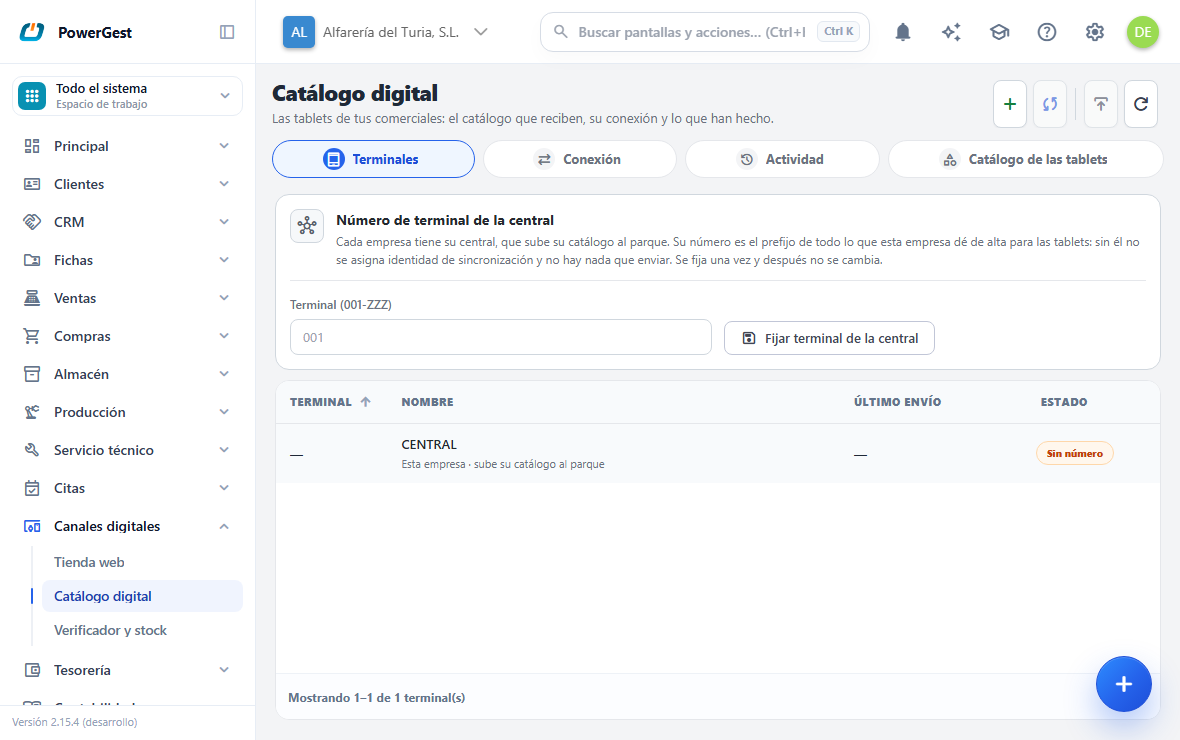
What do I need before I start?
The connection with the tablets active. The items that are to travel must be marked as publishable and not discontinued; the categories, published in a tablet catalogue, which is built in the Tablet catalogue tab (prepare the tablet catalogue).
How do I do it?
You don’t have to do anything in the normal case: each change to the catalogue is sent on its own, as a revision, in the next run. The Connection tab shows the Published version (for example 3.12: version 3, revision 12).
To send the whole catalogue again, click Publish full catalogue in the row of tabs of Digital channels → Digital catalogue. The next run opens a new version (4.0).
What happens when I do it?
The catalogue is shared by all the tablets: it is published once and each tablet collects it. Android and iOS tablets receive one file and Windows ones another, with the same content.
Catalogues from earlier versions are deleted from the server on their own when a new version is published. The current version, with all its revisions, is kept: a tablet may be halfway through collecting it.
Images only travel when they change: a replaced image changes its name and the tablet collects it; one that hasn’t been touched doesn’t travel again.
Common cases
I’ve changed a price and the tablet doesn’t see it
Prices aren’t in the shared catalogue but in each terminal’s upload, together with the stock. They arrive in the next run with the rest of the terminal’s changes.
When is it worth publishing the full catalogue?
When a tablet hasn’t connected for a while and there are a lot of accumulated revisions, or after reordering whole categories. The full one is heavier but leaves the tablet exactly like the ERP.
If something goes wrong
| What you see | What has happened | What to do |
|---|---|---|
| Publish full catalogue greyed out | There is no saved connection or you don’t have permission | Save the connection in its tab |
| An item doesn’t appear on the tablet | It isn’t marked as publishable, or it isn’t in any published category of a tablet catalogue | Check the item record and the Tablet catalogue tab |