How do I manage a production job with an order?
A production order is what is going to be made for a customer and what they are going to be charged: the products, their planned components and the quoted hours. It is carried out day by day with production reports, closed when it is done, signed by the customer and then invoiced. The order is the contract; the report, what happened each day.
When do I need an order and when is a report enough?
A production report is enough when you produce for the warehouse: the product comes in, its components go out and there is nobody to charge. It is in produce with a production report.
You need an order when the work is for someone and takes time: a piece of furniture made to measure, an installation, a run made over several days with different people. The order carries a customer, prices and VAT like a sales order, and it also knows what status it is in, how much has been carried out, what it has really cost and whether the customer has signed it.
How do I create an order?
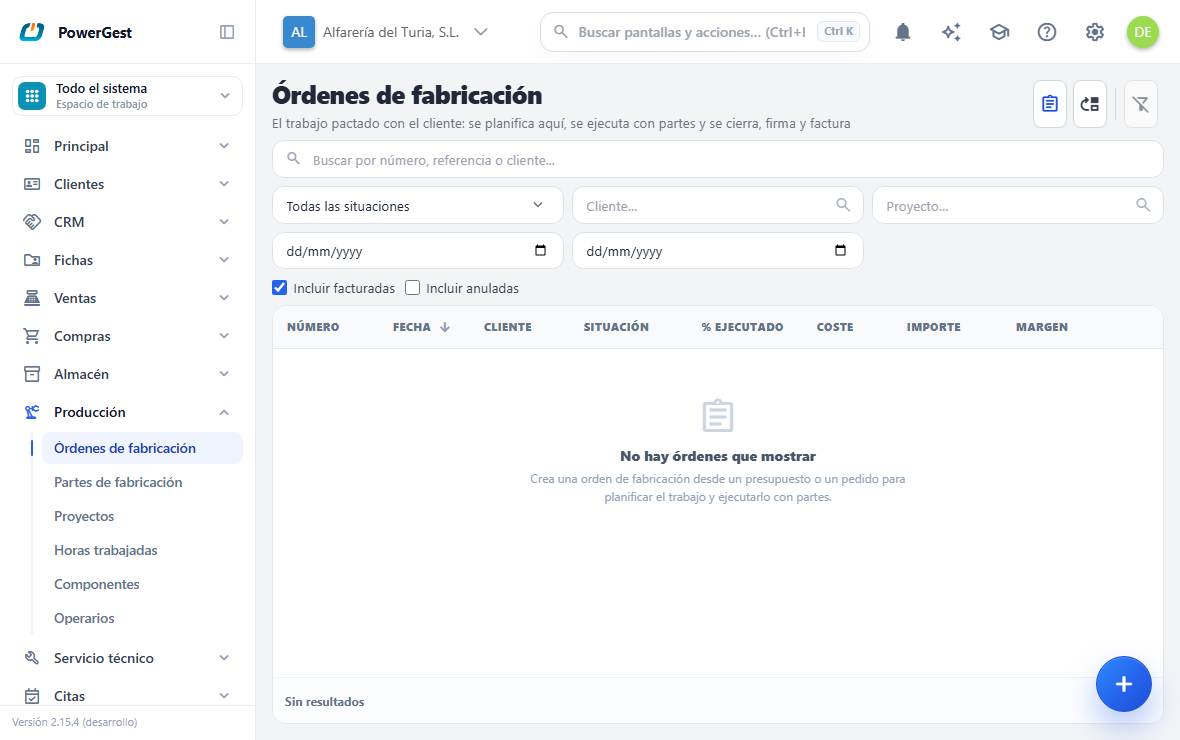
It is in Production → Production orders. There are two ways of creating one:
- From a quote or a sales order, with the From sales order or quote button: you choose the document and the order is created with its lines and its customer. It is the normal route, because the customer has almost always accepted a price beforehand.
- New order, blank, typing the customer and lines as in any sales document.
The order screen is that of a sales document with one more panel, in the header:
- Project. A code that groups several orders (and, if you want, their journal lines): ‘JOB.123’ or ‘JOB.123.PHASE1’. If the code doesn’t exist, it is created when you type it, with its higher levels.
- Expected date of completion.
- Owner: a worker. You type their code or search with the magnifying glass.
When you type an item with a bill of materials, the order always breaks down its components underneath, even if the company doesn’t break them down when selling: they are the planned components, the plan the reports will come from. They don’t move stock. A line for an item of type service is quoted hours: ‘40 h of assembly’ at its price.
When you save, the order is issued and in Open status. A chip in the action bar tells you what status it is in at any moment.
There is a third way, for companies that produce everything they sell: in Settings → Warehouse and production → Production, the box When a sales order is issued, create its production order automatically. With it, each issued sales order leaves its order created without any further steps, and the sales order is consumed by it. If for whatever reason the order can’t be created, the sales order is issued anyway and a warning gives the reason.
How do I record what is done each day?
With the New report button on the open order. A production report opens that brings the order’s lines with what is left to carry out as the proposed quantity; you lower each line to what was done that day, and the rest is left for another report. The product coming in that day can be 0: a report that only consumes material and logs hours is normal.
Each hours line on the report has three cells of its own: Worker, Work date and Actual hours. The worker is typed by their code (or chosen with the magnifying glass); the date is the report’s unless you enter another; the actual hours are only filled in if they differ from those charged. With the default settings, a report with hours isn’t saved without a worker, and the screen says so.
If the worker has a cost per hour on their record, the report’s hours line is valued at that cost when you save, and that is what adds to the order’s actual cost. With a cost of 0 on the record, the hours item’s figure applies.
When you save, the report is produced on the spot, like any report: the product comes in, the components go out, and the order doesn’t change status or use up what is pending invoicing. What has been carried out is calculated from the reports: in the list of orders it shows as % done and as Cost.
You can make as many reports as you need, as long as the order is open. If a report was wrong, it is voided like any report and the order stops counting it.
What happens when I close the order?
The Close order button asks just one thing: whether to adjust the order’s lines to what was carried out. Ticked, which is the usual case, the order’s hours become those actually worked, the planned components are replaced by those consumed, and what was done without being on the order comes in as a new line at price 0 with a warning so that you give it a price. Unticked, the order keeps its lines and only the actual cost is fixed.
The order changes to Finished: it no longer accepts reports and can’t be edited (it opens in view-only mode with the reason). If you need to carry on, Reopen sets it back to open, as long as nothing from it has been delivered or invoiced.
A point worth knowing: if the hours line comes from a sales order and more hours were worked than were ordered, the extra ones come in as a separate line at the same price. The order can’t ask the sales order for more than the sales order has.
How does the customer sign it?
With Sign, on a finished order. A window opens with the name of the person signing, a box to sign with a finger, a stylus or the mouse, and an optional note. The signature is saved with the order, which changes to Signed.
A signed order can’t be reopened: if something needs correcting, first Void signature (it goes back to finished) and then reopen. Who voided the signature is recorded.
How is it invoiced?
With Invoice. Depending on how the company is set up, the result is a delivery note (confirmed on the spot) or an invoice (left as a draft to issue when it is due). The order is converted like any document, with one difference: it doesn’t take the components out again, because they already went out on the reports. The product goes out of the warehouse as in any sale.
The company decides in Settings → Warehouse and production → Production what status the order must be in to be invoiced: by default, finished; you can require signed, or require nothing. An order that doesn’t meet the condition doesn’t appear as a source for a delivery note or an invoice, and the button says so.
Once invoiced, the chip says Invoiced. If the invoice is voided, the order can be invoiced again.
How do I print the order and the report?
With Print, just like any document. Each one has its own paper document, and both come as standard: you don’t need to design anything to get started.
The production order is the paper you take to the workshop and that the customer signs. It has the customer’s details, the lines with their quantity, price and amount, and the totals with VAT —because the order ends up being invoiced—. It also has what only a workshop document needs: under each line of a composite product, its planned components (‘Made up of: 001012 Screw ×5; …’); and on each hours line, the planned worker, the day and the quoted hours. At the bottom there is a space for a signature on paper, in case it is signed by hand instead of on screen.
The production report is the paper for the day worked, and it has neither customer nor VAT: it is an internal movement. It has the warehouse, the lines with their quantity and cost, the components consumed under each one, and —this is the part that matters on an hours report— who did the hours (worker code and name), what day they did them and how many there really were, line by line. A material line leaves those four columns blank, which is correct: nobody clocks hours for material.
If you don’t like the look of it, you change it in the layout designer, Production folder: the three sheets are there (order, report and disassembly) and you can copy and adjust them like the sales ones.
What do I see in the list?
Production → Production orders lists each order with its number, date, customer, project, status, % done (by quantity of the main lines), Cost (that of the reports while it is open; the one fixed at closing afterwards), amount, Margin and expected date. You can filter by status, customer, project, dates and text, and choose whether or not to see invoiced and voided orders.
From the row you can open the order, make a report for it, close it, reopen it, invoice it or void it. Signing is done from the order open on screen, because the signature box is needed.
In the sales list the order appears with its name, Production order, and opening it takes you to its screen.
To see several orders together by their project —what it has amounted to, its hours, its cost and what has been invoiced— there is the projects screen and the hours worked screen.
What doesn’t it do yet?
- The order always goes at the customer’s price list; there is no option to value it at cost.
- The order doesn’t reserve stock: what reserves is the sales order it comes from, which releases it when it is converted.
- There is no planning: neither workload per worker nor a calendar of expected dates.
More about Production
- How are the cost and price of a composite item calculated?
- How do I set up an item’s bill of materials?
- How do I produce with a production report?
- Producing and assembling items
- Who are the workers and how are they maintained?
- How do I see what has been done on a project and the hours it has taken?
- What is a bill of materials and when do I need one?
- What happens when I sell a composite item?