How do I connect my bank to the ERP?
A bank connection is the authorisation you give the ERP to read your accounts’ statement. With it, the bank transactions come in on their own and you can reconcile them against what you have already recorded. It is read-only: the ERP never orders payments this way.
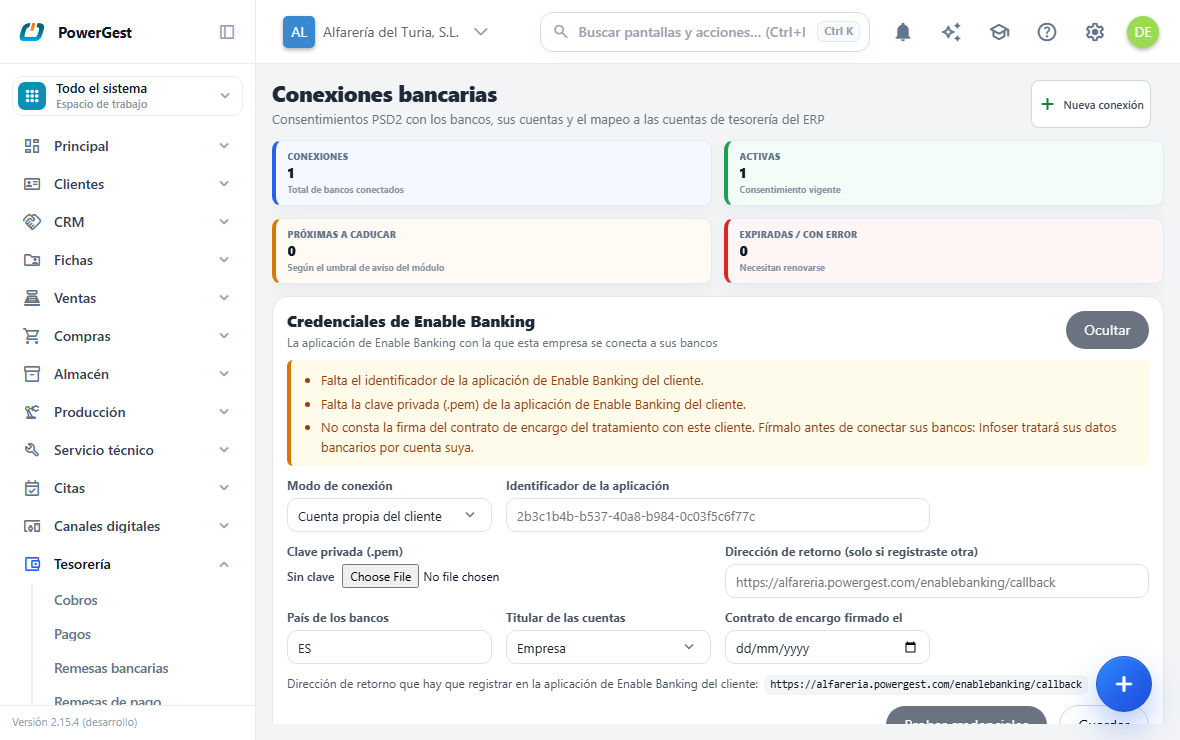
What do I need before I start?
You need a treasury account of type Bank created in the ERP for each bank account you want to follow. It is the account the transactions are compared against. If it doesn’t exist, ask whoever administers the ERP for it.
You also need your company’s access to Enable Banking, the service through which the ERP reads the banks. You choose it once, in the Enable Banking credentials panel on the same screen, under Connection mode:
- Infoser service: you connect with Infoser’s application. You don’t have to register anything or upload any key; you only need the signed data processing agreement.
- Customer’s own account: your company has its own application in Enable Banking. See Set up access to Enable Banking.
Without either of the two, the demo provider works, which creates a test connection but doesn’t bring transactions from any real bank.
Have the company’s online banking credentials to hand. You do the authorisation on the bank’s website, not in the ERP.
Connecting a bank and changing its credentials requires the Banks: connect banks permission. It doesn’t come with the Treasury one: an administrator grants it to whoever should have it.
How do I do it?
- Go to Treasury and click Bank connections.
- Click New connection.
- Choose your bank in the Bank list. The list comes from Enable Banking, with the banks of your access’s country. If the list doesn’t appear, type the bank’s name, a slash and the country: for example
BBVA/ES. - Click Continue with the bank. The browser leaves the ERP and takes you to the bank’s website.
- Authorise the access with your credentials. The bank sends you back to the ERP.
- You return to the list of Connected banks. The connection appears as Active and with its expiry date.
- Check the table of accounts for that connection. In the Treasury account column, choose the ERP account that corresponds to each bank account. It can be an account of type Bank or a POS one, if that is the one that receives the card remittance.
- If you aren’t interested in a bank account, untick Download. It stops being downloaded and doesn’t use up the daily downloads the bank allows; what has already been downloaded stays.
Why do accounts that aren’t the company’s appear?
Some banks show all the accounts of the person who authorises, including personal ones. The ERP only downloads on its own the ones with the same IBAN as a treasury account. The rest stay unticked and nothing is read from them.
Remove deletes the account and the transactions it brought from the ERP, and can’t be undone. It doesn’t appear if any of those transactions has already been reconciled, suggested or discarded: in that case untick Download. What was already downloaded stays, but nothing new comes in.
What happens when the connection becomes active?
The connection is left with the status Active and with a date in Expires on. From then on the ERP downloads the statement on its own, without you having to do anything, several times a day.
Each bank account goes into the table with its name, its IBAN and its Balance. If the IBAN matches that of a treasury account in the ERP, the ERP already proposes the pairing; if it doesn’t match, the account is left Not mapped.
A Not mapped account is synchronised all the same, but its transactions have nothing to be compared against: they can’t be reconciled. Pairing it is the step that makes the connection useful.
Only transactions the bank has already finalised come in. Provisional entries, which the bank can still change, aren’t imported until they are final.
What happens to an account I was already loading with a statement file?
If you connect a bank and one of its accounts has the same IBAN as one you were loading from a file, it moves to that connection with all its transactions, its reconciliation and its closed months. No other account is created and no transactions are repeated: the download carries on from where the last statement ended.
Only final bank transactions come in. Provisional entries, which the bank can still change, aren’t imported until they become final.
Why does the connection expire and how do I renew it?
The authorisation you give the bank has an expiry date by law. It doesn’t renew on its own: once the period is over, you have to authorise again with your credentials in front of you.
The ERP warns you beforehand. In the list, the connection is marked as About to expire with the days it has left, and you receive a notification. When it has already expired, the status changes to Expired and the statement stops being downloaded.
To renew it, click Renew on that connection’s card and repeat the authorisation at the bank. The button brings the bank’s name already filled in. The transactions already downloaded aren’t lost or duplicated.
The Error status means that the bank rejected the authorisation or that you cancelled it halfway through. It is resolved the same way: Renew and authorise again.
How do I force a download right now?
Click Sync now on the connection’s card. It downloads the statement for all its active accounts at that moment and tells you how many new transactions it has brought and how many already existed.
Downloading twice in a row doesn’t duplicate anything. Each bank transaction comes in only once, even if it appears in several downloads.
Bear in mind that the bank limits the number of downloads per day. Sync now uses up one of those downloads, so use it when you are expecting a particular transaction, not as a routine.
Why does a transaction have a different date than at my bank?
A bank doesn’t give a transaction’s date the same way through all its channels. Through the connection, a remittance can arrive dated on a Saturday that your statement shows on the Monday.
The ERP adjusts it on its own: it moves it to the business day it belongs to, taking into account its value date, weekends and national holidays. It nearly always matches your statement. Occasionally it can be a day out, and that doesn’t stop you reconciling it: the ERP compares it with the accounts using both of its dates.
You don’t need to download statements. If you load one, its dates prevail for whatever you haven’t reconciled yet, and no transaction comes in twice.
If something goes wrong
| What you see | What has happened | What to do |
|---|---|---|
| ‘Specify the bank to connect to.’ | The Bank field is empty | Type the bank’s name |
| ‘The bank '…' doesn’t exist in Enable Banking for country …’ | The name or the country don’t match the provider’s | Check the exact name and the country suffix, for example BBVA/ES |
| ‘Redirect from an unknown consent.’ | The return from the bank doesn’t match any pending connection | Start again with New connection; don’t reuse an old authorisation link |
| The connection appears as Expired | The authorisation reached its expiry date | Click Renew and authorise again at the bank |
| ‘The connection is not active (status: …); it cannot be synchronised.’ | A download was attempted with the connection expired or with an error | Renew the connection before synchronising |
| An account shows as Not mapped and there are no options in the list | There are no treasury accounts of type Bank or POS in the ERP | Ask for the bank account to be created with its IBAN |
| It synchronises but no transaction arrives | The bank’s daily quota is used up, or the connection is from the demo provider | Wait for the next cycle; if the provider is the demo one, set up access to Enable Banking |
| The connection is active but an account is missing | With your own Enable Banking access, only the accounts linked in its panel are visible | Link that account in the Enable Banking panel and click Renew |
| ‘A revoked connection cannot be activated: create a new one.’ | That authorisation was withdrawn | Create a New connection from scratch |
| ‘Connecting a bank requires the «Banks: connect banks» permission…’ | Your user doesn’t have that permission | Ask an administrator for it |
| ‘This installation does not have the Infoser service set up yet…’ | You chose the Infoser service and your installation doesn’t have it set up | Use Customer’s own account, or tell Infoser so they set it up |
| After authorising, the bank shows ‘This return link from the bank is not valid or has expired’ | The return arrived more than a day later or the link was tampered with | Go back to the ERP and click New connection again |
See also: Review the bank transactions · Reconcile the bank transactions
More about Banks
- How do I use my spreadsheets to reconcile the bank?
- How do I load the bank statement from a file?
- How do I reconcile the bank transactions?
- How do I balance a POS or payment gateway settlement?
- How do I set up my company’s access to Enable Banking?
- Connecting the bank and reconciling the statement
- How do I reconcile the bank month by month?
- How do I review my store’s POS remittances?
- How do I review the transactions that come in from the bank?