How do I find a journal entry and correct it?
The Accounting journal is the list of journal entries in the financial year. From there you search by date, account, amount or description, open a journal entry to correct it and check whether the accounts have formal errors.
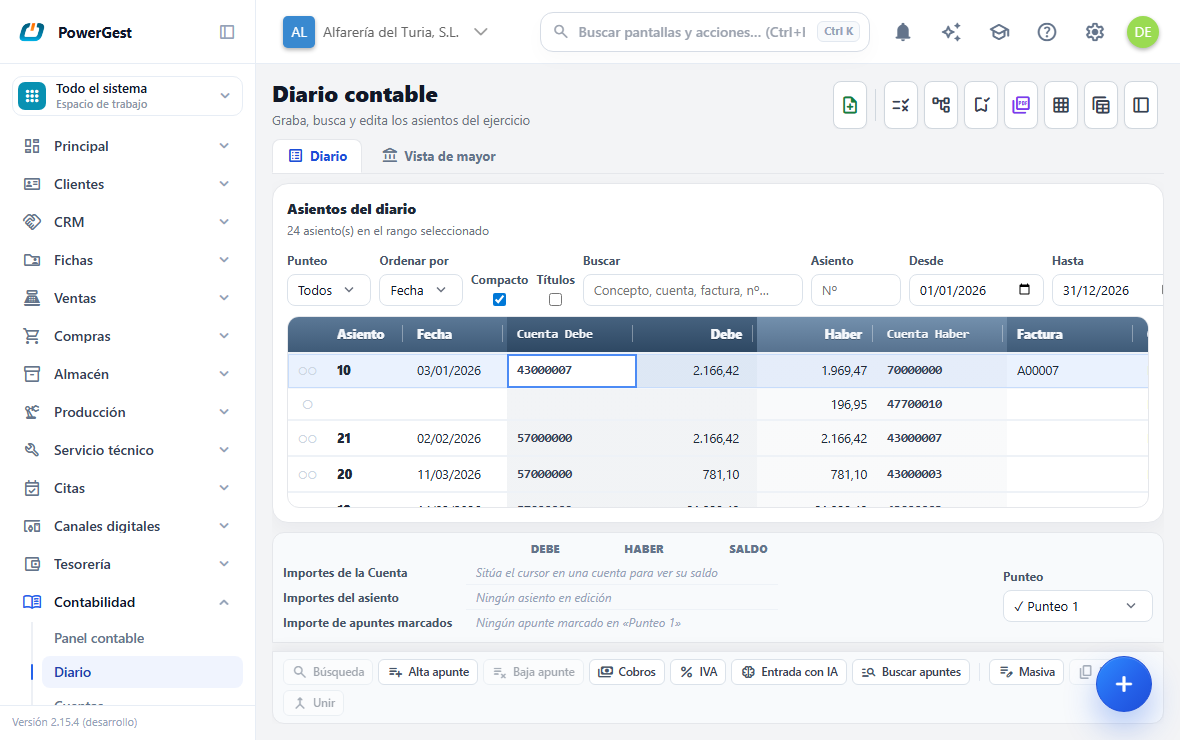
How do I see the journal entries for a date range?
Go to Accounting and then Journal. At the bottom of the Accounting journal screen is the Journal entries list.
Set the range in From and To and click Refresh. Each row is a journal line, grouped under its journal entry, with Date, Debit amount, Credit amount, Description and the Debit and Credit accounts.
The list belongs to the active company: it shows the journal entries of its financial years and only those. If you work with several companies, change company in the top bar to see another one’s journal.
The labels on each journal entry say where it comes from:
- Manual: someone typed it in the journal.
- Document: it was created by an issued invoice or another document. The Invoice column shows its number.
- Corrective: it is a reversing entry created when undoing something in a closed period.
On the journal entry of a receipt or a payment, the Invoice column shows what was typed in the Document field when it was recorded: the number of the cheque, of the transfer or a control code.
How do I move around a journal with lots of journal entries?
With the keyboard, as in a spreadsheet. Click any row in the Journal entries list and move with the arrow keys.
| Key | What it does |
|---|---|
| ↑ and ↓ | Move up and down one row. The active cell stays in the same column |
| ← and → | Move the active cell (the blue box) within the row |
| Page Down and Page Up | Move down and up a whole screen |
| Home and End | Go to the start and the end of what is in view |
| Ctrl+Home and Ctrl+End | Go to the first and the last journal entry in the journal, in one go |
| Enter | Opens the journal entry on that row for editing, in the cell you are on |
| A letter or a number | Opens the journal entry and starts typing in that cell, with what you have typed already in it. As in a spreadsheet |
| Spacebar | Marks or unmarks the journal line (see How do I mark the journal lines I have already checked?) |
The active cell is shown with a blue box inside the highlighted row. You can only type over the columns that can be edited (Debit account, Debit, Credit, Credit account and Description) and only in manual journal entries: over the number, the date or a document journal entry, typing does nothing.
And once inside a journal entry, to leave without touching the mouse:
| Key | What it does |
|---|---|
| Page Down | Saves the journal entry and jumps to the next one |
| Page Up | Saves the journal entry and jumps to the previous one |
| Shift+Enter | Same as Page Down. For laptops, where the page keys often need Fn |
| ↑ on the first line | Leaves the journal entry upwards, to the row above. If you have changed something, it saves it; if you haven’t touched anything, it just leaves |
| ↓ on the new line (the last, empty one) | Leaves downwards, to the next journal entry, with the same rule. From the last line with data, the first ↓ opens the new line and the second one leaves |
| Escape | Leaves without saving, leaving the cursor on that same journal entry. If you were typing in a cell, the first Escape discards what you typed in it and the second leaves the journal entry |
| In a document journal entry (read-only): Enter, Escape, ← or → | Go back to the list, on that same journal entry. ↓ and ↑ go back and move to the next or the previous one |
While a journal entry is open, the list switches off its blue box: there is only one highlighted cell, the journal entry’s. When you leave, the box is back where you left it.
This is how you go through the journal, correct something and carry on, without letting go of the keyboard: you go in with Enter, change whatever it is, and Page Down saves it and leaves you on the next one, in the same column. To correct the same cell in several journal entries in a row: place yourself on it, type the new value, Page Down, type, Page Down…
If the journal entry doesn’t balance, Page Down doesn’t leave: it warns you and leaves it open for you to correct it. The same goes for the arrow keys when there are changes. To leave anyway, Escape (the changes are lost).
An open journal entry takes up the same space as in the list: its lines are the same height as the read-only rows, so going into it doesn’t push the rest of the journal. If it is so long that it doesn’t fit on screen, it is positioned from its header and the cell you are on always stays in view.
The row you are on is highlighted in blue. Movement is immediate: there is no need to wait between key presses, even in a journal with tens of thousands of journal lines.
When it opens, the journal shows its end, with the cursor on the last entry line: that is where you work. To go to the beginning, Ctrl+Home.
To get back to the end from anywhere, click the Go to the end button in the header, or press Ctrl+End. There is no need to press Page Down many times: it jumps to the last entry line at once.
There is no ‘end of page’. The list doesn’t load the whole financial year —it shows a window of 60 consecutive journal entries within what the filters allow—, but you don’t notice: when you reach the edge it fetches the next block by itself and the cursor carries on. You go down and there are still journal entries, as in a spreadsheet.
With the mouse, the wheel does the same: when you reach the very bottom, it keeps fetching journal entries.
The scroll bar only covers what is loaded at that moment. To jump far, use Ctrl+End, Ctrl+Home or the Go to field.
With Tab and Shift+Tab you jump from one journal entry to the next to look at them: the journal entry you are looking at is highlighted in amber and anything you have half-done in the editor stays as it is. When you reach the edge of the window, the journal fetches the next block and the jump carries on. It only stops at the first and the last journal entry in the filters.
If scrolling is slow on an old computer, the window size can be reduced. Whoever administers the ERP changes it, and it applies to each user separately.
Can I see the journal sorted by journal entry number?
Yes. In the list header there is a Sort by drop-down with two options:
- Date — the order of the journal, and the default one.
- Journal entry no. — by the number each journal entry has.
The journal remembers how you left it: the next time you go in, it comes up in that same order. It is your own preference, not the company’s: each user has their own.
If the date range spans more than one financial year, sorting by number doesn’t mix them: first come those of one financial year and then those of the other. Numbering starts again each year, so mixing them would put two different journal entries with the same number together.
Can I see the debit and the credit on the same row, as in the classic journal?
Yes, and that is the default: the Compact checkbox, in the list header, comes ticked. Each row carries the pair: the debit account and amount on the left and the credit ones on the right. A journal entry of a customer against sales takes up one row instead of two, and the journal gets much shorter. If you prefer to see one journal line per row, untick it.
It is the same layout the journal entry has when you open it for editing, so it doesn’t change appearance when you go into it. If one side has more journal lines than the other, the extra ones go on their own row.
| Not compact | Compact |
|---|---|
| One row per journal line | One row per debit/credit pair |
| One matching mark per row | Two marks on the row with a pair: the first is the debit one and the second the credit one |
Only the way the list looks changes. The journal lines, the amounts and the balances are exactly the same.
With the keyboard everything works the same. On a row with a pair, the active cell decides which of the two journal lines you are talking about: with Space you mark the one on the side where the cell is, and with Enter the journal entry opens in that same cell.
The journal remembers how you left it, as with the sort order: it is your own preference, not the company’s.
Why are the debit and the credit shown in different shades?
So you can see at a glance which side each amount falls on. It comes like this out of the box: the list header is a blue bar, with the debit section darker and the credit one lighter, and the columns on each side have a soft background in the same shade. In addition, there is a little more space between the debit amount and the credit amount, so that two equal figures aren’t read as one.
If you prefer the list without colour, go to Settings, section Transfer, block Accounting journal, and untick Highlight the debit and credit columns in colour. Only the appearance changes, and only for you.
Can I see the name of each account in the journal?
Yes: tick the Headlines checkbox, in the list header, next to Compact. Next to each account code its name appears («43000001 Customer 1…»), in a lighter font so the code still stands out. The account columns widen to make room; if you want to see more of the description, narrow the column with its handle or untick the checkbox.
It does not make the journal slower: the name already comes with the journal lines. The journal remembers it for you, as with compact mode.
How does the journal look in a narrow window?
With the same columns, closer together: when the journal has little width —open alongside another screen, such as the reconciliation, or on a mobile— entry, date, accounts, debit, credit and invoice are seen at once; the description and the document stay on the right. The matching mark is not shown, nor the column handles, nor the account magnifier (search with F2). When you give it more width, it looks as usual again, with your column widths.
How do I go to a journal entry by its number?
With the Journal entry field, in the list header, to the right of Search. Type the number and press Enter.
The list is not filtered: it moves to that journal entry, leaves it in the middle of the screen and highlights it in amber. You see the ones before and after, and the cursor stays on it: with the arrow keys you carry on browsing from there.
If you had a search set (the Search field, the search window or the matching filter) and the journal entry was not in it, it is removed: you asked to go to that journal entry. The From and To dates are kept. If the journal entry falls outside them, you are told.
How do I find a particular journal entry?
The quickest way is the Search field in the list header, next to From and To. Type what you know and press Enter: the journal searches the description, the account (by how its code starts) and its name, the invoice number and the journal entry number all at once. To see everything again, empty the field and press Enter.
Search filters: it leaves only what matches in the list. A number also finds invoices that contain it (2867 finds invoice 342867). To go to a journal entry by its number and see the ones around it, use the Journal entry field.
To combine several criteria (the account and its side, an amount range, a condition…) there is the Journal line search window, explained below in How do I find a journal line with the search window?.
If the journal is empty or missing journal entries, look under the Journal entries title: if it says Filtered by the search: …, the list has that window’s criteria applied. The cross on that notice removes them.
How do I go straight to a journal entry, a date or an account?
In the Journal line search window (Ctrl+F), next to the buttons at the bottom, there is a Journal entry, date or account field. Type what you are looking for and press Enter, or the Go button.
You don’t have to choose anything: the journal looks at what you have typed and goes to the right place.
| If you type | It goes to |
|---|---|
1250 | The journal entry with that number |
01/07/2026 | The first journal entry on that date or later |
430 or 430.7 | The first journal entry with a journal line on that account |
The list moves there and highlights the journal entry in amber, as a look-up. It doesn’t open it in the editor or touch what you are typing. If nothing matches what you asked for within the filters you have set, a message appears and the list stays as it was.
How do I get from here to the invoice, and back?
You can reach the Accounting journal from an issued invoice: there is a View posting button there that brings you here and positions the list on that invoice’s journal entry, highlighted in amber. It is the same as Go, but without typing the number.
When you have arrived that way, ← Back to the invoice appears at the top of the screen. That link takes you back to the document you came from. If you open the journal from the menu, the link doesn’t appear: there is nowhere to go back to.
The journal entry arrives highlighted, not open for editing. If you really want to correct it, click it like any other. A journal entry that comes from a document has its limits, and they are explained in make a manual journal entry.
If that invoice’s journal entry doesn’t fit within the date filters you have set, the list stays as it was. Click Clear and try again.
How do I find a journal line with the search window?
Press Ctrl+F (or Ctrl+B), or the Search lines button in the button bar at the bottom. It is the journal’s only search window: in the desktop ERP it was F11 and F12, and here both open the same thing. Its criteria combine with each other and with the filters you already have set:
- Account and Account on…: the account and which side to look for it on: Debit/Credit (either), Debit only or Credit only. A group (
430: all its sub-accounts), the abbreviation with a dot (430.7) or the short form of a sub-account (4300001is43000001, just as when you type it in a journal entry) all work. The magnifier, or F2, opens the chart of accounts to pick one. - Minimum amount, Maximum amount and Amount on…: the amount range and its side.
- Invoice number: the journal entry whose source document has that number (
1234orA-1234both work). - Journal entry date: a particular day.
- Description contains: free text.
- Unbalanced only: leaves only the journal entries that don’t balance.
- Other conditions: a free condition, for example
Debe < 100. The Variables for ‘other conditions’ drop-down in the window itself lists what you can use.
The account, the amounts and Other conditions are checked on the same journal line: Account 4300001 with Debe < 100 finds that account’s lines for less than 100, not the journal entries that have that account on one line and a small amount on another. A credit line has Debe at zero; to keep only the debit ones, type Debe > 0 && Debe < 100.
The fields are navigated with the keyboard: the arrows and Enter move from one to the next and Escape closes the window. To search, press Page Down or F5 from any field, or the Search button.
The window has two actions:
- Search: doesn’t touch the journal. Below, in the same window, the list of journal entries that match appears (number, date, description, accounts and amount). Move through it with ↑ and ↓ and press Enter (or click) on the one you want: the window closes and the journal list is left on that journal entry, highlighted in amber, in the middle of the screen and with the earlier journal entries above it. The » Next button then appears in the button bar to jump to the next match; when there are no more, it warns you and doesn’t move. If the list says they are ‘the first ones’, refine the criteria.
- Filter the journal: turns the criteria into the screen filter and reloads the list from the beginning. Under the list title, Filtered by the search: … appears, with a cross to remove it. Clear, in the window, also undoes it.
Watch out for the F11 and F12 keys: in Chrome and Edge they belong to the browser (full screen and its tools) and don’t reach the ERP. Use Ctrl+F or the Search lines button.
How do I mark the journal lines I have already checked?
In the Journal entries list, each journal line has a mark in front of it. ○ means unmatched; a matched journal line carries the mark of its matching, with its symbol and its colour (by default, Matching 1 is a blue ✓). Matching is for ticking off the journal lines you have already gone over, for example against the bank statement.
If a journal line is marked in several matchings, it carries one mark for each. When you hover the mouse over a mark, the name of its matching appears.
There are two ways to set or remove the mark:
- Click the mark itself in the list.
- Press the spacebar on the journal line’s cell while you move around with the arrow keys. It doesn’t work if you are typing inside a cell.
The column decides which journal line the mark goes to, both in the list and in the journal entry you have open in the editor: the Debit columns match the debit journal line, and the Credit ones, the credit one. Nothing happens over Description. In the list, over the mark column itself, the first journal line on the row is matched.
Only saved journal lines can be matched: a line you have just typed has no mark until you save the journal entry. The mark is saved immediately, without going through Save, and it doesn’t change amounts or balances.
If you change something in a matched journal entry and save it, its journal lines keep the mark as long as they still have the same account and the same amount. The journal line whose account or amount you change loses the mark: what you had checked was the previous amount.
What are the different matchings for?
There are ten independent matchings on the same journal lines, as in the Desktop ERP. You choose them in the Matching selector, next to the total at the bottom, which shows each one with its mark and its name.
They let you keep several checks going at once without one getting in the way of another: for example, the bank reconciliation in one and the adviser’s review in another. Clicking a mark sets or removes the matching you have chosen; the filter and the total are always those of that matching. Changing matching doesn’t delete anything.
If your company comes from the Desktop ERP, its matchings arrive with the name and the mark they had there, and the matched journal lines arrive marked.
How much do the journal lines I have marked add up to?
Above the Journal entries list, a notice appears with the amount of the marked journal lines: Marked (‘Matching 1’): 12 journal line(s) · Debit … · Credit … · Balance ….
It counts all the matched journal lines of the journal entries that appear with the filters you have set, not only the ones you see on screen. Change the Matching and the amount is recalculated with the other one’s marks. If no journal line is marked, the notice doesn’t appear.
How do I see only what I still have to match?
Next to the Journal entries list there is a Matching selector with three options: All, Matched only and Unmatched. When you choose one, the list reloads by itself.
The filter looks at the matching you have chosen and keeps the journal entries that have some matched journal line, or some unmatched journal line, depending on what you chose. It combines with the rest of the search: date range, account, amounts and everything else still apply.
How do I change an account in many journal entries at once?
With the Bulk account change window: press Ctrl+C or the Bulk button in the button bar at the bottom. It is a separate window from the search: at the top it says which journal filter it is going to act on, and it applies the same change to all the journal entries in that filter.
- Filter first with the Journal line search window (Ctrl+F and Filter the journal) until you see exactly what you want to change.
- Open Bulk account change and fill in New account (optional), New WHOLE description (optional) or the pair …or search in the description / …and replace it with.
- Choose the Scope: Current filter or Only marked journal lines.
- If needed, narrow it down further with the window’s own criteria: Counterpart (the account that must appear on the opposite side of the journal entry), From invoice and To invoice (range by the number of the source document;
1234orA-1234both work) and Other conditions (a free condition such asDebe > 100; the Variables for ‘other conditions’ drop-down lists what you can use). They are the same criteria as the Journal line search window. - Click Preview: below appears the list of candidate journal lines, each with its checkbox. Untick the ones you don’t want to touch.
- Click Apply to marked.
Without previewing, the button says Apply to filtered and the change affects all the journal entries in the filter, not only the ones you are seeing. With the list in front of you and all of them ticked, the same; if you untick any, only the ticked ones in the list are touched.
When it finishes, a summary appears with how many journal entries and how many journal lines have been changed. If any journal entry was in a closed period, it isn’t touched and is counted separately as skipped because the period is closed.
In journal entries that come from a document, the description is changed, but the customer’s or supplier’s account is not. That account is decided by the *business partner*’s record, not by the journal.
Can I see what the change affects before applying it?
Yes. In the Bulk account change window, the Preview button shows, without touching anything:
- The notice Affects … journal entry(ies) and … journal line(s), with those skipped because the period is closed if there are any.
- The list of candidates (up to 100), one by one, with their checkbox: journal entry number, date, and the current account and description → how they would end up. The checkbox in the header ticks or unticks them all.
The numbers are the real ones: they count the whole filter, not what is visible in the list. If you touch any filter or any field in the panel, the preview is cleared and you have to ask for it again, so that it never describes something different from what is going to be applied.
Until you ask for it, the notice only gives a rough idea of how many journal entries in the filter it affects: Affects ALL journal entries in the current filter (the grid shows only part of them).
How do I replace just one word within the description?
There are two ways to change the description, and they are mutually exclusive:
- New WHOLE description: throws away whatever description there was and puts in the one you type.
- …or search in the description / …and replace it with: leaves the rest of the text as it is and changes only that part. For example, searching for
MADRIDand replacing it withBarcelonaturns ‘Workshop purchase MADRID’ into ‘Workshop purchase Barcelona’.
The search ignores capitals: madrid finds MADRID. If you leave the …and replace it with field empty, the text you searched for is deleted from the description.
With this second way, only the journal lines whose description contains the text searched for are touched, so the ‘affects N’ tells the truth. If you fill in both ways at once, the program warns you and does nothing.
How do I change only the journal lines I have marked?
In the Bulk account change window, the Scope selector has two options:
- Current filter: all the journal lines that appear with the filters are changed.
- Only marked journal lines (‘Matching 1’): only the journal lines that carry the mark of the matching chosen in the Matching selector are changed, even if the journal entry has more journal lines.
This is the way to go over things by hand with the spacebar and then reclassify exactly what is marked. The rest of the journal entry stays as it is.
How do I check that the accounts have no errors?
Click Check at the top of the Accounting journal. It goes through all the journal entries in the financial year and, in addition, each invoice against what the accounts say about it: its journal entry, its VAT book, its withholding book, its open items and its receipt. It doesn’t change anything: it only looks.
The result appears in a window over the journal. If everything is fine you will see No issues in … journal entr(ies). If not, the list of issues appears with the type, the journal entry, the date and the detail of each one. Move through it with ↑ and ↓: Enter (or a double-click) closes the window and takes the journal to that journal entry, which is where it gets fixed. If the journal entry isn’t within the journal filters, it opens anyway. Escape closes the window. These are the kinds:
| Issue | What it means |
|---|---|
| Imbalance | The Debit total doesn’t match the Credit total in that journal entry |
| No account | A journal line was left without a ledger account |
| Account of another company | A journal line is in an account that doesn’t belong to this company or no longer exists |
| Group account | A journal line is in a group account (such as 430), which doesn’t accept journal lines |
| No amount | A journal line has both Debit and Credit at zero |
| No description | The journal entry has no description either in the header or on any line (a description of only spaces counts as empty) |
| Duplicate no. | Two journal entries in the financial year share the same number |
| Numbering gap | A number is missing from the financial year’s sequence |
| Date out of range | The journal entry has a date outside the financial year’s dates |
| Period | The journal entry is in a month that isn’t the one of its date: the general ledger adds it to another month |
| Partner of another company | A journal line is in the name of a customer or supplier that doesn’t belong to this company or has been deactivated |
| Account of another partner | A journal line is in a customer’s or supplier’s account, but in the name of another one |
| Orphan VAT | A VAT record isn’t linked to any journal entry or any document |
| General ledger | An account’s general ledger doesn’t match its journal lines |
| Invoice without entry | An invoice with an amount has no journal entry |
| Several entries | An invoice has more than one journal entry (the reversing entries of a closed month don’t count) |
| Entry in another year | The invoice’s journal entry is in another financial year |
| Different total | What the journal entry posts to the customer or supplier and to cash or bank isn’t the invoice total |
| Entry VAT | The journal entry’s VAT isn’t the invoice’s (output VAT on sales, input VAT on purchases) |
| Entry withholding | The journal entry’s withholding isn’t the invoice’s |
| Not in VAT book | The invoice isn’t in the VAT register |
| VAT book | The VAT book’s tax amounts aren’t the invoice’s, or the invoice is in it twice |
| Withholding book | The withholding book’s amounts aren’t the invoice’s. Forms 111 and 115 are taken from the book |
| Receipt and open items | What the journal entry records as received, the immediate receipt and the open items don’t add up to the total. For example, a deferred invoice with a cash payment inside its journal entry |
| Receipt in another account | An invoice paid immediately went into a cash account, but its Cash / Bank (or its payment method) says a bank or a card terminal |
| Unpaid immediate payment | An invoice with an immediate payment method has outstanding open items |
| Instalment | An instalment is marked as paid when it isn’t, or as outstanding when it is already paid |
| Instalment of another partner | An instalment is in the name of a different customer or supplier from its invoice’s |
| Cancelled document | A cancelled or deleted invoice still has a journal entry, VAT in the book or outstanding open items |
| Batch without entry | A direct debit or payment batch has no journal entry |
| Cancelled batch | A cancelled batch still has its journal entry |
| Batch in another account | A batch’s journal entry doesn’t post to the account of its bank or cash |
| Negative cash | A cash account goes below zero on some day: more money cannot go out than there is |
Up to 200 issues of each kind are listed. If there are more, a last line says how many are left.
The same check is in Accounting > Operations, with the Check financial year button. It is a good idea to run it before closing the financial year and before filing taxes.
How do I correct invoices collected into the till that belonged to the bank?
In Accounting > Operations, click Check financial year. If an invoice paid immediately went into the till when its Cash / Bank says a bank, it is shown as Receipt in another account, and the Regenerate the journal entries (N) button appears below the table.
The same button fixes the Receipt and open items issues of invoices made in the ERP. For example, a purchase issued as an immediate payment that later became deferred: its open items are already outstanding, but its journal entry still says it was paid in cash. Those that come from the Desktop ERP aren’t offered: their journal entry is the one from the desktop journal, and regenerating it would replace it with another one. Correct those by hand in the journal entry.
Click the button and confirm with Yes, regenerate. The program redoes each invoice as if you saved it now: its receipt moves to the account the invoice says and its journal entry takes the money where it belongs, or stops doing so if the invoice is deferred. Nothing else on the invoice changes: not the amounts, not the VAT, not its Veri*Factu record. They are all done at once, even if there are a hundred.
When it finishes, the list appears invoice by invoice, with Regenerated or the reason it could not be done. Those that could not be done stay as they were. This happens, for example, if the month is closed or if the collection was already included in a cash count. The check runs again by itself.
The regenerated journal entry gets a new number, just as when an invoice is corrected by hand. Its previous number is freed and the check shows it as a gap.
Why is there a single gap ‘inherited from the Desktop ERP’?
If the accounts were brought over from the Desktop ERP, the numbering has gaps left by the transfer itself: the journal entries of voided invoices and of 0 € invoices aren’t brought over, and receipts are posted again with other numbers. They aren’t your mistakes.
That is why the check groups all the gaps up to the last journal entry brought over into a single line: Numbering gaps inherited from the desktop ERP up to journal entry …, with how many gaps and how many numbers are missing. Gaps that appear after that journal entry are listed one by one: those are the ERP’s and it is a good idea to look at them.
The Journal entry check report (Accounting reports) still marks each gap on the journal entry that comes after it.
Can journal entries be renumbered?
No. A journal entry gets its number when it is saved, and there is no operation that renumbers the journal. To know whether the numbering has gaps and where, run the check in Accounting → Operations (the section on checking that the accounts have no errors, above): it lists each gap, and puts the ones that come from the desktop ERP on a single line.
What happens if I correct a journal entry in a month that is already closed?
A closed period is never changed. When you save a change to a journal entry in a closed month, the program does two things at the same time:
- It creates a corrective journal entry for the original, with Debit and Credit swapped and today’s date. The original stays untouched.
- It creates a new journal entry with the content you have typed.
The result is the same balance as if you had corrected it, but with the whole history in view. It is what a tax inspection expects. In an open month none of this happens: the journal entry is corrected in place.
A journal entry in a closed month is corrected only once. If it already has its corrective entry, the program won’t let you delete it or undo it again: the second corrective entry would cancel the first and the balance would be wrong.
Closing, opening and regularisation journal entries are not corrected from the journal. They are undone from Operations, which is what created them.
If something goes wrong
| What you see | What has happened | What to do |
|---|---|---|
| ‘The bulk change does not specify any change’ | You haven’t entered a new account or a new description | Fill in New account, New WHOLE description or the text to search for |
| ‘Enter the WHOLE new description or the text to find and replace…’ | You have filled in both ways of changing the description | Empty one of the two |
| ‘The ‘only marked journal lines’ scope needs a matching set’ | The Scope is Only marked journal lines and no matching is applied | Choose a matching in the Matching selector |
| The preview says 0 journal line(s) | No journal line in the filter contains the text searched for | Check the text in …or search in the description |
| The preview has disappeared | You have changed a filter or a field in the panel | Click Preview again |
| The bulk change says it has skipped journal entries | They were in a closed period | Reopen the month in Operations if it really has to be changed |
| ‘…belongs to a closed period and already has its corrective entry’ | That journal entry has already been corrected once | Nothing to do: the corrective entry already leaves it at zero. If another change is needed, make a new journal entry |
| ‘The journal entry belongs to a year-end closing or opening operation’ | You are correcting from the journal an entry that an operation created | Undo the closing or the opening in Operations |
| The check shows Numbering gap | A number is missing from the financial year’s sequence | It almost always comes from an old deletion. Tell whoever administers the ERP. If it says inherited from the desktop ERP, the transfer left them: there is nothing to do |
| The check shows Imbalance | That journal entry doesn’t balance | Open it from the journal and balance its amounts |
| Searching by account finds nothing | The code isn’t typed correctly | Try the group prefix, for example 43 |
| ‘The condition is not valid…’ | The Other conditions expression has a typing error | Correct it; to compare you use ==, not = |
| ‘The condition uses …, which does not exist’ | A variable name is misspelt in Other conditions | Look at the Variables for ‘other conditions’ drop-down |
| No journal entry meets the criteria. | No journal entry in the filters matches the window’s criteria | Loosen the criteria or widen the date range |
| The journal is empty even though Matching is on All | The list has criteria from Filter the journal applied | Look for the Filtered by the search: … notice under the list title and click its cross |
With Debe < 100, credit lines come up | A credit line has Debe at zero, and zero is less than 100 | Type Debe > 0 && Debe < 100 |
| The F11 or F12 key opens something else | Chrome/Edge reserve those keys | Use Ctrl+F or the Search lines button in the button bar |
| Journal entry not found when using Go | That number is outside the filters you have set | Widen the date range, or click Clear and repeat |
| When typing a date in Go, it goes to an account | You typed it without slashes or hyphens, and 1072026 is a number | Type it as 01/07/2026 |
| Journal entries are missing at the end of the list | The list shows a window, not the whole filter | Keep going down with ↓, Page Down or the wheel: it fetches them by itself. To go to the end in one go, Ctrl+End |
| The arrow keys don’t move anything | The cursor isn’t in the list, but in a filter or in the editor | Click any row in the list and try again |
| Escape doesn’t leave the journal entry the first time | You were typing in a cell: the first Escape discards what you typed in it | Press Escape again |
| Page Down doesn’t leave the journal entry | The journal entry doesn’t balance, so it can’t be saved | Balance it, or leave with Escape if you don’t want to save the changes |
| A journal entry appears on a single row with · no journal lines | That journal entry has no journal lines visible from here | Open it with Enter to see it; if it shouldn’t be empty, tell whoever administers the ERP |
| The list is left with no rows and the arrow keys don’t respond | The cursor has no row to be on | Press Ctrl+Home or Ctrl+End: they work even if the cursor isn’t in the list |
| The spacebar doesn’t match anything | You are typing inside the cell, or the column isn’t a Debit or Credit one | Leave the cell and place yourself on an account or an amount |
| A journal line you have just typed has no mark | Only saved journal lines can be matched | Save the journal entry and match it afterwards |
| A journal line’s mark has disappeared | You saved the journal entry with a different account or amount on that journal line | Match it again: the mark was for the previous amount |
| The marked total doesn’t count a journal line that has a mark | Its mark belongs to another matching | Choose that matching in the Matching selector; hovering the mouse over the mark shows its name |
| I can’t edit the journal entry I have opened | It comes from a document or it is a corrective entry | See make a manual journal entry |
See also: Make a manual journal entry · Close and open the financial year · View an account’s general ledger
More about Accounting
- How do I depreciate fixed assets?
- How do I close and open the financial year?
- How do I view an account’s general ledger?
- How do I add a ledger account?
- How do I define the line items of the balance sheet and the income statement?
- How do I make a manual journal entry?
- How do I print or export what I see in accounting?
- How do I assign costs by department and by project?
- Keeping the accounts
- How do I write the notes to the annual accounts?
- What is the accounting dashboard?
- How do I allocate indirect costs?