How do I produce with a production report?
A production report is the document you produce with: the product comes into the warehouse and its components go out, in a single document and in one go. It has no customer, no prices, no VAT and no due date: it isn’t issued to anyone, it only moves stock.
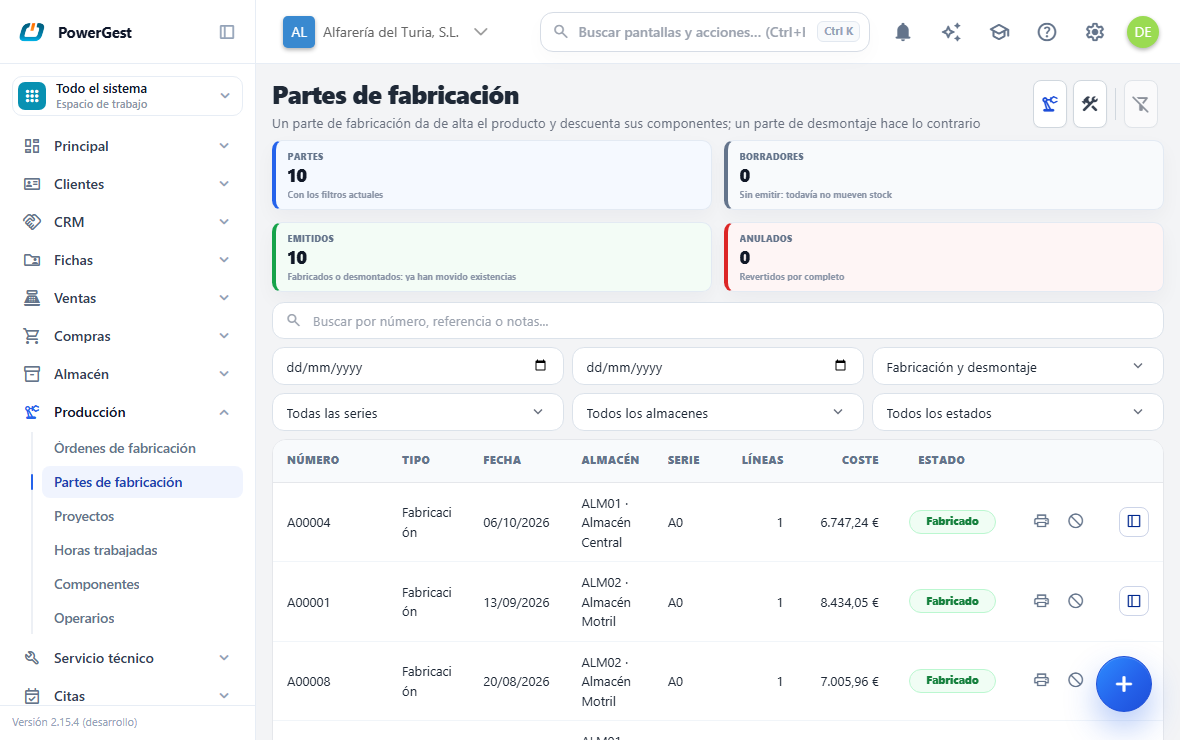
Where is it and how do I create one?
In the Production → Production reports menu. The New production report button opens the form.
The header is short because a report needs little: Document (series and number), Date, Reference, Warehouse, Layout and Remarks. There is no customer, no payment method, no sales agent and no currency, and there is no financial summary at the bottom: a report has no amounts.
Then you type the lines just as in any document: the item code and the quantity to produce. When you have finished, Save.
What happens when I type the code of an item with a bill of materials?
Its components appear right underneath, in grey and italics, indented. They are lines of the same document —the breakdown— and the program calculates them from the bill of materials, with the quantity you have entered.
Those rows can’t be edited in the grid: they are read-only on purpose, so that a breakdown doesn’t go wrong because of a typing slip. To change them there is the components window.
If you change the product quantity, the breakdown is reworked on its own.
How do I adjust a line’s components by hand?
In the line’s Comp. column there is an icon, and the cell shows how many components it has. The icon opens the components window; it also opens with F9 when you are on that cell.
Inside you can:
- Change the quantity of a component.
- Add one that isn’t in the bill of materials, by its code.
- Remove one you aren’t going to use in this production.
- Regenerate from the item record: undoes your adjustments and goes back to what the record says.
- Mark as manual: freezes the breakdown so that the program stops recalculating it.
- Open the batch/serial number breakdown of each component, if that item uses them.
Nothing you do inside changes the document until you click OK. With Cancel everything is discarded.
What does it mean when a breakdown is ‘Manual’?
That you have changed it yourself and the program stops reworking it.
A breakdown starts as Automatic (from the item record): if you change the product quantity, it is recalculated. As soon as you add, remove or change a component, it becomes Manual (adjusted by hand) and stays as you left it.
That has a consequence worth knowing: if a manual breakdown no longer matches the product quantity —because you changed that quantity afterwards—, the program warns you and opens the window for you, but doesn’t touch it. It is your breakdown. To go back to the one on the record, Regenerate from the item record.
What if a component is itself composite?
It is broken down too, up to three levels within the same document. In the grid you can see it by the indentation: the product at the top, its components one level in, and their components two levels in.
A composite component isn’t always produced in full. Depending on the settings, the program uses whatever stock there is of that component and only produces what is missing, consuming its parts for that portion. This is explained in sell a composite item.
How do batches work on a report?
Just as in any document, with one welcome difference: the product comes in, so if it uses batches you have to type its batch, as in a purchase. The components go out, so the program proposes their batches on its own, by age or by expiry date, and you only have to confirm.
The batch you type when producing is the one that will later go out when you sell the product. Traceability is complete: from the batch of a part you can get to the report that consumed it and to the product that came out.
How do I log the hours and who did them?
A line for an item of type service on a report is labour hours. As soon as you type one, the grid shows three more cells for that line: Worker, Work date and Actual hours. On a product line those cells are there, but they don’t accept anything.
- Worker: the code of the worker who worked those hours. You type it (the program puts it in the company’s format, usually in capitals) and, if it doesn’t exist, it warns you. With the default settings the report isn’t saved without a worker, and the message says so.
- Work date: the day. It starts with the report date and accepts the same as the header date (‘1/9’, ‘hoy’ for today, ‘-1’).
- Actual hours: only if more or fewer hours were worked than are charged (the line quantity). Empty means ‘the same’.
If the report carries out a production order, the order’s hours come in already as hours lines on the report, with the date filled in and the worker blank so that you say who.
What happens when I click Save?
The report is produced in that very act: it doesn’t stay as a draft waiting to be issued, because a report isn’t an invoice. When you save:
- the product adds stock in the line’s warehouse, with its batch;
- each component subtracts its own;
- each line stores the cost it was produced at.
The report’s status changes to Produced. If something fails, nothing is done: the report stays as it was.
How do I view, print or void a report?
In Production → Production reports you have them all, with the number, the date, the warehouse, how many lines it has, the cost of what was produced and the status. If the report carries out a production order, the list also shows that order’s number and its project; a standalone report has those two columns empty. You can filter by text, by dates, by series, by warehouse and by status.
There are three statuses: Draft (it doesn’t move anything yet), Produced and Voided.
- To open one, click its row.
- To print, the button on the row: it comes out as a PDF with the Production report layout, which lists the products with their cost and, under each one, its components.
- To void, the red button on the row. Voiding puts the stock back exactly as it was: the product goes out again and the components come back in. The report keeps its number and is marked as voided.
Editing a report that has already been produced also works: when you save again, the program reverses the previous version and applies the new one.
Can you do the opposite, disassemble a product?
Yes: there is the disassembly report, which is the production report the other way round. The product goes out of stock and its components come in, with the same breakdown and the same batch rules: the product going out carries the batch the program proposes and the components coming in ask for theirs.
It is for undoing an assembly or for recovering parts from a product that is being discontinued. You create it from the same screen as production reports, with the New disassembly button. In the list the two types sit side by side: the Type column says whether each document is Production or Disassembly, you can filter to see only one or the other, and a disassembly that has been done appears as Disassembled.
There is one difference from the production report: in a disassembly the components come in as they are. A component that is itself composite isn’t disassembled on its own; if it also needs undoing, it gets its own disassembly report.
Each component coming in is valued at its cost, and the product going out at its own. Voiding a disassembly brings the product back and withdraws the components. The PDF comes out with the Disassembly report layout, in the Production folder of the designer.
Previous: Set up an item’s bill of materials · Next: Sell a composite item
More about Production
- How are the cost and price of a composite item calculated?
- How do I set up an item’s bill of materials?
- Producing and assembling items
- Who are the workers and how are they maintained?
- How do I manage a production job with an order?
- How do I see what has been done on a project and the hours it has taken?
- What is a bill of materials and when do I need one?
- What happens when I sell a composite item?